Kanoa MES Accelerator
# Operator Startup Checklist
**Created using:** Kanoa MES v1.14.2
**Last updated:** February 6, 2026
Download Resource
.default})
 This is a built-in extensibility hook in **Kanoa MES** that tells Kanoa:
> "When an operator presses Start Run, open this custom view instead of immediately starting the run."
#### Step 3 — Attach Checklist Metadata to a Work Order
Startup checklist instructions are stored on the order as [Production Order Metadata](https://kanoa-software.netlify.app/kanoa-ops/order-management#production-order-metadata).
The accelerator uses the metadata Name **"Startup Checklist"**.
The value is a JSON-encoded list of Markdown strings, for example:
```python
[
"**Step 1:** Confirm tooling is installed",
"**Step 2:** Verify material is loaded",
"**Step 3:** Validate machine setpoints"
]
```
You can do this via script using [system.kanoa.order.addProductionOrderMetaData](https://kanoa-software.netlify.app/systemFunctions/order/addProductionOrderMetaData) or use the provided utility screen `accelerators/startupChecklist/addChecklistToOrder`.
#### Step 4 — Run the Order on the Asset and complete the Checklist
Now that you have a Production Order with the checklist metadata and an asset that is configured to use our custom checklist pop-up as its run setup view, we can see this in action:
1. Open the Asset's [**Run Control**](https://kanoa-software.netlify.app/kanoa-ops/asset-operation) screen.
2. Go to the **Orders** tab and select the Production Order that you added a checklist to.
3. Click the **Start Run** button.
4. Instead of the run starting, you should see the Checklist pop-up. The pop-up's **Start Run** button will be disabled until all checklist items are complete. Check all checklist items. Start the run.
## Detailed Walkthrough
### accelerators/startupChecklist/addChecklistToOrder
This is a built-in extensibility hook in **Kanoa MES** that tells Kanoa:
> "When an operator presses Start Run, open this custom view instead of immediately starting the run."
#### Step 3 — Attach Checklist Metadata to a Work Order
Startup checklist instructions are stored on the order as [Production Order Metadata](https://kanoa-software.netlify.app/kanoa-ops/order-management#production-order-metadata).
The accelerator uses the metadata Name **"Startup Checklist"**.
The value is a JSON-encoded list of Markdown strings, for example:
```python
[
"**Step 1:** Confirm tooling is installed",
"**Step 2:** Verify material is loaded",
"**Step 3:** Validate machine setpoints"
]
```
You can do this via script using [system.kanoa.order.addProductionOrderMetaData](https://kanoa-software.netlify.app/systemFunctions/order/addProductionOrderMetaData) or use the provided utility screen `accelerators/startupChecklist/addChecklistToOrder`.
#### Step 4 — Run the Order on the Asset and complete the Checklist
Now that you have a Production Order with the checklist metadata and an asset that is configured to use our custom checklist pop-up as its run setup view, we can see this in action:
1. Open the Asset's [**Run Control**](https://kanoa-software.netlify.app/kanoa-ops/asset-operation) screen.
2. Go to the **Orders** tab and select the Production Order that you added a checklist to.
3. Click the **Start Run** button.
4. Instead of the run starting, you should see the Checklist pop-up. The pop-up's **Start Run** button will be disabled until all checklist items are complete. Check all checklist items. Start the run.
## Detailed Walkthrough
### accelerators/startupChecklist/addChecklistToOrder
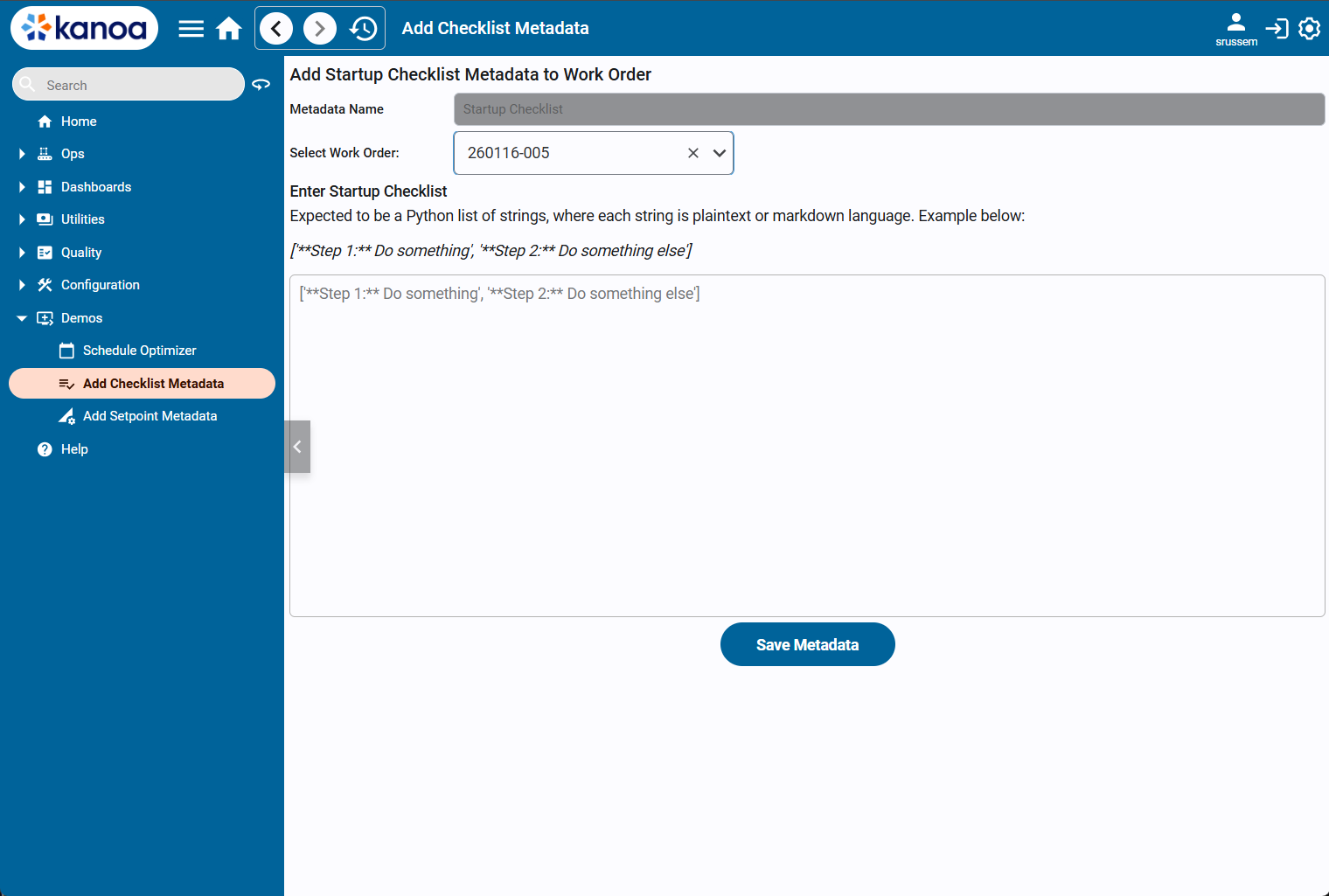 #### Purpose
This is a utility screen used to quickly attach checklist metadata to a work order for testing, demos, or non-ERP environments.
#### Key Features
- Select a Production Order that is **Released** or **Scheduled**
- Enter checklist instructions as a Python list of markdown strings
- Save metadata directly onto the order
#### Implementation Details
When the **Save** button is pressed, the view:
- Validates the selected work order
- Checks whether metadata already exists
- Adds or updates the `"Startup Checklist"` metadata value using
This provides a fast way to populate checklist requirements during implementation.
### accelerators/startupChecklist/main
#### Purpose
This is a utility screen used to quickly attach checklist metadata to a work order for testing, demos, or non-ERP environments.
#### Key Features
- Select a Production Order that is **Released** or **Scheduled**
- Enter checklist instructions as a Python list of markdown strings
- Save metadata directly onto the order
#### Implementation Details
When the **Save** button is pressed, the view:
- Validates the selected work order
- Checks whether metadata already exists
- Adds or updates the `"Startup Checklist"` metadata value using
This provides a fast way to populate checklist requirements during implementation.
### accelerators/startupChecklist/main
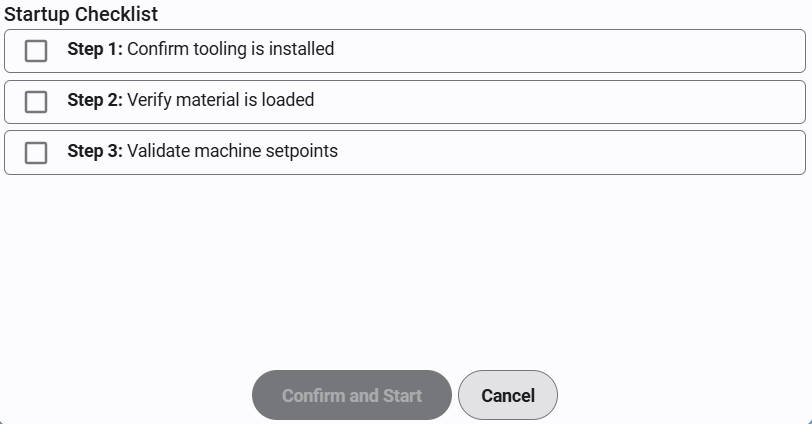 #### Purpose
This is the primary checklist popup view launched at run start.
It is assigned to the asset via the [`_runSetupViewPath`](https://kanoa-software.netlify.app/configuration/attributes) Custom Attribute.
#### Responsibilities
This view handles the complete workflow:
- Load checklist instructions from work order metadata
- Display checklist items in a Flex Repeater
- Validate completion
- Start the run only after confirmation
#### Checklist Loading
When opened, the view reads:
- `workOrderId` from the popup parameters
- `"Startup Checklist"` (hard-coded) metadata from the order
The metadata value is decoded using:
`system.util.jsonDecode(...)`
The results are then mapped into the `"row"` View in a Flex Repeater.
#### Operator Interaction
Operators check off each checklist item.
The **Start** button remains disabled until all items are complete.
Validation is performed by iterating through all instance statuses.
#### Starting the Run
Once confirmed, the view starts the production run using [system.kanoa.event.assetOperationChange()](https://kanoa-software.netlify.app/systemFunctions/event/assetOperationChange)
This ensures the run begins through standard Kanoa operational logic, even though startup was redirected into a custom workflow.
### accelerators/startupChecklist/row
#### Purpose
This is the reusable checklist row component displayed inside the Flex Repeater.
#### Features
- Checkbox completion state
- Markdown-rendered instruction text
- Visual styling when complete
#### Binding Structure
Each row expects:
- `value.markdown` → instruction text
- `value.status` → completion boolean
Because the binding is bidirectional, row updates flow back to the main view automatically.
## Conclusion
### Common Use Cases
This accelerator is useful for:
- Operator setup verification
- Safety and compliance enforcement
- Standardized run startup procedures
- Reducing startup mistakes and downtime
- Industry-specific pre-run requirements (food, aerospace, regulated manufacturing)
### Expansion Opportunities
This accelerator is intentionally simple, but can be extended easily:
- Add conditional checklist items based on asset type or product
- Include other startup steps directly in the run start pop-up, like machine setups
- Use the same method to display other relevant metadata to the operator before starting a run
- Leverage **Kanoa Quality** to manage the startup checklist
- Valuable if you need to check against specifications or tolerances
- Useful if you need more detailed logging and reporting of startup data
### Summary
The Operator Startup Checklist Accelerator demonstrates a practical pattern for:
- Driving operator workflows from order metadata
- Injecting custom run-start behavior using `runSetupViewPath`
- Enforcing startup compliance with minimal scripting
- Providing reusable Perspective screens for integrators
This is a high-value example of how **Kanoa MES** can be extended quickly while staying aligned with core platform behavior.
#### Purpose
This is the primary checklist popup view launched at run start.
It is assigned to the asset via the [`_runSetupViewPath`](https://kanoa-software.netlify.app/configuration/attributes) Custom Attribute.
#### Responsibilities
This view handles the complete workflow:
- Load checklist instructions from work order metadata
- Display checklist items in a Flex Repeater
- Validate completion
- Start the run only after confirmation
#### Checklist Loading
When opened, the view reads:
- `workOrderId` from the popup parameters
- `"Startup Checklist"` (hard-coded) metadata from the order
The metadata value is decoded using:
`system.util.jsonDecode(...)`
The results are then mapped into the `"row"` View in a Flex Repeater.
#### Operator Interaction
Operators check off each checklist item.
The **Start** button remains disabled until all items are complete.
Validation is performed by iterating through all instance statuses.
#### Starting the Run
Once confirmed, the view starts the production run using [system.kanoa.event.assetOperationChange()](https://kanoa-software.netlify.app/systemFunctions/event/assetOperationChange)
This ensures the run begins through standard Kanoa operational logic, even though startup was redirected into a custom workflow.
### accelerators/startupChecklist/row
#### Purpose
This is the reusable checklist row component displayed inside the Flex Repeater.
#### Features
- Checkbox completion state
- Markdown-rendered instruction text
- Visual styling when complete
#### Binding Structure
Each row expects:
- `value.markdown` → instruction text
- `value.status` → completion boolean
Because the binding is bidirectional, row updates flow back to the main view automatically.
## Conclusion
### Common Use Cases
This accelerator is useful for:
- Operator setup verification
- Safety and compliance enforcement
- Standardized run startup procedures
- Reducing startup mistakes and downtime
- Industry-specific pre-run requirements (food, aerospace, regulated manufacturing)
### Expansion Opportunities
This accelerator is intentionally simple, but can be extended easily:
- Add conditional checklist items based on asset type or product
- Include other startup steps directly in the run start pop-up, like machine setups
- Use the same method to display other relevant metadata to the operator before starting a run
- Leverage **Kanoa Quality** to manage the startup checklist
- Valuable if you need to check against specifications or tolerances
- Useful if you need more detailed logging and reporting of startup data
### Summary
The Operator Startup Checklist Accelerator demonstrates a practical pattern for:
- Driving operator workflows from order metadata
- Injecting custom run-start behavior using `runSetupViewPath`
- Enforcing startup compliance with minimal scripting
- Providing reusable Perspective screens for integrators
This is a high-value example of how **Kanoa MES** can be extended quickly while staying aligned with core platform behavior.