# Order Management
A production order represents work that needs to be completed. Depending on the plant, it may be called a work order, job, order, or manufacturing order. In Kanoa, a production order generally represents what item needs to be made, how much, when it's due, and what status it's in.
A production order isn't a time-based event, it doesn't say that something happened at a particular timestamp. Instead, it's a record that events can be associated with: scheduled operation blocks, production mode events, count events, and Run Review data. That association lets Kanoa calculate how much has been produced against a given order.
Production orders answer what are we supposed to make, and how much? What item is being produced? When is it due? How much is already complete? Which assets ran this order?
Whether you call them Production Orders, Manufacturing Orders, Work Orders, or Batch Tickets, this screen provides you with the ability to view, create and edit
orders to build products on your assets.
They also provide the structure for ERP integration. In real projects, production orders usually originate in ERP and are sent to Kanoa.

#### Filtering
Orders can be filtered by due date and status. If an order does not have a due date set, it will be included regardless of the date range selected.
The state filter button toggles the state selector.
The **Show Actual** checkbox displays the actual quantities produced for a production order, whether the order was run once or across multiple runs on multiple assets.
Enabling this will slow down the query as it will look for all production runs against this production order.
***
### Configuring Order States
The **Orders Configuration** screen defines the lifecycle states that production orders (work orders) move through in Kanoa MES.
This configuration determines:
- Which states are available in the system
- Whether orders in a given state are considered active
- Whether they can be scheduled
- Whether they can be executed on assets
- How they are visually represented throughout the application

The following order states are considered 'reserved' in our system, but you can also create your own.
* **Released**: The order has been released to production.
* **Scheduled**: The order has been scheduled on an asset.
* **In Progress**: There are active runs in progress on this order or this order has been partially completed. The first time a production run is started against an order, MES will change the state to 'In Progress'.
* **Closed**: This production order has been closed.
***
### Creating Orders
Watch Creating Production Orders Tutorial
Click the '+' button to add a new production order.
To edit an existing order, select it in the table and click .

* **Order #**: Enter a unique identifier for this order.
* **Item**: Use the item selector to select the item (product) to be made.
* **Qty**: The required amount to be produced.
* **Units**: Ideally, the units here will be the same as the units configured for this asset-item in the production rate configuration screen.
* **Due Date**: Date this order needs to be completed by (optional).
* **Status**: The state of this Order, whether it has been released to production or is held. When an operation starts for this work order, the system automatically sets the status to 'In Progress'.
* **Notes**: Any notes you want to share with the folks running this order.
To delete an order, select it in the table and click .
***
### Production Order Metadata
In addition to the standard fields required to create and schedule a Production Order, Kanoa MES supports **Production Order Metadata** as a flexible and extensible mechanism for associating additional business-specific information with an order.
Production Order Metadata is designed to support the reality that many manufacturers require more contextual data than what is captured in a baseline production order. This may include information such as:
- Bill of Materials (BOM)
- Startup or pre-flight checklists
- Machine setpoints
- API payloads or integration messages
- Custom instructions or configuration data used by extensions or automation
Rather than enforcing a rigid schema, Kanoa allows **any number of metadata entries** to be attached to a production order.
##### Metadata Structure
Each Production Order Metadata entry consists of:
- **metaDataName**
A common, human-readable identifier used to describe and retrieve the metadata
(for example: `BOM`, `apiBody`, `Startup Checklist`, `Machine Setpoints`).
- **metaDataValue**
The data payload associated with that metadata name.
This value is stored as a string and may contain plain text, Markdown, or structured data such as JSON.
- **workOrderId**
The work order that this metadata is associated to.
While metadata values are not limited to any specific format, **JSON strings are one of the most common and recommended approaches**, as they allow complex, structured data to be associated with an order in a predictable and machine-readable way.
##### Viewing Metadata in the Application
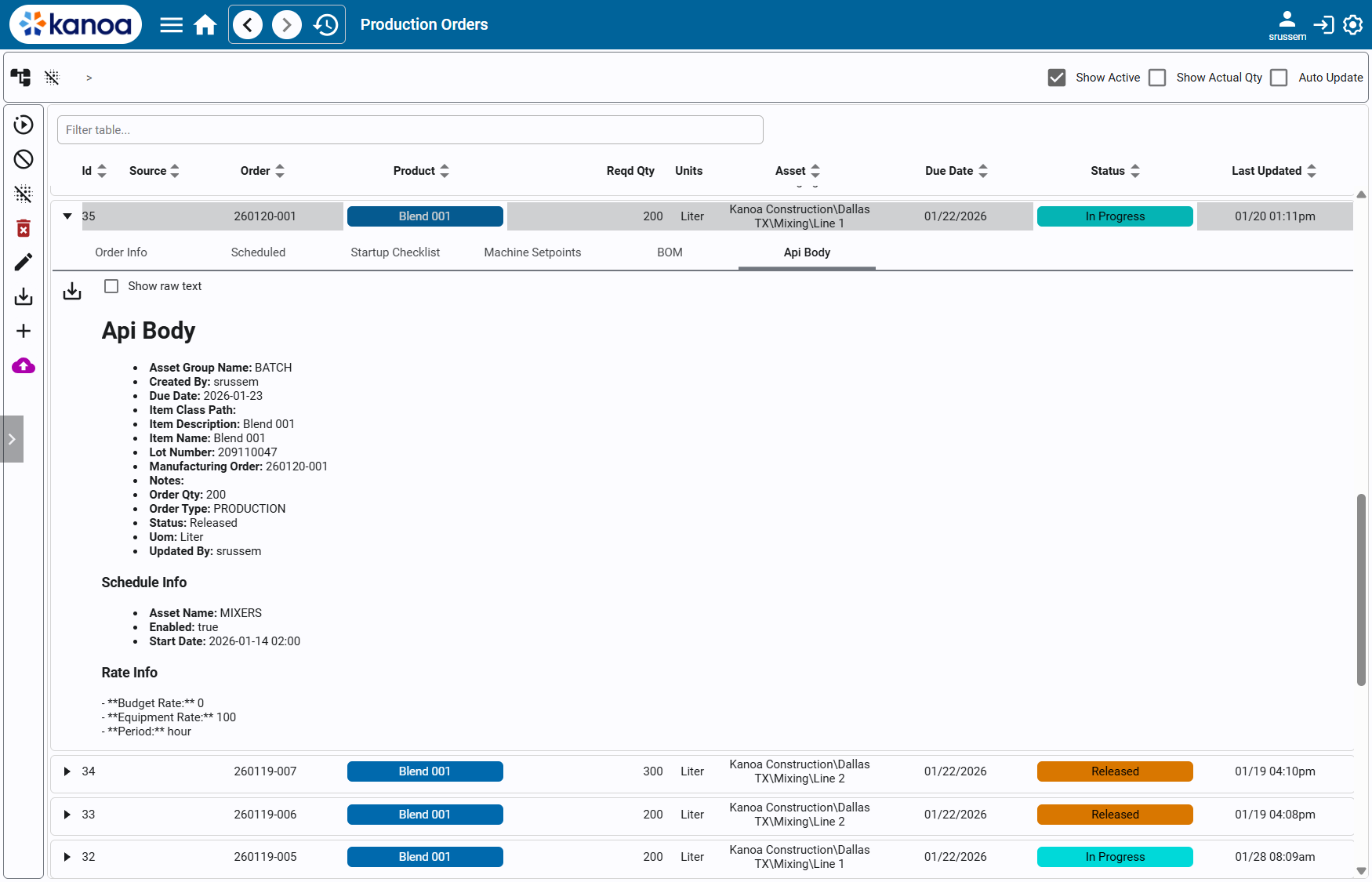 Production Order Metadata can be viewed directly from the **Production Orders** screen.
1. Click the **left-hand expand arrow** on a production order row to reveal additional details.
2. The expanded view displays:
- Standard **Order Info**
- **Schedule Info**
- One tab per metadata entry associated with the order
3. Each metadata tab is labeled using the metadata name.
Within a metadata tab, you may toggle **Show raw text**:
- When enabled, the raw metadata value is displayed exactly as stored.
- When disabled, Kanoa assumes the value contains Markdown (or JSON-compatible Markdown) and renders it using the built-in Markdown viewer for improved readability.
This makes metadata well-suited for both machine consumption and operator-facing visualization.
##### Programmatic Access & Extensibility
Production Order Metadata is commonly used when implementing **custom extensions, integrations, or business logic** within Kanoa MES.
Metadata can be:
- Added when an order is created
- Updated over the lifecycle of an order
- Retrieved by name, order, or status
- Deleted when no longer needed
This enables developers and integrators to:
- Drive custom workflows based on metadata content
- Pass structured data between systems
- Attach configuration or instructions without modifying the core order schema
Kanoa provides system functions to **add, update, retrieve, and delete** production order metadata, allowing metadata to be fully managed through scripting and APIs.
Production Order Metadata can be viewed directly from the **Production Orders** screen.
1. Click the **left-hand expand arrow** on a production order row to reveal additional details.
2. The expanded view displays:
- Standard **Order Info**
- **Schedule Info**
- One tab per metadata entry associated with the order
3. Each metadata tab is labeled using the metadata name.
Within a metadata tab, you may toggle **Show raw text**:
- When enabled, the raw metadata value is displayed exactly as stored.
- When disabled, Kanoa assumes the value contains Markdown (or JSON-compatible Markdown) and renders it using the built-in Markdown viewer for improved readability.
This makes metadata well-suited for both machine consumption and operator-facing visualization.
##### Programmatic Access & Extensibility
Production Order Metadata is commonly used when implementing **custom extensions, integrations, or business logic** within Kanoa MES.
Metadata can be:
- Added when an order is created
- Updated over the lifecycle of an order
- Retrieved by name, order, or status
- Deleted when no longer needed
This enables developers and integrators to:
- Drive custom workflows based on metadata content
- Pass structured data between systems
- Attach configuration or instructions without modifying the core order schema
Kanoa provides system functions to **add, update, retrieve, and delete** production order metadata, allowing metadata to be fully managed through scripting and APIs.