# Build the Check Sheet
## Build the Receiving Inspection
The `Receiving Inspection` checks a delivery of raw material: who supplied it, which lot it is, when it expires and,
optionally, what it looked like. It's started by hand when a delivery arrives, needs no sign-off, and requires an item, so
every inspection is tied to the material received.
### Configure the Check Sheet
::embed-section{src="../../../kanoa-quality/checkSheets.md#check-sheet-settings" collapsed="true" summary="Reference Materials: Check Sheet Settings"}
:::action[Create the check sheet and its folder]
1. Navigate to **Configuration → Quality → Check Sheets** and add a check sheet named `Receiving Inspection`.
2. On the **Settings** tab, click the folder button to open folder management.
3. Create `Warehouse` and `Operations` folders under `CoreForge`.
4. Put the check sheet in `CoreForge\Warehouse`.
5. Select **Item Required** and choose the item class `CoreForge\RM`.
:::
:::info
- Folders keep check sheets organized as the list grows. Group them by whatever your users look for: department, process area, check type, quality program, customer or site.
- **Item Required** makes the user pick an item when they start the check. Limiting the choice to an item class keeps the list short and reuses the plant's item master, so nobody retypes material names.
- The item gives each inspection its context and restricts what can be picked. A check sheet can also use the item to look up a different tolerance for each part family.
:::
### Add Check Items
::embed-section{src="../../../kanoa-quality/checkSheets.md#check-item-settings---general" collapsed="true" summary="Reference Materials: Check Item Settings - General"}
::embed-section{src="../../../kanoa-quality/checkSheets.md#check-item-settings---data-properties" collapsed="true" summary="Reference Materials: Check Item Settings - Data Properties"}
The data type of a check item decides what the user sees when they fill it in: a pick list, a text box, a date picker or an image upload. Validation rules make sure the value is usable before it's saved.
:::action[Add the check items]
1. Open `Receiving Inspection` and add these check items on the **Checks** tab. All are Type `Check` and Enabled.
| Check item | Data type | Required | Settings |
| --- | --- | --- | --- |
| `Supplier Name` | String | Yes | Entry Options `Text` with the Neutral responses `AlloySource Materials`, `Summit BlendChem` and `Keystone Industrial Ingredients` |
| `Lot Number` | String | Yes | Instructions: `Must be between 6 and 20 characters and all letters must be capitalized.` Specification: Regex `^[A-Z0-9]{6,20}$` |
| `Expiration Date` | Datetime | Yes | |
| `Product Image` | Image | No | |
Show the check items
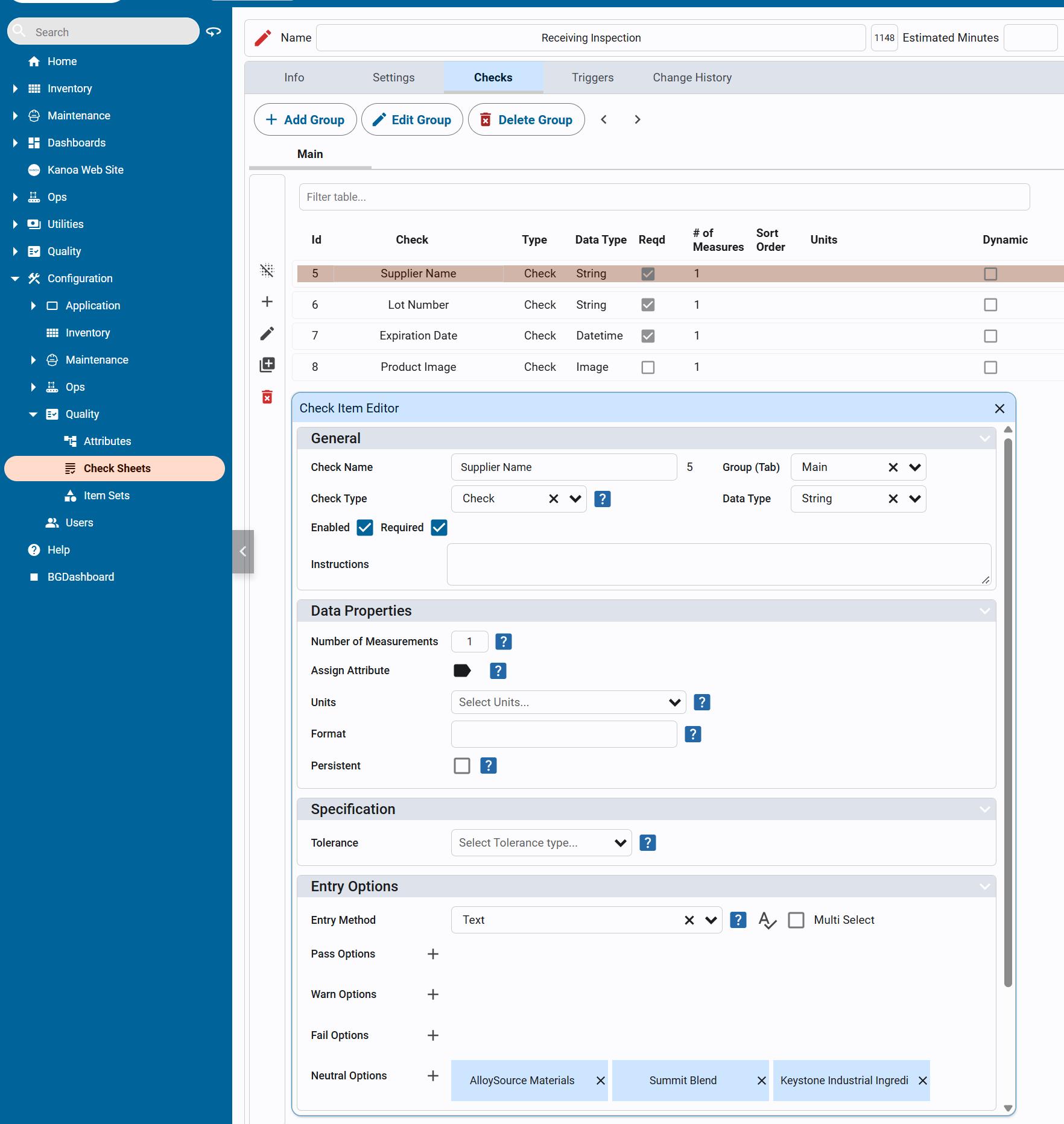
2. Close the editor and release the check sheet.
:::
:::info
- The supplier responses are **Neutral**: they record information but don't pass or fail the check. Users can also type a supplier that isn't in the list.
- **Enabled** decides whether an item appears at all. **Required** decides whether the check can be submitted with it blank.
- The regex only accepts 6 to 20 uppercase letters and digits, so `LOT20260515` is accepted and `ab123` isn't.
:::
## Check Your Work
:::check
Copy this script into the Ignition Designer Script Console (**Tools → Script Console**) and run it. It checks the `Warehouse` and `Operations` folders, that `Receiving Inspection` is released in `CoreForge\Warehouse` and requires a `CoreForge\RM` item, and the data type, Required setting, supplier responses, regex and instructions of each check item. Each check prints PASS or FAIL with what to fix. It doesn't change anything.
Show the check script
::check-script{src="quality/02-receiving-inspection/2-build-receiving-inspection.py" title="checkLesson-receivingBuild.py"}
:::
:::download[Finished Check Sheet]
check-sheet-receiving-inspection.json: The finished `Receiving Inspection Check`
:::