# Users and Roles
Kanoa decides what each person can do from their roles, and each role applies to the assets you pick. This lesson shows you
how to add a user, give them a role on part of the plant, and remove them when they leave.
## How Kanoa Security Works
Ignition checks who a user is when they sign in. Kanoa then decides what they can do, using three things:
- **Roles** hold **security functions**, such as **Operate Assets** or **Configure Items**.
- **Users** are given roles.
- Each role assignment applies to the **assets** you choose.
So a user can be an operator on **Manual Pack 1** but have no rights on **Machine 1**, or have a role for a whole area or
site.
:::info
The first user to sign in to a new Kanoa MES install is a **Gateway Admin**, who has every right on every asset. Only a
Gateway Admin can make another user a Gateway Admin.
:::
## Roles: Built In and Custom
A role is a named set of security functions. Kanoa MES creates a role for each role in this course, each with a starting
set of functions:
| Role | Functions it starts with |
| --- | --- |
| **Administrator** | Every function |
| **Operator** | Operate Assets, Edit Operations, Enter Checks, Enter Work Orders |
| **Supervisor** | Configure Security, Operate Assets, Edit Operations, Schedule Shifts, Schedule Operations, Enter Checks, Approve Checks, Enter Work Orders, Approve Work Orders |
| **Operations Scheduler** | Configure Assets, Configure Items, Operate Assets, Edit Operations, Schedule Shifts, Schedule Operations |
| **Quality Inspector** | Enter Checks |
| **Quality Manager** | Configure Quality, Enter Checks, Approve Checks |
| **Maintenance Technician** | Enter Work Orders |
| **Maintenance Manager** | Configure Maintenance, Configure Procedures, Configure WorkOrders, Enter Work Orders, Approve Work Orders |
Check that each role's functions suit your plant before you give it to anyone. Kanoa only adds a role, or its starting
functions, when it's missing, so a role your gateway already had keeps the functions it had. You can also create your own
roles, such as a process engineer, with just the functions that job needs.
1. Open **Configuration → Users**, and go to the **Roles** tab.
2. To make a new role, create it and enter its **Role Name**.
3. Tick the functions the role needs. Each function is a checkbox column, and a change is saved as soon as you tick or
clear a box. The **Functions** tab describes what each function allows.
:::warning
Changing a role's functions changes them for every user who has that role, on every asset they have it for.
:::
Anyone can view the **Roles** tab. Changing it needs **Configure Security**, the same as adding users.
:::tip[Let managers add their own people]
To let a manager add the people on their team, such as a Maintenance Manager adding technicians, add **Configure
Security** to their role and give them that role only on their own area. Configure Security also lets them give any role
and change roles' functions, so think before you add it. The Maintenance Manager track's
[Set Up for Maintenance](../7-maintenance-manager/1-set-up-for-maintenance.md#add-technicians) lesson shows the trade-off.
:::
{/*
TODO: Confirm on a gateway the button that creates a role on the Roles tab.
*/}
## Add a User
Adding, editing and deleting users needs the **Configure Security** security function.
1. Open **Configuration → Users**, and go to the **Users** tab.
2. Click the **+** button.
3. Enter the user's **first name** and **last name**. Both are required.
4. Save the user.

{/*
TODO: confirm on a gateway the other fields on the new-user popup (user name and password) and the exact label of the
save button. The docs show the popup in userInfo.png but don't list its fields. Ignition 8.3 needs complex passwords
(from the Developer Training lesson).
*/}
:::note
Creating a user here works for the gateway's default (internal) user source. For Active Directory or an identity provider,
the account is managed outside Kanoa and you only set its roles.
:::
## Give a User a Role on Their Assets
1. On the **Users** tab, select the user and click the edit button, or double-click the user.
2. Open the **Roles** tab.
3. Select the role, such as **Operator**.
4. Click the asset selector, and choose the assets the role applies to.
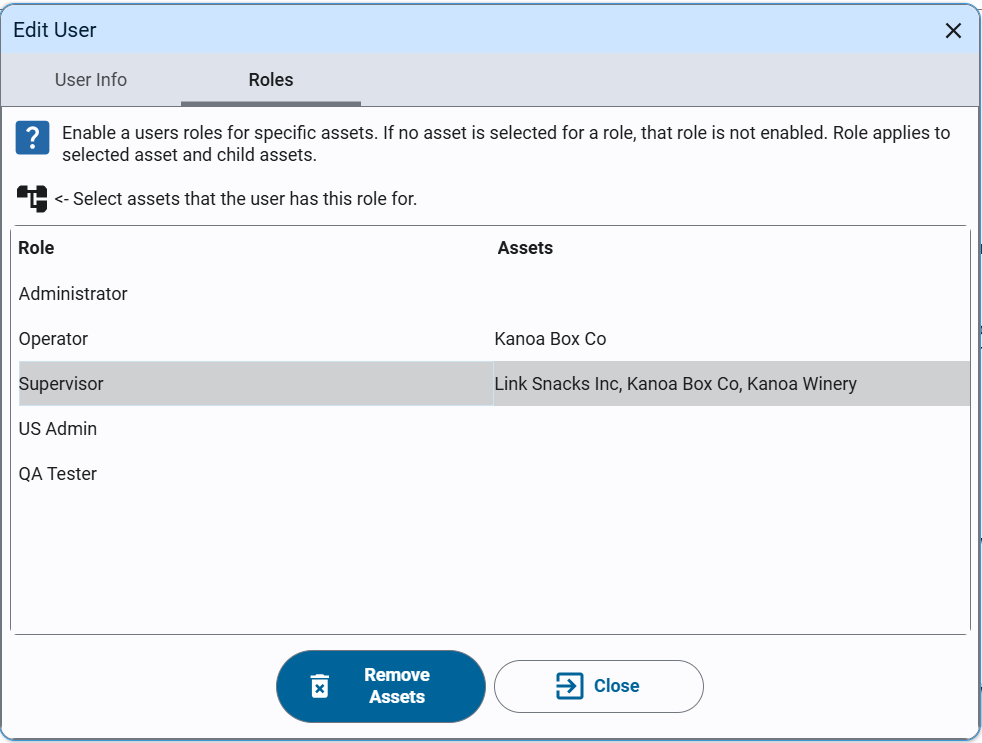 For example, give **Operator** on the **Finishing** area to someone who runs **Manual Pack 1**. They can operate every
asset in that area, and nothing in **Machining** or **Coating**.
To take a role away, select it and click **Remove assets**.
:::caution
Anyone with **Configure Security** can edit the **Roles** tab, where you choose which functions each role has. Changing
a role changes it for every user who has it. Only a Gateway Admin can make another user a Gateway Admin.
:::
## Remove a User Who Has Left
1. On the **Users** tab, select the person.
2. Delete the user.
Kanoa deletes the user in the default user source and deletes their Kanoa record. For a user from Active Directory or an
identity provider, Kanoa only deletes its own record, and you must remove the account at its source.
{/*
TODO: confirm on a gateway the delete button on the Users tab (its label or icon) and whether Kanoa asks to confirm.
The docs say users can be deleted through the security table but don't name the button.
*/}
:::warning
Deleting a user can't be undone, and the person can no longer sign in. If someone might return, remove their roles
instead, as shown above.
:::
::embed-section{src="../../configuration/users.md#user-configuration" collapsed="true" summary="Reference Materials: User Configuration - Create, edit and delete users, and set their roles per asset."}
## Check Your Understanding
1. Which security function lets you add and delete users?
2. A new operator should run only **Manual Pack 1**. How do you limit their role to it?
3. A user comes from Active Directory and has left. What does deleting them in Kanoa do?
Answers
1. **Configure Security**.
2. Give them the role, then select only **Manual Pack 1** (or its area) with the asset selector.
3. It deletes Kanoa's record of the user only. You must also remove the account in Active Directory.