# Review Operator Performance
OEE tells you how an asset did. It doesn't tell you about the people running it. Kanoa records who was logged in on each
line, and uses that to measure how effective each operator was. This lesson shows you how to review the sessions and read
the results.
## Review Operator Sessions
Logging an operator in to an asset records them **badging in** to the line they're working. It isn't signing in to Kanoa.
These sessions are what the OLE / POLE numbers are built from.
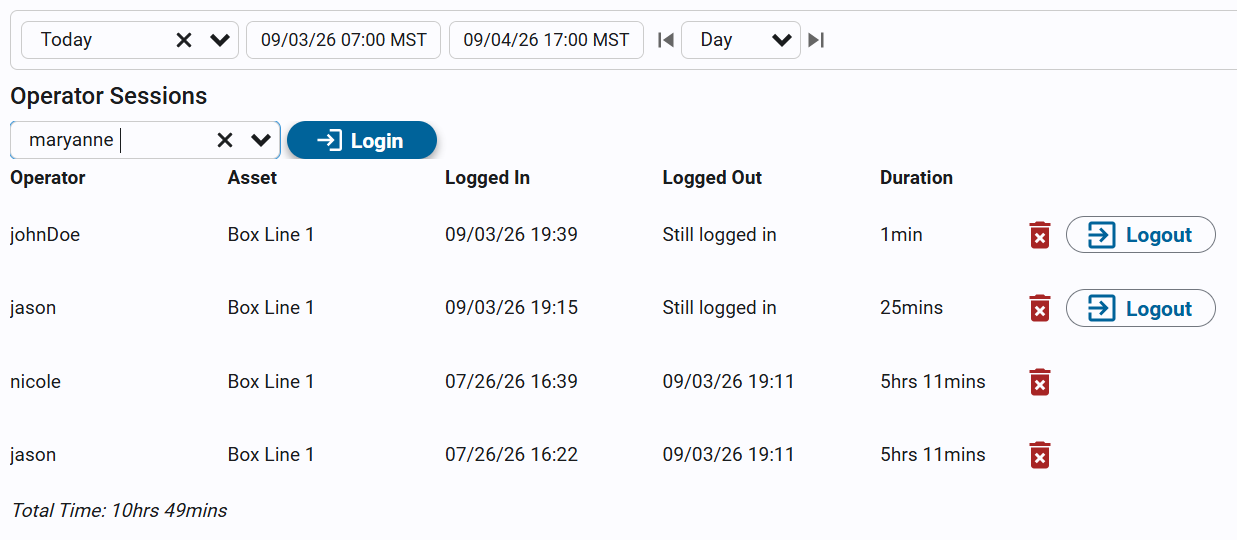
1. On the Asset Operation page, tap the **Operators** card on the info panel. The Operator Login screen opens as a popup.
2. Choose the date range of sessions to list.
3. Read the table: **Operator**, **Asset**, **Logged In**, **Logged Out** and **Duration**, with the **Total Time** under
it. An open session shows *Still logged in*.
You can also open the same screen from **Ops → Operations → Operator Login** and pick the asset.
 ### Log an Operator In or Out
If an operator forgot to badge in or out, you can fix it.
1. Open the Operator Login screen for the asset.
2. In **Select Operator...**, pick the operator and click **Login**.
3. To end a session, click **Logout** on its row. If an operator is already logged in on another asset, the screen tells you
where.
:::note[Needs Schedule Operations]
Logging operators in and out, and deleting a session, needs a gateway administrator or the **Schedule Operations** security
function. With only Operate Assets or Configure Assets you can see the sessions but not change them. The picker only
lists users who have Operate Assets on the asset.
:::
::embed-section{src="../../kanoa-ops/asset-operation.md#operator-login" collapsed="true" summary="Reference Materials: Operator Login - Sessions, login and logout."}
## Understand OLE and POLE
OLE and POLE use the same maths as OEE, but for labor. They differ only in availability.
| Metric | Counts the operator as available when | Answers |
| --- | --- | --- |
| **OLE** (Operator Labor Effectiveness) | They were logged in. | Was the operator there? |
| **POLE** (Productive OLE) | They were logged in and the asset was running. | Was the operator there and was work happening? |
The gap between OLE and POLE is time the operator was present but the machine wasn't producing, such as a changeover,
waiting for material or downtime. That is why a low POLE with good attendance points to a downtime problem, not a staffing
one.
::embed-section{src="../../kanoa-ops/ole-pole-analysis.md#calculating-ole--pole" collapsed="true" summary="Reference Materials: Calculating OLE / POLE - How availability differs."}
## Read the Leaderboard
1. Open **Ops → Analysis → Operators**.
2. Pick an asset. A line shows that line. An area or site shows everything beneath it, combined.
3. Pick a date range and an attribution mode.
4. Read the dashboard.
{/*
TODO: Confirm on a gateway what the Ops → Analysis → Operators screen is titled.
*/}
 The dashboard shows:
- **KPI tiles**: Attendance, OLE, POLE, Performance, Quality and Labor Gap for the whole selection. Hover a tile for a
plain-language explanation.
- **Trend chart**: OLE against POLE availability over time.
- **Utilization breakdown**: where scheduled time went, split into asset time and labor time.
- **Operator leaderboard**: every operator active in the range, ranked by POLE.
**Labor Gap** can be positive or negative. Positive, labeled *Present, not producing*, means people were there but the line
wasn't running. Negative, labeled *Understaffed*, means fewer people showed up than were scheduled, but the line is still
keeping up.
### Pick an Attribution Mode
When several operators are logged in on one asset at once, Kanoa shares the output between them so credit isn't counted
twice.
| Mode | How output is credited | Use it for |
| --- | --- | --- |
| **EvenSplit** (default) | Shared by time between everyone logged in | Normal crew work |
| **FullCredit** | Everyone gets full credit | Training and shadowing |
| **PrimaryOnly** | Only the first operator logged in gets performance and quality credit | One operator with helpers |
### Drill Into an Operator
Click a row in the leaderboard to see that operator's numbers broken down by the individual assets they worked.
:::warning
Numbers are only fair if the sessions are right. An operator who forgot to log out, or who was never logged in, skews OLE
and POLE. Fix the sessions first, then read the leaderboard.
:::
:::note
Attendance and Labor Gap only mean something if labor was scheduled. Without a schedule, attendance is based on the login
sessions alone. Scheduling crews belongs to the Operations Scheduler track.
:::
::embed-section{src="../../kanoa-ops/ole-pole-analysis.md#3-open-the-dashboard-and-read-the-numbers" collapsed="true" summary="Reference Materials: Read the Numbers - KPI tiles, trend, utilization and leaderboard."}
::embed-section{src="../../kanoa-ops/ole-pole-analysis.md#4-drill-into-an-operator" collapsed="true" summary="Reference Materials: Drill Into an Operator - From a site number to a line."}
## Check Your Understanding
1. An operator was logged in all shift, but the line was down for two hours. Which is lower, OLE or POLE?
2. Two operators share one line. Which attribution mode splits the output between them by time?
3. Which security function lets you log an operator out?
Answers
1. POLE. It only counts time the operator was logged in and the asset was running.
2. **EvenSplit**, the default.
3. **Schedule Operations**, or a gateway administrator.