States
While Modes represent what an asset is supposed to be doing, states show what the asset says it was actually doing.
States are crucial for accurately understanding the availability component of OEE (Overall Equipment Effectiveness). They provide essential insights into:
- Actual running times
- Instances and reasons for unplanned downtime
- Categorization of downtime for analysis and improvement
States help in capturing and reporting the true operational status of assets, playing a vital role in efficiency analysis and operational optimization.
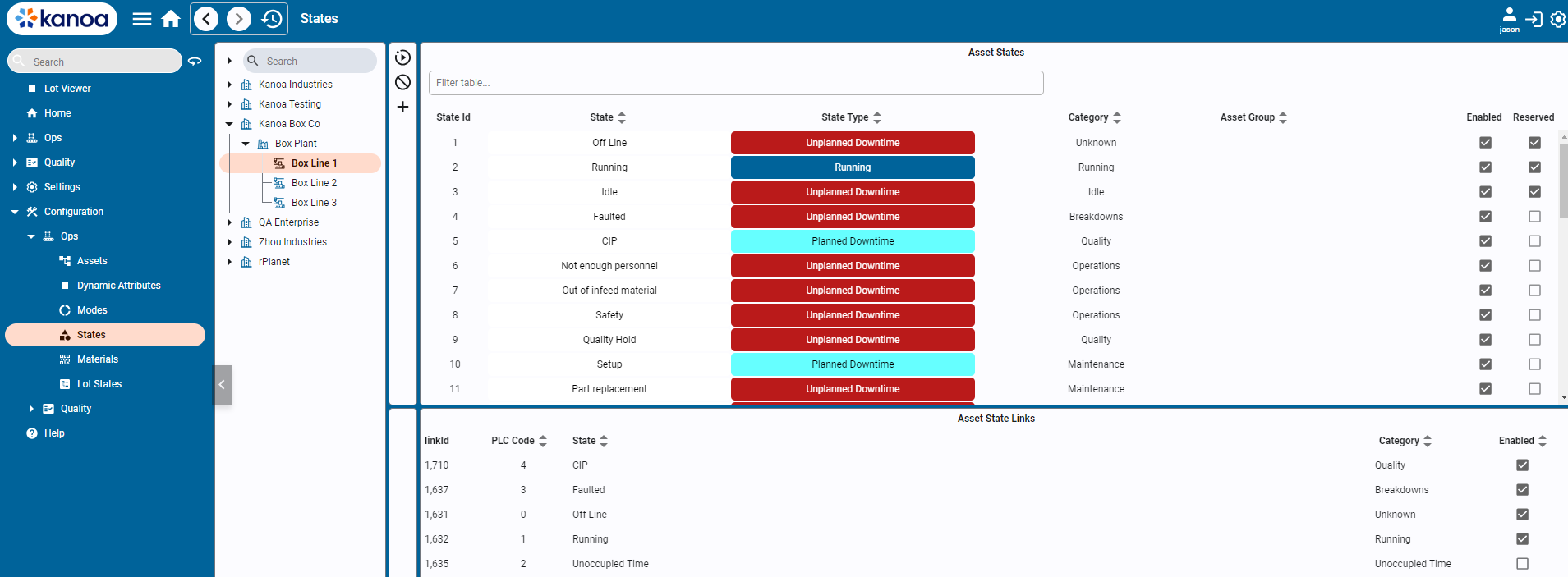
States
There are reserved states predefined by the system such as 'Running', 'Off-line', 'Idle', 'Faulted'
| State | Description |
|---|---|
| Offline | Typically used with a state code value of 0 to indicate that the asset is powered off. It doesn't have to be 0, but modbus connections tend to return 0 in a powered off state. |
| Running | Indicates that the asset is operating as expected. |
| Idle | Indicate asset is not currently running and no faults exist |
| Faulted | Indicates a fault or error, suggesting a breakdown or malfunction |
New states can be created and will generally align with the machine states or fault codes expected from the target asset.
State Types
State Types are used to categorize the state. State types are pre-defined by the system and cannot be modified. Every state maps to one fixed state type, and the state type determines how the state affects OEE:
| State Type | OEE Meaning |
|---|---|
| Running | Productive or running time |
| Planned Downtime | Downtime that may not count against availability |
| Unplanned Downtime | Availability loss |
State Categories
State categories organize states into a hierarchy and are used solely for analysis. You can define any category via the drop down by typing in the name of a new category and selecting 'create'. Examples of categories may be 'quality', 'electrical', 'mechanical' where you would want to analyze your downtime to see how much was related to say quality issues.
 Mechanical
 └── Nozzle
 └── Pump
 Safety
 Electrical
Asset Group
This field is simply to classify certain states as say being specific to a drill press, reactor or filler. It is optional and can be left blank.
Configuring States
Adding & Editing States
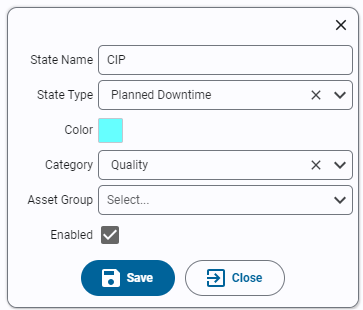
- State Name: Name of the state. State name must be unique
- State Type: Select the state type, Planned Downtime, Unplanned Downtime, or Running
- Category: Select a category for this state. Optional, can be left blank.
- Asset Group: Specifies an asset group to which the state applies. Optional, can be left blank.
- Enabled: Indicates if the state is active and available for use in the system.
Linking State to Assets
States can be linked to assets. Each state is assigned a unique state code. If the state of an asset comes from a plc tag, this code should match that integer value.
- Select asset or assets from the asset tree.
- A list of states assigned to the selected assets will appear in the bottom pane showing the state link id and state code.
- To link a state to an asset, select one or more states and click the 'Link' button. The state will appear in the bottom pane.
- Assign a numeric state code for the asset state.
When an asset is OEE-enabled, Kanoa automatically links the default states Running, Faulted, Idle, and Offline.
Unlinking States from Assets
States can be unlinked from assets using the unlink option available on the screen. If event history exists for a state, the system will not allow you to remove the link. It will instead be disabled.
State Events
A state event records that an asset entered a state at a specific time. It includes the asset, the state/state link, a timestamp, and optional machine ID attribution. Together, state events create the historical downtime and runtime timeline used by reports.