Other Recommended Settings
There are a number of recommended settings for running kanoaMES.
For this training, you will need to change the following settings via the Gateway Console page...
- Enable Include Schema in table Name for the
kanoaCoredatabase connection. - Set Max Active to -1 for the
kanoaCoredatabase connection. - Adjust the User Inactivity timeout to -1 under Config → Security → General (Ignition 8.1), Platform → Security → General Settings (Ignition 8.3). This will keep you from having to login every 10 minutes.
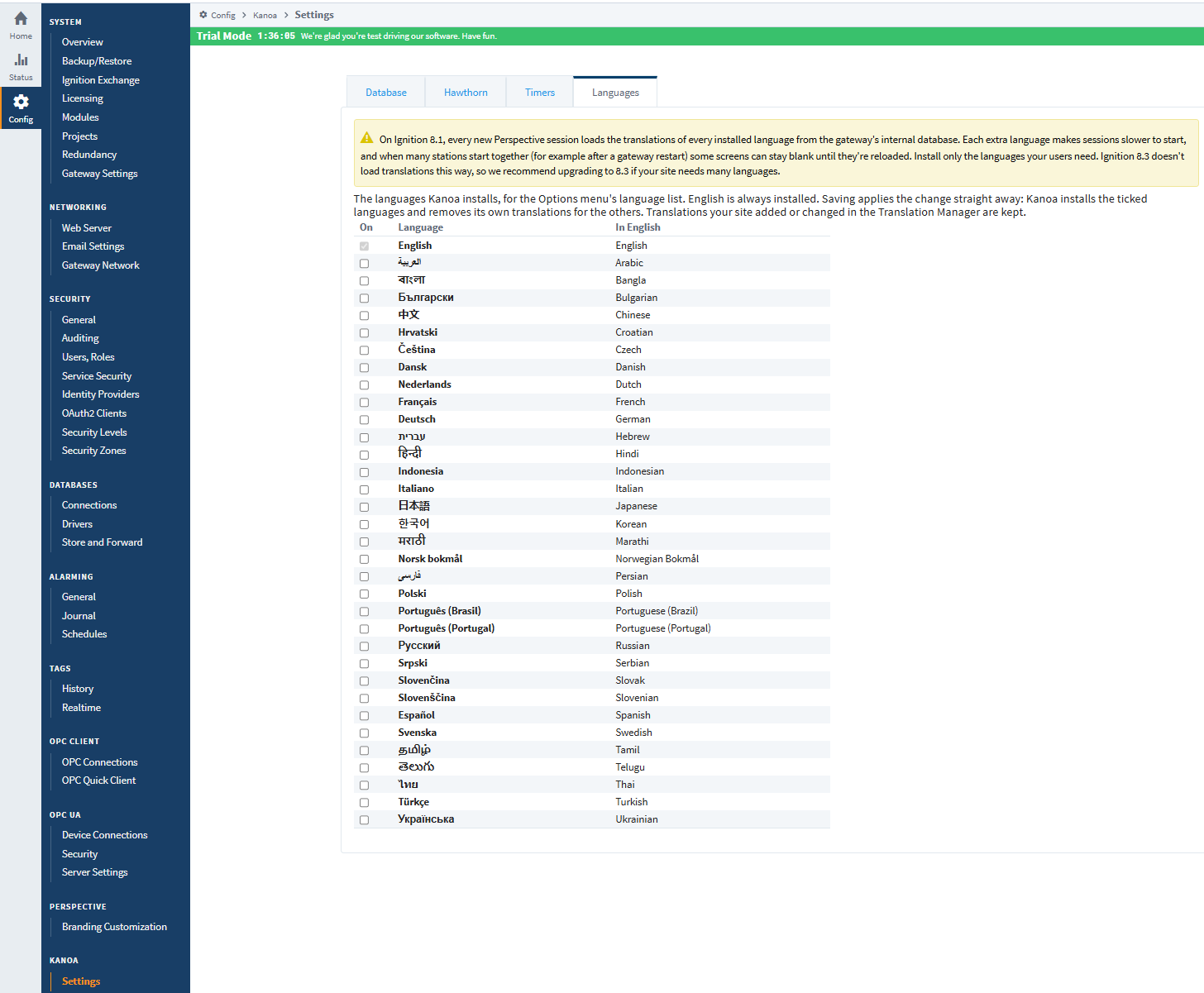
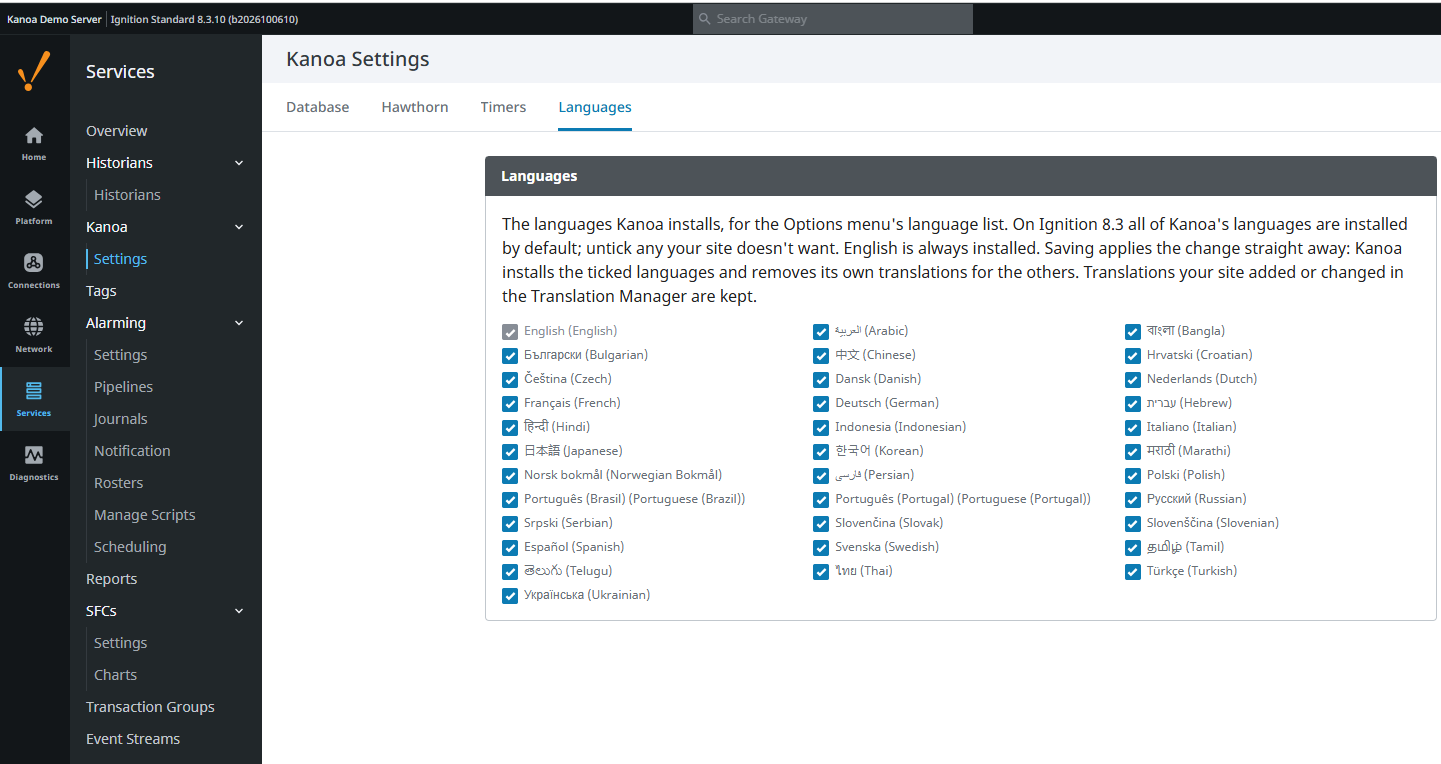
- If you want Kanoa in a language besides English, Spanish and Chinese (installed by default), open the Languages tab of the Kanoa gateway config page (Kanoa > Settings), tick it and click Save Languages. Tick only the languages you need: each one adds to the time a Perspective session takes to start.
To switch your own session's language, open the Options menu (the three dots at the top right of the header) and click a language under Languages.
Reference Materials: Language Support - Installed languages, switching language and adding your own translations.
Kanoa MES screens can be shown in any of the languages installed on the gateway. Each user picks their own language, and a gateway admin chooses which languages are installed.
Kanoa's translations cover almost all of the text used throughout the Kanoa application, in 33 languages besides English.
Kanoa's translations were generated with AI, so a translation may not be exact or natural in every context. Check the languages your users need, and change any term for your site (see Adding or changing translations).
Changing the language
Click the options icon (the three dots at the top right of the header) to open the Options menu, then click a language under Languages. The menu lists English, the languages ticked on the Kanoa settings page, and any language your site added itself, each in its own name with the English name after it. The change applies to your session straight away.
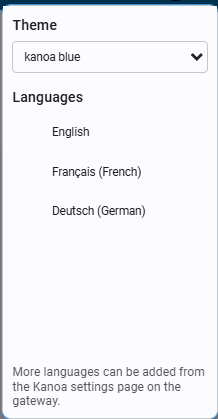
On Ignition 8.1, a note under the list says more languages can be added from the Kanoa settings page on the gateway.
Choosing the installed languages
Kanoa carries translations for 34 languages: Arabic, Bangla, Bulgarian, Chinese, Croatian, Czech, Danish, Dutch, English, French, German, Hebrew, Hindi, Indonesian, Italian, Japanese, Korean, Marathi, Norwegian Bokmål, Persian, Polish, Portuguese (Brazil), Portuguese (Portugal), Russian, Serbian, Slovak, Slovenian, Spanish, Swedish, Tamil, Telugu, Thai, Turkish and Ukrainian.
A gateway admin chooses which of them are installed on the Languages tab of the Kanoa gateway config page (Kanoa > Settings). Tick the languages your users need and click Save Languages. Saving applies the change straight away: Kanoa installs the ticked languages and removes its own translations for the others. English is always installed.
English, Spanish and Chinese are installed by default, on Ignition 8.1 and 8.3 alike. On the first start of Kanoa MES 1.16, any other installed language is removed, unless your site has added its own translations to it: such a language is kept and shown ticked.
Every installed language adds to the work of starting each Perspective session, as the session loads the translations of every installed language. On Ignition 8.1 they're read from the gateway's internal database, which allows one connection at a time, so each extra language makes sessions slower to start, most of all when many stations start together, such as after a gateway restart. Ignition 8.3 doesn't read them from the database but still builds them for each new session. Tick only the languages your users need. If your site needs many languages, we recommend Ignition 8.3.
Adding or changing translations
Use Ignition's Translation Manager (in the Designer) to change how Kanoa's text is translated, to translate your own text (asset, reason and item names, for example), or to add a language Kanoa doesn't carry.
How your translations are treated depends on whether the term is one of Kanoa's:
- Your own terms, text Kanoa doesn't have a translation for, are always kept. Module updates and unticking a language never remove them.
- Changes to Kanoa's translations last until Kanoa installs that language again. A module update that changes the language's translations installs it again and puts back Kanoa's text for every term, so re-apply your changes after updating. Unticking the language removes all of Kanoa's terms in it, including the ones you changed, and ticking it again installs Kanoa's text.
- Ignition matches terms without regard to case, so a term that differs from one of Kanoa's only in capitalization is treated as Kanoa's.
When you untick a language that has your own terms, those terms stay installed but the language is no longer offered in the Options menu. Tick it again to offer it, with Kanoa's translations reinstalled. A language Kanoa doesn't carry, which you added yourself, is always offered and never changed by Kanoa.
Text that scripts build from parts, such as "2 hrs 14 mins" or "152 units of … produced in …", comes from Kanoa's translation terms too, so it follows the same rules.
View All Recommended Settings
Every implementation is different — some sites have a couple of production lines, others have hundreds. You may only make one product or thousands. Regardless, here are some settings we recommend starting with.
Set WebSocket max memory size to 4096
Perspective views pass data to popups via web sockets and asset imports and analyzing large Quality SPC datasets can contain a lot of data. You'll need to increase the web socket max memory setting in order to not run into any errors.
- Open the ignition.conf file that is located in the data folder that’s found in your Ignition installation path
- Open the ignition.conf with any text editor
- Within the ignition.conf file, scroll down to where it says # Java Additional Parameters; This is the location where JVM parameters are added into Ignition and where we will be adding our web socket max message size parameter
- Copy/Paste the following line in the # Java Additional Parameters section of the ignition.conf file:
wrapper.java.additional.X=-Dperspective.websocket.max-message-size=#
- Replace X in the line with the next sequential parameter number that is seen in the file.
- Replace # in the line with the websocket max message size value in KB; The default size is 2048 KB when no value is specified
- Save changes to the ignition.conf file; A restart of the Ignition gateway service will be required for the changes to take effect. This can be done by following the instructions that are provided in the following link: Gateway Command-line Utility - gwcmd - Ignition User Manual 8.1 - Ignition Documentation
Here is an example of how the JVM parameter entry would look like :

Enable “Include Schema in Table Name” for the kanoaCore database connection
In the kanoaCore database connection configuration (Advanced Properties), we recommend enabling:
- Set Include Schema in Table Name to true
- Set Max Active to -1 in the advanced options
Adjust the User Inactivity Timeout
In the Gateway settings, we recommend reviewing and adjusting the User Inactivity Timeout to keep you from having to login every 10 minutes:
- Config → Security → General (Ignition 8.1)
- Platform → Security → General Settings (Ignition 8.3)
Enable Database Concurrency
We recommend switching on READ COMMITTED SNAPSHOT ISOLATION (RCSI) in Microsoft SQL Server.
Enabling this feature:
- Helps avoid Reader/Writer blocking - In default mode, a SELECT can block or be blocked by an UPDATE, INSERT, or DELETE. With RCSI, readers get a consistent snapshot without locking the table.
- Reduces Deadlocks - Because RCSI avoids shared locks, there's much less lock contention, and fewer deadlocks in high-concurrency environments.
- Improves Read Scalability - Excellent for reporting queries, dashboards, APIs, or UIs that only need committed data and can tolerate a slight delay in seeing updates.
To enable RCSI, log into SQL Management Studio as a user with dbOwner permission on the Kanoa Core database and run the following:
SELECT is_read_committed_snapshot_on
FROM sys.databases
WHERE name = 'kanoaCore';

--USE master;
--GO

--ALTER DATABASE kanoaCore...
--SET SINGLE_USER WITH ROLLBACK IMMEDIATE;
--GO

--ALTER DATABASE kanoaCore...
--SET READ_COMMITTED_SNAPSHOT ON;
--GO

--ALTER DATABASE kanoaCore...
--SET MULTI_USER;
--GO