Reason Codes and Lookups
Operators pick from lists when they give a reason for a stop or for scrap. This lesson shows how to add to those lists and how to retire a reason you no longer want, for both downtime and scrap.
Downtime Reasons
A downtime reason is a state. Each state has a state type that decides how it counts in OEE: Running, Planned Downtime or Unplanned Downtime. Categories, such as Mechanical, group states for analysis.
Add a Downtime Reason
- Open Configuration → Ops → Assets and go to the States tab.
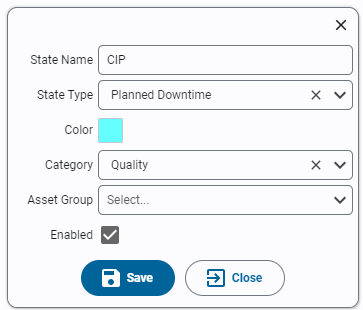
- Add a new state. Give it a unique State Name and a State Type.
- Choose a Category if you want one, and leave Enabled ticked.
- Link the state to the assets where operators should see it.
To link a state, select the assets in the asset tree, select the states, and click Link. Each link needs a numeric state code. If the state comes from a PLC tag, the code must match the tag value.
Linking a state to an asset needs a state code that matches the machine. Ask your engineer for the right code before you link states on a machine that sets its state from a PLC tag.
Retire a Downtime Reason
Untick Enabled to take a state out of use, or unlink it from the assets that shouldn't use it. If a state has event history, Kanoa won't remove its link. It disables the link instead, so past downtime keeps its reason.
Retiring a reason changes the list for every operator on the linked assets. Kanoa's built-in states, such as Running, Idle, Faulted and Offline, are reserved. Don't retire them.
Reference Materials: Configuring States - Add, edit, link and unlink states.
Configuring States
Adding & Editing States
- State Name: Name of the state. State name must be unique
- State Type: Select the state type, Planned Downtime, Unplanned Downtime, or Running
- Category: Select a category for this state. Optional, can be left blank.
- Asset Group: Specifies an asset group to which the state applies. Optional, can be left blank.
- Enabled: Indicates if the state is active and available for use in the system.
Linking State to Assets
States can be linked to assets. Each state is assigned a unique state code. If the state of an asset comes from a plc tag, this code should match that integer value.
- Select asset or assets from the asset tree.
- A list of states assigned to the selected assets will appear in the bottom pane showing the state link id and state code.
- To link a state to an asset, select one or more states and click the 'Link' button. The state will appear in the bottom pane.
- Assign a numeric state code for the asset state.
When an asset is OEE-enabled, Kanoa automatically links the default states Running, Faulted, Idle, and Offline.
Unlinking States from Assets
States can be unlinked from assets using the unlink option available on the screen. If event history exists for a state, the system will not allow you to remove the link. It will instead be disabled.
Scrap Reasons
A scrap reason is an item state. It says why a waste count happened, such as Damaged Parts or Bad Coating.
- Open Configuration → Ops → Item States.
- Add the item state under a category, such as Quality\Handling.
- Associate it with the Waste counter type, so it appears as a scrap reason.
- Open the Item State Links tab and link the reason, or its category, to the assets that should offer it.
- Save.
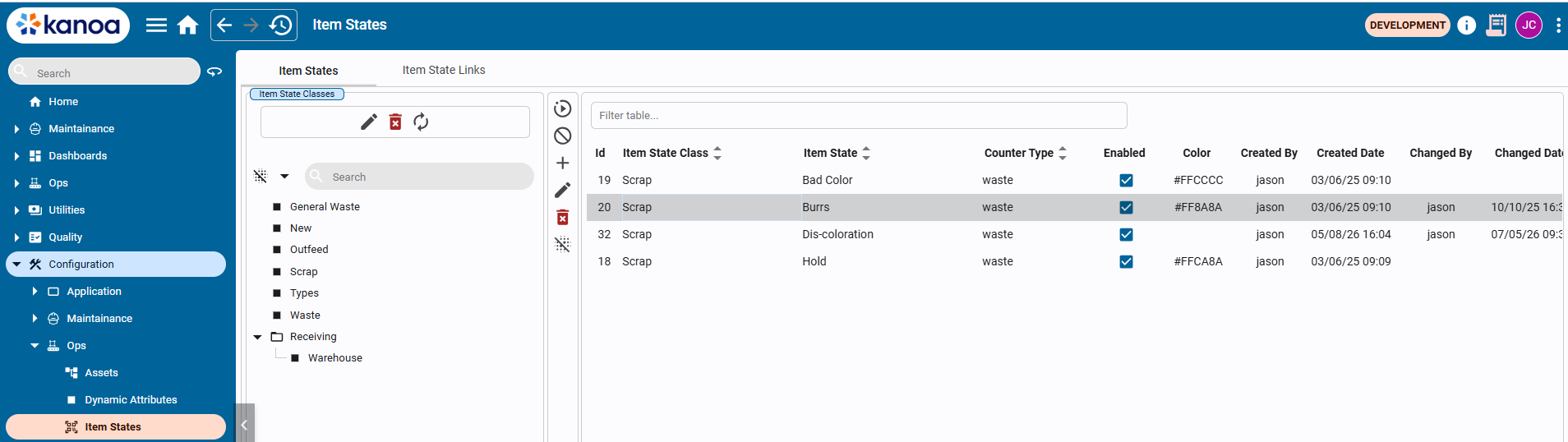
Item states need the Configure Items function. Linking them to assets needs Configure Assets.
Reference Materials: Item States - Classify scrap reasons with categories, counter types and links.
An item state is a classification applied to count events. In Kanoa Ops, the most common use is waste reason coding: a waste count tells you how much waste occurred, and an item state tells you why. For example, a packaging line might record waste for reasons such as Bad Coating, Insufficient Coating, Damaged Parts, Cosmetic Defect, or Incorrect Item. This gives the quality component of OEE much more detail than a simple waste count. This can be used by operators to code scrap reasons or when connected directly to a plc, to automatically set bottles kicked off a bottling line for say 'Low fill level' or 'Missing bottle cap'. It can also be used to differentiate between say 'First Pass' and 'Rework' on infeed counts.
Categories, counter types, and links
- Categories organize item states into a hierarchy, just as state categories do for downtime.
- Counter type association: item states can be associated with counter types. For waste coding, associate them with waste count events, which tells Kanoa these reasons are appropriate when recording waste.
- Linking: like states, item states can be linked to the assets or items where they apply, so operators don't see irrelevant waste reasons on unrelated assets.
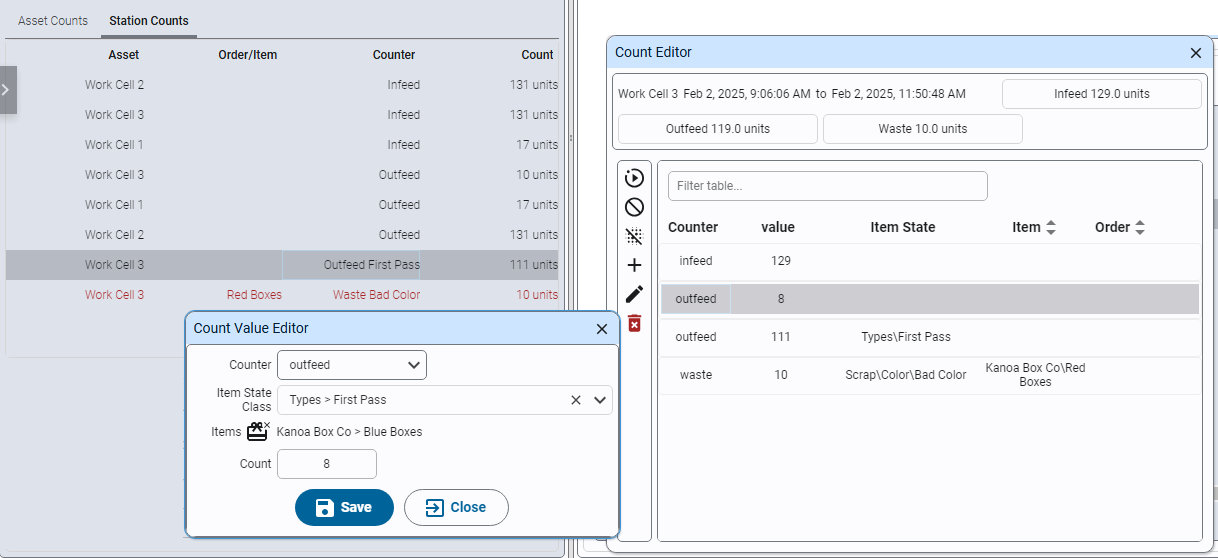
Items States are configurable via the Configuration > Ops > Item States
Check Your Understanding
- What is a downtime reason called in Kanoa, and what is a scrap reason called?
- A state has past downtime recorded against it, and you unlink it. What happens?
- Which function do you need to add a new scrap reason?
Answers
- A downtime reason is a state. A scrap reason is an item state.
- Kanoa won't remove the link. It disables it, so past downtime keeps its reason.
- Configure Items.