Tools and Tool Types
Tools are managed in Configuration > Ops > Tooling. The list shows every tool with its location, status, the machine or pocket it's mounted on, its life counts, how close it is to its nearest limit, and any alert.
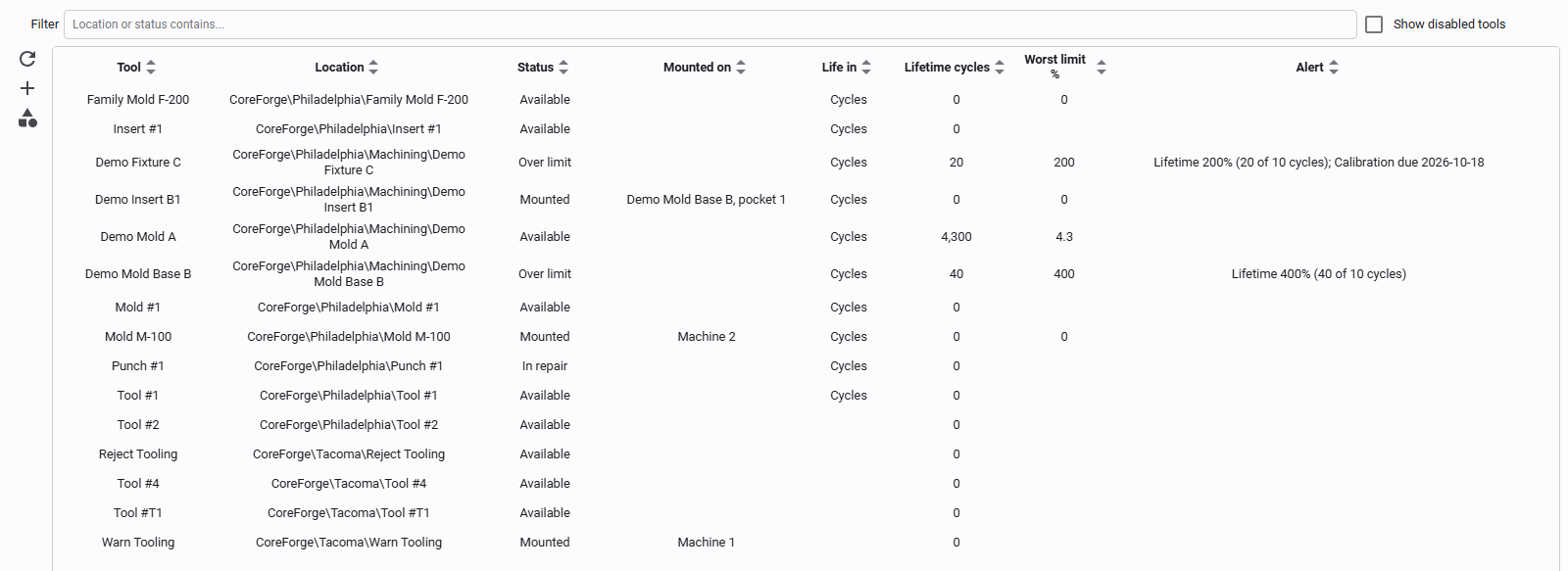
- Use Filter to find tools by location or status, and Show disabled tools to include retired tools.
- The buttons on the left refresh the list, add a tool, open Tool types, and export and import tools.
- Double-click a tool to open the tool editor.
- Ctrl-click or Shift-click to select several tools, for example to export them. Clear selection deselects them.
Adding a Tool
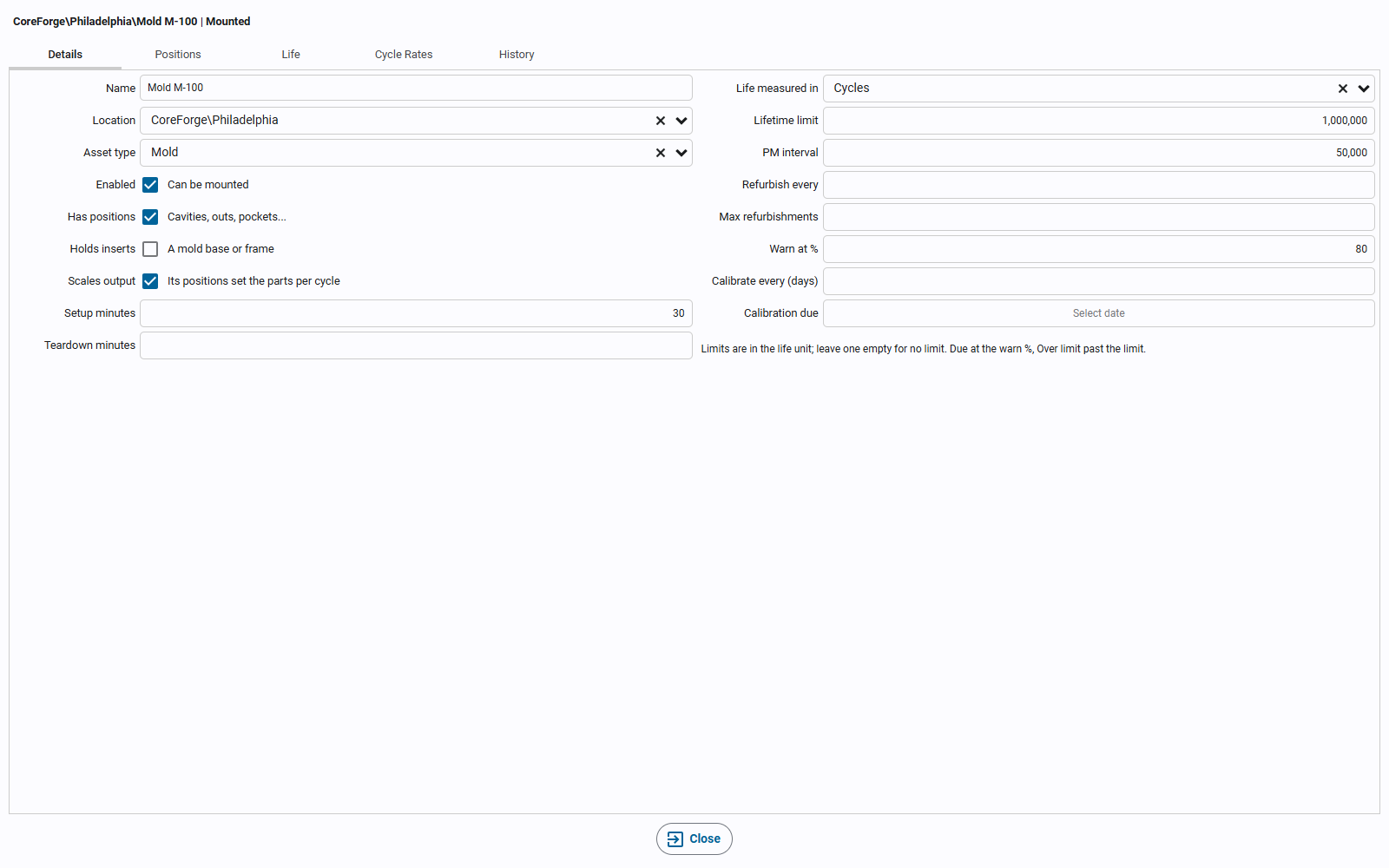
Click +, then fill in the Details tab and save. Choosing a Tooling type fills in that type's defaults for a new tool, such as positions, life unit and calibration interval.
| Field | Meaning |
|---|---|
| Name | The tool's name. Unique within its site, because a machine's tag mounts a tool by name. Any characters are allowed (e.g. Punch #1). |
| Location | Where the tool lives in the asset tree. Its site decides which machines it can be mounted on. |
| Tooling type | The kind of tool (an asset type marked as tooling). Only tooling types are listed. |
| Enabled | A disabled tool can't be mounted and is hidden from the list unless Show disabled tools is ticked. |
| Has positions | The tool has positions (cavities, stations, pockets...). See Positions. |
| Holds inserts | The tool is a mold base or frame with pockets that hold other tools. |
| Scales output | The machine counts cycles, and the tool's positions set the parts per cycle. |
| Setup / Teardown minutes | How long it takes to put the tool on and take it off. |
| Life measured in | Cycles, run minutes or calendar days. The limits on the right are in this unit. |
| Lifetime limit, PM interval, Refurbish every, Max refurbishments | The tool's limits; leave one empty for no limit. |
| Warn at % | How much of a limit is used when the tool comes Due. With a PM interval of 20,000 cycles and Warn at 90%, the tool is Due for PM after 18,000 cycles (2,000 left), and Over limit after 20,000. |
| Calibrate every (days), Calibration due | For gauges and other tools that need calibrating. |
A new tool shows only the Details tab until it is saved. The editor's other tabs are Positions, Life (Tool Life), Cycle Rates (Cycle Rates and Item Rates), Fits On (Fit Rules), History, which lists the tool's mounts, unmounts and corrections, and Maintenance, which lists the tool's Kanoa Maintenance work orders (see Tool Life).
Exporting and Importing Tools
Use Export and Import on the tools list to copy tools to another gateway, or to back up their setup.
- Export saves the selected tools, or every tool the list shows (after its filter and Show disabled tools) when
none is selected, as a
.jsonfile. - The file holds each tool's setup: its details and limits, its positions and its cycle rates, plus the tooling types it uses. Locations, machines, asset types and family-tool items are saved by path, so they match on the gateway you import into.
- What a tool has been through isn't exported: its life counts, calibration due date, mounts and history, and which positions are blocked. An imported tool arrives unmounted with fresh counts.
Import opens a preview that shows what will happen to each tool before anything is saved. Choose what to do when a tool with the same name is already in its site:
| Choice | What happens |
|---|---|
| Import a renamed copy | The tool is imported as name (2), name (3) and so on. |
| Skip it | The existing tool is left as it is. |
| Overwrite it | The existing tool's details and positions are replaced, and the file's cycle rates are set. Its blocked positions stay blocked, and its other cycle rates are kept. A mounted tool can't be overwritten. |
A tooling type the file uses that doesn't exist is created. A cycle rate whose machine doesn't exist is left off, with a warning. Anything that can't be matched, such as a missing location or item, is an error, and if any tool has an error, nothing is imported.
Deleting or Retiring a Tool
Select a tool and click Delete. A tool that has never been used is deleted, with its positions, counts and rates. A tool with history (it was mounted, has life counts, rated a run, or is on a check sheet or work order) can't be deleted: you're offered Retire instead, which sets its status to Retired and disables it, keeping its history. A mounted tool must be unmounted first.
Tool Types
A tool's asset type says what kind of tool it is. Kanoa MES comes with nine tooling types under Storage Location: Mold, Mold Insert, Die, Jig, Fixture, Gauge, Cutting Tool, Change Part and Tool. Each has defaults for a new tool, for example a Mold has positions, holds inserts, scales output and counts life in cycles; a Gauge is calibrated every 365 days.
Click the Tool types button on the tools list to add or change tooling types.
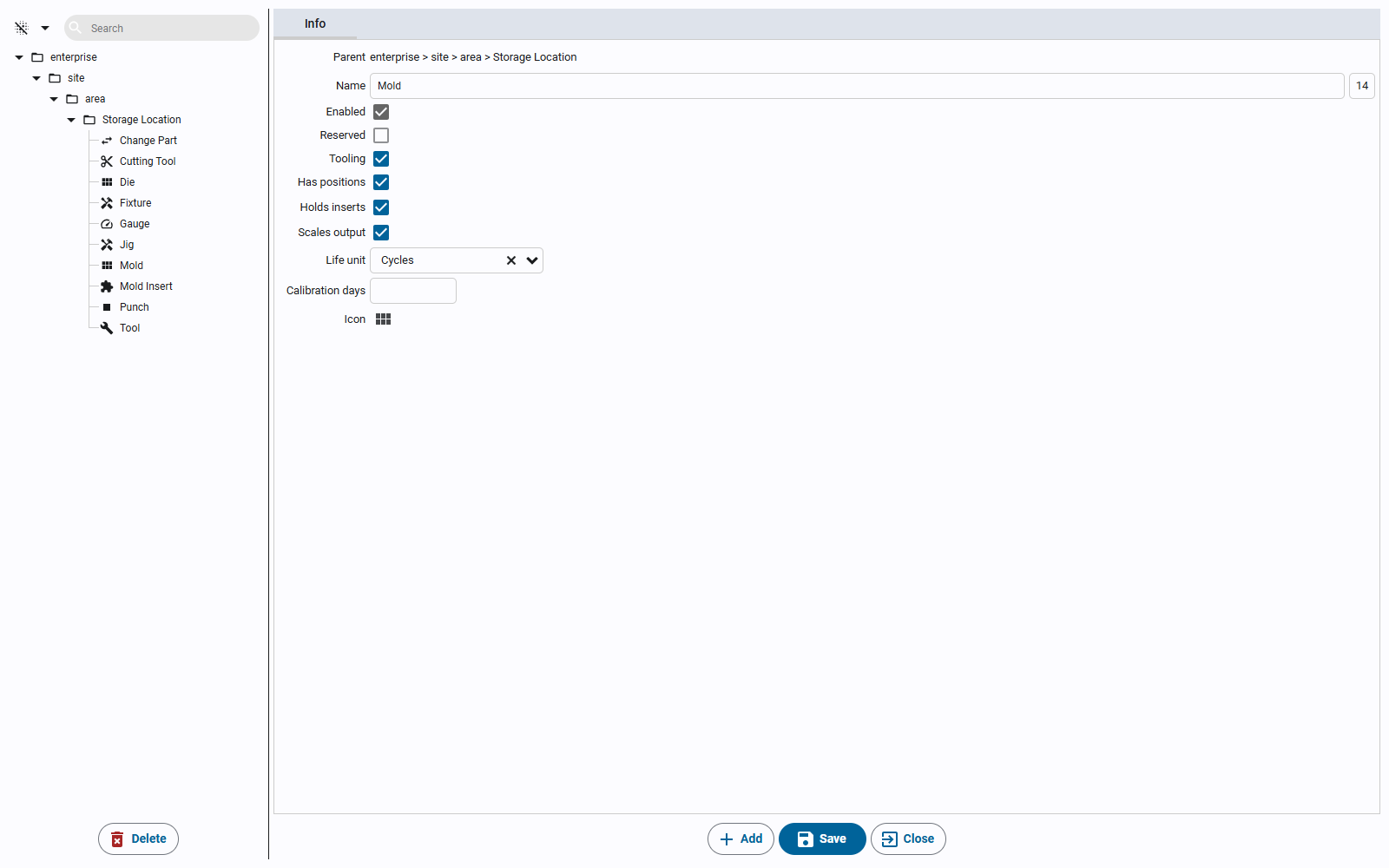
- Tooling marks an asset type as a tooling type. A type can't be both Tooling and Mobile, and the plant hierarchy types (enterprise, site, area, line, cell) can't be either.
- The tooling section sets the defaults a new tool of this type starts with.
- A new type is created under Storage Location.
The asset tree editor offers only tooling types for a tool, and leaves them out for other assets. Tick Tools in the asset tree editor to show tools under their locations.
Machines That Use Tooling
A tool can only be mounted on a machine that has Uses tooling turned on. Turn it on in the asset tree editor; the
machine must be OEE-enabled. Turning it on creates the machine's Tooling tags (see Tooling Tags);
turning it off is refused while a tool is mounted.