Revise and Correct
Revise a check sheet
A manually started check should be due right away. You'll change the trigger timers on Receiving Inspection, which means creating a new revision.
- Navigate to Configuration → Quality → Check Sheets and click the arrow on the
Receiving Inspectionrow to see its version history. - Change its status from
ReleasedtoIn Revision, and open it. - On the Triggers tab, add or edit the
Manualtrigger: Delay0, Coming Due0, Over Due30, Grace30. - Save, close the editor, and set the status back to
Released.
With these timers, a check you add is due immediately, Over Due after 30 minutes and Missed 30 minutes after that.
Revisions apply to any change, including triggers, not only to check items. While a sheet is In Revision, Gateway Admins can still start it to test the changes; other users only see the released version.
Reference Materials: Check Sheet Triggers
Check Sheet Triggers
The trigger tab allows you to define what should trigger a check sheet. Check Sheets can be scheduled manually without a trigger, but if you want a set of checks to be performed whenever shift changes, or when a new product starts running on a line or after maintenance has been completed, all these scenarios can be supported by adding one or more triggers.

Click the + button to add a new trigger or  to edit an existing trigger.
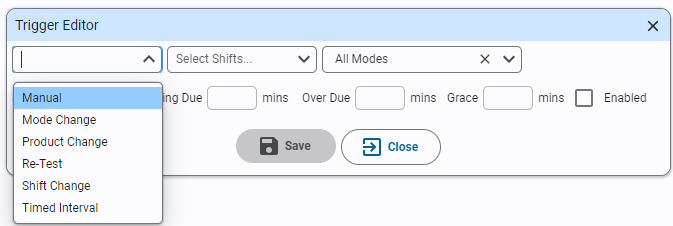
Trigger Types
-
Manual: A check sheet can be manually created without this trigger, however if manual trigger is created, it will specify how much time a user has to take the checks once it has been scheduled.
-
Mode Change: When the mode changes on an asset i.e. from Changeover to Production, this trigger will schedule a check sheet if it meets the specified mode/shift, other options.
-
Product Change: When the product changes on an asset, this check sheet will be scheduled if the currently running product is specified by the check sheet.
- Every Product: Quality check is required every time the product changes
- Unique Products Per Shift: Quality check is required only once per product per shift
- Once Per Shift: Only one quality check will be performed per shift
-
Re-Test: Set the delay, coming due etc. when a check sheet is scheduled due to a re-tst being required.
-
Shift Change: Check sheet will be scheduled if the current shift meets the shift settings of this trigger.
-
Timed Interval: This check sheet will be triggered periodically based on the mode and shift settings.
Note If a trigger causes a new check sheet to be scheduled when there is already an existing check sheet scheduled, it will set the current check sheet to aborted if it has not already been started and create the new check sheet.
Timers
- Delay: Delay in minutes between a trigger executing and the check sheet being scheduled. Primarily used on shift change to give shift personnel a chance to drink their tea before being bombarded with checks to be performed.
- Coming Due: Once a check sheet is scheduled, indicates to a user how long they have in minutes before this check will become due.
- Over Due: Provides amount of time in minutes a user has to start performing the checks once it becomes due.
- Grace: Number of minutes a check sheet will remain over due before its status is set to 'Missed'.
Correct an approved check
Approved data can't be edited by accident. To correct a check, you reject it first, which takes it out of Approved.
- Navigate to Quality → Schedule → Check Table and open the Cleanliness Check you submitted with a failure.
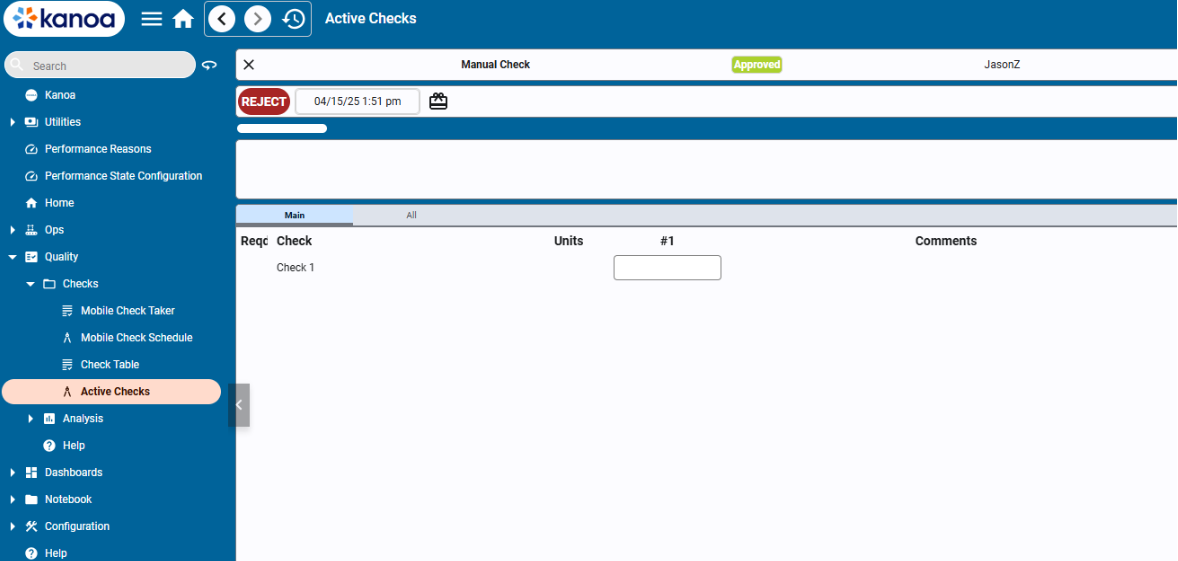
- Use the toggle at the upper right to switch from view to edit mode, then click Reject.
- Change the failed answer, for example from
Over-ClutteredtoPassable. - Resubmit the check and confirm the Check Table now shows it as OK.
A resubmitted check goes back to Approved if its sheet doesn't need a sign-off; otherwise it waits in Submitted for approval. Rejecting and approving needs the Approve Checks security function.
Kanoa keeps the current value of each answer and who changed it and when, but not a full before-and-after history. If your regulations need one, add custom logging.
Reference Materials: Approve Checks security function
Approve Checks
This function allows for users with the ‘Approve Checks’ function to approve check sheets.
check-sheet-receiving-inspection.json: the finished Receiving Inspection after its revision, to compare with your build.