Follow Up on Quality
A missed check or a failed one is a problem that is already on the line. This lesson shows you how to find the checks that need you, see where checks are being missed, and approve or reject the check sheets operators submit.
Find Checks That Need You
A scheduled check moves through these statuses on its own: In Delay, Coming Due, Due, Over Due and Missed. When someone starts it, it becomes In Progress. When they submit it, it becomes Submitted.
You can find them in two places:
- The Notifications card on an asset's info panel counts quality checks coming due or missed.
- Quality → Schedule → Active Checks and Quality → Schedule → Check Table.

Active Checks shows checks that are Due, Coming Due, Overdue, In Progress or Submitted, and the ones that are Approved, Canceled, Rejected or Disabled for the last 24 hours. The Check Table has more filters.

- Open Quality → Schedule → Check Table.
- Pick an asset and a date range.
- Look at Status for Over Due and Missed checks. The Check OK column counts the failed check items.
- Double-click a check to open it.
Review a Failed Check
Open the check. Checks are coloured against their limits. A value outside the specification is saved and shown with a red background as failed. If any check failed, the operator had to enter a comment when they submitted.
- Open the check from the Check Table.
- Find the failed items and read the comments.
- Decide what to do. Follow your plant's procedure for a failed check.
A check sheet can also be set up to email a team or user when a test fails, or to schedule another check straight away.

Reference Materials: Enter Check Data - Limits, failures and comments.
Enter Check data
All check input fields will be displayed as defined by the check sheet. If Check Groups are used - they will display above the checks themselves. Check entry can be toggled between a Value Entry Popup window or keyboard input by clicking the
in the upper-right corner. There is also a selection for touch screen entry for devices with the ability.
After a check has been entered, the next check is automatically selected; after the last check in a group, the selection stays on it rather than going back to the top. If there are multiple measurement counts, the direction in which the next check is selected can be changed by clicking the
icon . A check entry can be cleared by using the icon.If a pick list has been defined for a check item, pick list buttons are displayed for the user to enter the check value. If no picklist is defined for a numeric check, the numeric keypad is displayed. The numeric keypad can also be used instead of the picklist buttons by clicking .
A value outside a check's entry limits is refused with a message that gives the allowed range, and nothing is saved; enter a value within it. A value within the entry limits but outside the check's specification is saved and shown as failed.
Comments can be added for individual check items or a general comment for the check sheet can be added. If any check fails (as indicated by a red background), a comment will be required when the check sheet is submitted.
Above the Check Groups - to the right, the Spec Checks will be displayed with a graphical display of limits and actuals
A progress bar at the top tracks completion. Color coding indicates the status of each check (white/empty for incomplete, color-coded for complete with good/bad thresholds, gray for complete without thresholds).
Click the blue i icon and a dialog box will open with the information for each check as defined in the Check Sheet.
At any time during check entry, Check Sheet can be canceled. Once the checks are all entered, the check sheet can be submitted for approval and then accepted or rejected.
Checks can also be entered using your mobile device. On mobile, additional options include GPS tracking with a map view to record where checks were entered, as well as the ability to take photos or videos.
Controls
- Close Button: Located in the upper left, used to exit the check.
- Check Name: Displays the name of the check.
- Asset Information: Shows the assigned asset and current status of the check (e.g., due, coming due).
- Estimated Time to Complete: Indicates the time required to complete the check.
- Mode Indicator: Displays whether the check is in edit mode (for completing the check) or view mode (for reviewing entered data).
- Timestamp: Shows the current timestamp associated with the check.
- Edit Item Classes Button: For associating items to the check, if applicable.
- Toggle Keypad/Button Size: Switches between touchscreen and keyboard-friendly interfaces.
- Navigation Controls: Includes buttons for navigating between check entries and a clear button to reset check values.
- Information Button: Provides additional instructions for the check sheet.
See Where Checks Are Being Missed
The Check Summary report answers questions such as how many checks are being missed, by check sheet, by shift or by area.
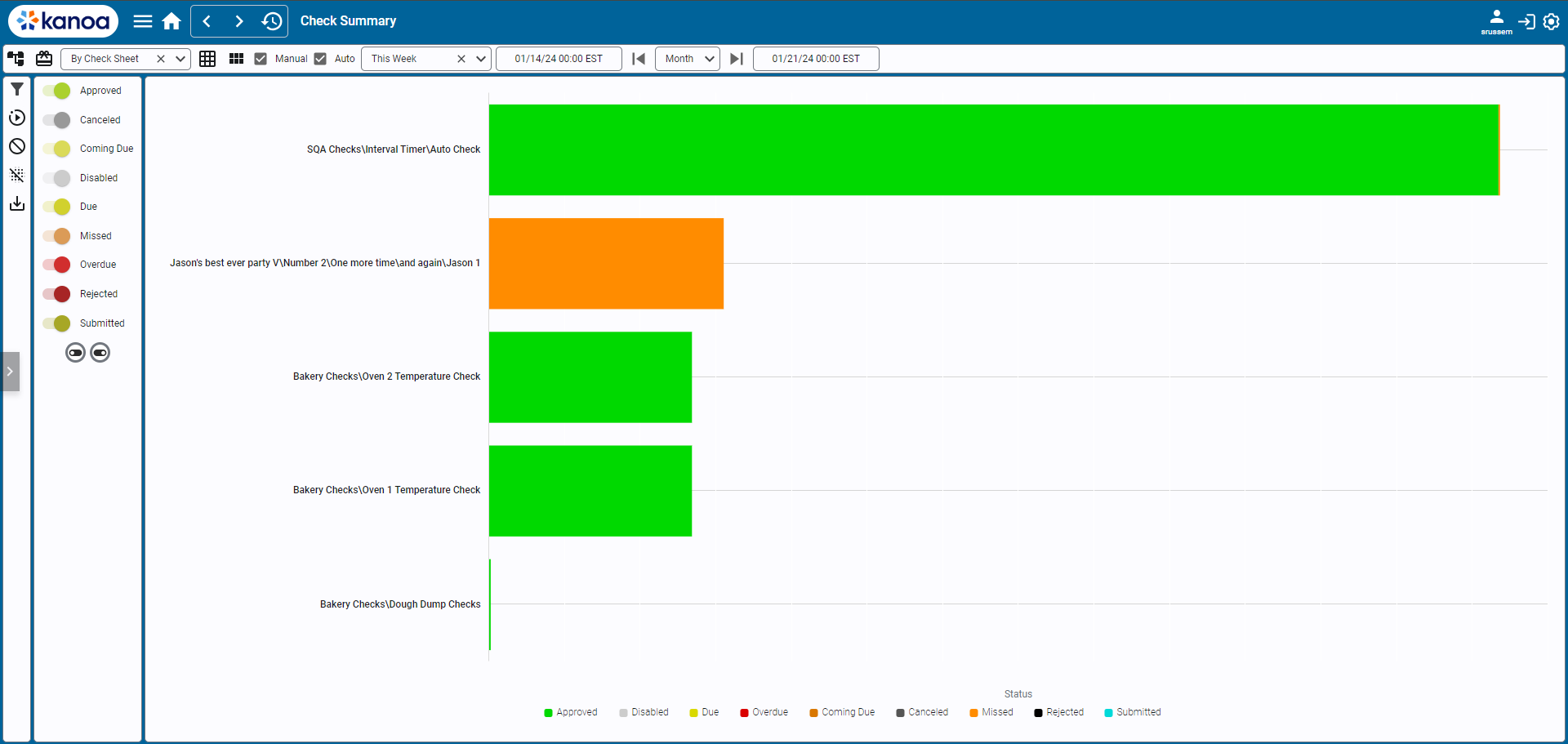
- Open Quality → Analysis → Check Summary.
- Use the filter bar to pick an asset, an item and a date range.
- Choose the report mode: by check sheet, area, shift, asset or item.
- Choose how to see it: bar graph, table or shift heat map.
Reference Materials: Check Summary - Filters, report modes and visualizations.
The Check Summary Report provides analysis tools for the status of check sheets. You can find answers to questions such as 'How many checks are being missed, by check sheet, by shift, by area?' or 'How often are we carrying out certain checks? Are we placing an unnecessary burden on operators?'
Screen Layout and Functionalities
Filter Bar
Filter Assets: Opens the asset filter pop-up to display check sheets related to a specific asset.
Filter Items: Activates the item filter pop-up to show checks related to a selected item.
Data Visualization Filters: Includes a dropdown to specify the report mode (by check sheet, area, shift, asset, or item).
Manual/Auto Check Boxes: Options to include either manually or automatically scheduled checks.
Date Range Selection: Features a dropdown for quick date range selection and fields for custom start and end dates.
Action Panel
Show Filters Button: Reveals options to toggle check sheet statuses for the report.
Get Data Button: Retrieves the latest data from the database.
Clear Data Button: Clears all data in the current report.
Export Check Sheet Data: Exports the report's data to a CSV file.
Main Content Area
Report Modes: Options to display data by check sheet, area, shift, asset, or item.
Visualization Modes:
- Bar Graph Mode: Default visualization of data.
- Show Table: Displays the report data in a table format.
- Show Shift Heat Map: Visualizes data in a heat map format, typically grouped by shift, check sheet, and completion status.
Navigating the Report
- Utilize the top filter bar to narrow down and specify the data you need to analyze.
- The action panel provides additional controls for data management and report customization.
- Switch between different report and visualization modes in the main content area to gain varied perspectives on the data.
Approve or Reject a Check Sheet
Some check sheets need a sign-off. When an operator submits one, it waits in Submitted until someone approves it. A check sheet with no sign-off goes straight to Approved.
Only Approved checks are used in reports and SPC, so an unapproved check sheet isn't counted.
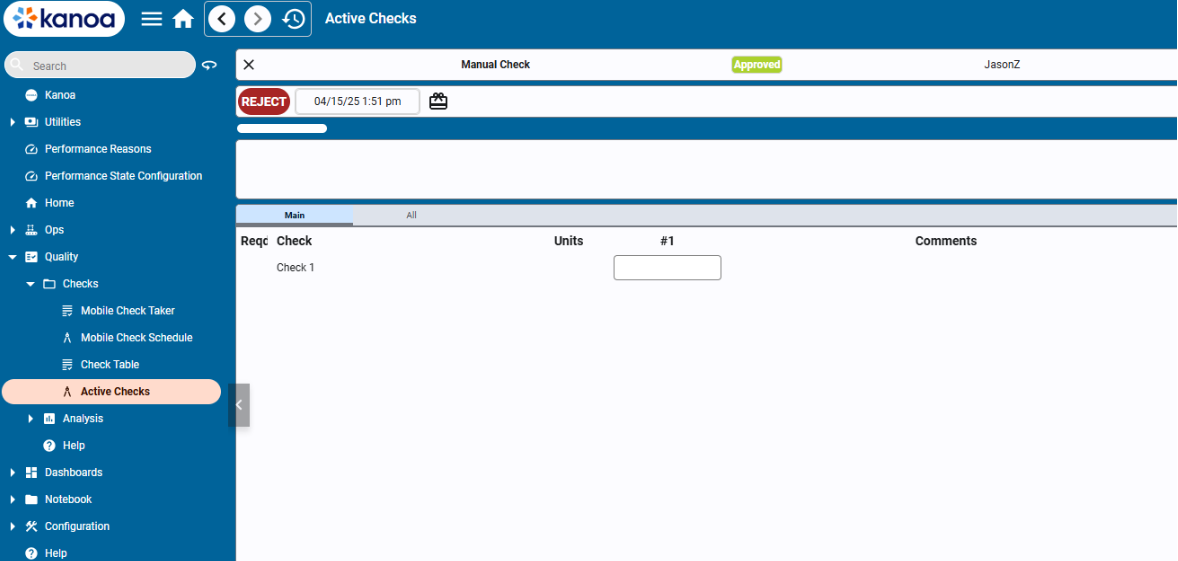
To approve a submitted check, open it and use its approve button. To correct a check that was already approved, reject it first.
- Open the check from the Check Table.
- Use the toggle at the upper right to switch from view to edit mode.
- Click Reject, change the answer that was wrong, and resubmit.
A resubmitted check goes back to Approved if its sheet needs no sign-off. Otherwise it waits in Submitted for approval.
Approving and rejecting check sheets needs the Approve Checks security function.
Reference Materials: Approve Checks - The security function.
Approve Checks
This function allows for users with the ‘Approve Checks’ function to approve check sheets.
Check Your Understanding
- What status does a check get when nobody starts it in time?
- Why does a Submitted check sheet not show in SPC reports?
- Which security function do you need to approve a check sheet?
Answers
- It goes from Over Due to Missed, after its grace time.
- Reports and SPC only use Approved check sheets. It must be approved first.
- Approve Checks.