Tool Life
Every mold wears. Kanoa counts each tool's cycles (shots) and run minutes while it's mounted, against the limits on its Details tab, and gives it a status: Due for PM at the tool's Warn at % of a limit, and Over limit past it.
Reference Materials: Tool Life - Counts, statuses and recording maintenance.
Each tool counts the cycles and running time it has done, against the limits set on its Details tab, and gets a status from them. The tool editor's Life tab shows the counts beside the limits and records maintenance.
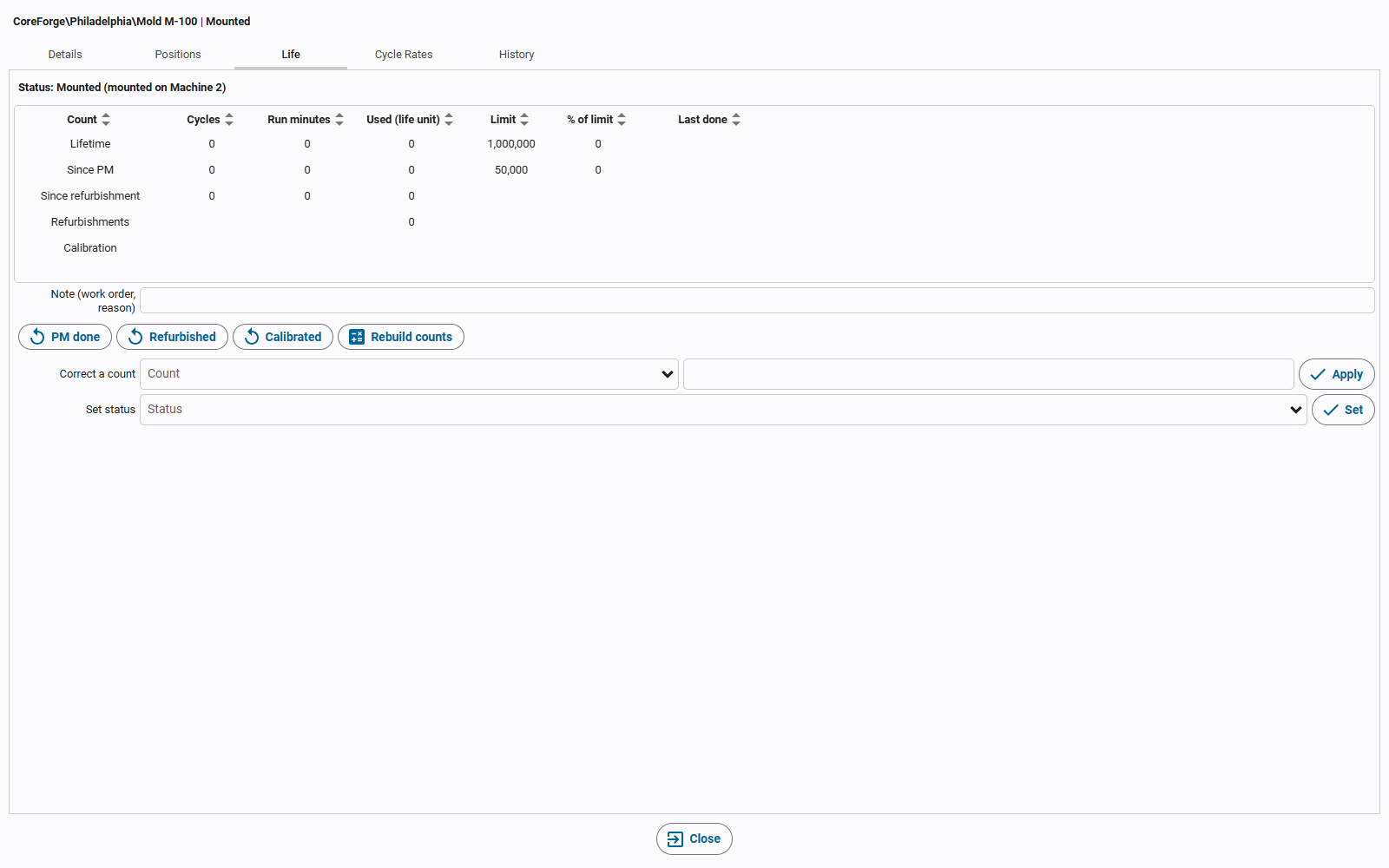
Counts
| Count | Meaning |
|---|---|
| Lifetime | Everything the tool has done. |
| Since PM | Since the last preventive maintenance. |
| Since refurbishment | Since the last refurbishment. |
| Refurbishments | How many times it has been refurbished. |
| Calibration | When it was last calibrated, and when it's next due. |
Each count has cycles and run minutes; Used (life unit) is the one in the tool's life unit, which the limits are measured in.
- Cycles come from the machine the tool is mounted on: its cycle count input, or its outfeed count divided by the parts per cycle. A tool with its own shot counter reports its readings through the machine's tags instead.
- Run minutes are the time the machine was Running while the tool was mounted.
- A back-dated mount or a corrected mount window moves the counts for that time onto (or off) the tool.
Statuses
| Status | When |
|---|---|
| Available | Not mounted, within its limits. |
| Mounted | On a machine or in a pocket. |
| Due for PM / Due for refurbishment / Due for calibration | When the tool has used its Warn at % of that limit. With a PM interval of 20,000 cycles and Warn at 90%, that's after 18,000 cycles, with 2,000 left. |
| Over limit | Past a limit (PM interval, refurbishment interval, lifetime, max refurbishments or calibration date). |
| In repair, Damaged | Set by hand. The tool can't be mounted. |
| Retired | Set by hand or by retiring the tool. The tool can't be mounted. |
Statuses are updated as counts come in, and the gateway checks every tool's limits every hour, including calendar-day and calibration limits that pass with no counting at all. Tools that are due or over a limit appear in the tools list's Alert column, on the machine's info panel (the Tooling and Notifications cards), and in the Event Notifications widget.
Recording maintenance
- PM done sets the since-PM counts to 0 and stamps the PM date.
- Refurbished sets the since-refurbishment counts to 0, stamps the date and adds one refurbishment.
- Calibrated stamps the calibration date and moves the next due date on by the calibration interval.
- Rebuild counts recomputes the counts from the machine's history over every time the tool was mounted.
- Correct a count changes one count by hand, for example to set a used tool's starting lifetime.
- Set status marks the tool In repair, Damaged or Retired, or clears that so it goes back to the status its limits and mount give it.
Add a Note (a work order number or reason) before clicking; every change is logged with it as an adjustment.
With Kanoa Maintenance
Tooling tracks a tool's life and records its maintenance on its own; Kanoa Maintenance isn't needed. With a Kanoa Maintenance license, the work can be scheduled as maintenance work orders instead:
- In Kanoa Maintenance, create a work order template set to Condition, with the tool as its Asset.
- Pick the Tool Life condition and set Due for to the PM, refurbishment or calibration limit.
- When the tool reaches its Warn at % of that limit, a work order is created. Completing it resets that count, the same as PM done, Refurbished or Calibrated on the Life tab.
The tool editor's Maintenance tab lists the tool's maintenance work orders; double-click one to open it. See Work Order Creation & Scheduling.
Where the Counts Come From
- Shots come from Injection Press 1's
Tooling/Inputs/Cycle Counttag, which you pointed at the simulator's shot counter in A New Press. Each increase is added to every tool mounted on the press. On a real press, it's the PLC's shot counter. - Run minutes are counted from the time Injection Press 1 was Running with the mold mounted. They need no setup.
A mold with its own shot counter can report through Tooling/Inputs/Tool Shot Counter instead, so its count follows the
mold from press to press.
Watch the Shots Come In
M-EC32-2 has been on Injection Press 1 since the changeover, at about 5 shots a minute.
- Navigate to Configuration → Ops → Tooling and double-click
M-EC32-2. Open the Life tab and note its lifetime and since-PM shots. - Close the editor, wait a couple of minutes, and open it again. Both counts have gone up by about 5 a minute.
- Open
M-EC25-4's Life tab too. It kept the shots from its run in Run and Change Over, but they stopped when it came off the press.
Due for PM
M-EC32-2 has a PM interval of 60 shots and warns at 80%, so it's Due for PM at 48 shots: about 10 minutes after it
went on the press. At 60 it's Over limit.
- Once
M-EC32-2has passed 48 shots, reopen its Life tab. The status is Due for PM (or Over limit, past 60). - Open the tools list in Configuration → Ops → Tooling.
M-EC32-2's Alert column shows the PM coming due, and Worst limit % shows how far through the interval it is. - Open the Operator Station for
Injection Press 1. The info panel's Tooling card shows PM 50/60 cycles (or however many shots it's at) with an orange warning icon, red once it's past 60. Hover the icon for the details.
Tools that are due or over a limit also appear on the info panel's Notifications card, as 1 tooling alert, and in the Event Notifications dashboard widget, so maintenance can plan the PM. The gateway also checks every tool's limits every hour, so a calendar-day or calibration limit comes due even when nothing is counting.
Kanoa still lets you mount a mold that's over a limit, because stopping production is a call for people to make, but the mount panel shows a Mount warnings popup that has to be accepted, and the accepted warning is saved with the mount. A tool that is In repair, Damaged or Retired can't be mounted at all.
Record the PM
- On
M-EC32-2's Life tab, enter the NotePM - vents cleaned, ejector pins checked. - Click PM done.
- Confirm the since-PM shots are back to 0, the lifetime shots are unchanged, and the status is back to Mounted.
The note is saved with the adjustment, so the mold's history shows who did the PM and why. Refurbished and Calibrated work the same way for the refurbishment and calibration limits. Correct a count sets a count by hand, for example the lifetime shots of a used mold you've just started tracking.
Recording the PM by hand needs no other license. With Kanoa Maintenance, a work order template with the Tool Life condition creates a work order when the mold comes due, and completing the work order resets the count for you. The tool editor's Maintenance tab lists them. See With Kanoa Maintenance.
Injection Press 1 keeps shooting, so M-EC32-2 will come due again after another 48 shots. That's the low training
interval; it won't matter for the rest of this chapter.
Copy this script into the Ignition Designer Script Console (Tools → Script Console) and run it. It checks that
M-EC32-2 has at least 48 lifetime shots and that a PM has been recorded, so its since-PM shots are below its lifetime
shots. Each check prints PASS or FAIL with what to fix. It doesn't change anything.
Show the check script
# Kanoa Ops Training - check "Tool Life" (Tooling, lesson 4)
#
# Run in the Ignition Designer Script Console (Tools > Script Console). It only
# reads; it changes nothing. Every check prints PASS or FAIL with what to fix.

PRESS = 'CoreForge\\Philadelphia\\Molding\\Injection Press 1'
MOLDING = 'CoreForge\\Philadelphia\\Molding'
tl = system.kanoa.tooling

results = []

def check(ok, what, fix=None):
	results.append(bool(ok))
	if ok:
		print 'PASS  %s' % what
	else:
		print 'FAIL  %s' % what
		if fix:
			print '      -> %s' % fix

def text(v):
	return '' if v is None else unicode(v).strip()

def key(v):
	return ' '.join(text(v).lower().split())

def truthy(v):
	return str(v).lower() in ('true', '1')

def num(v):
	try:
		return float(v)
	except (TypeError, ValueError):
		return None

def near(v, target):
	v = num(v)
	return v is not None and abs(v - target) < 0.001

def rows(data):
	return system.kanoa.utilities.convertDatasetToJSON(data) if data is not None else []

def findTool(name):
	for t in rows(tl.getTools({})):
		if key(t.get('assetName')) == key(name):
			return t
	return None

def positionsOf(tool):
	byNumber = {}
	if tool is not None:
		for p in rows(tl.getPositions({'toolingAssetId': tool['toolingAssetId']})):
			byNumber[int(num(p.get('positionNumber')) or 0)] = p
	return byNumber

def itemId(name):
	items = rows(system.kanoa.item.getItems({'itemName': name}))
	return items[0].get('itemId') if items else None

def standardRate(assetId, itemName):
	item = itemId(itemName)
	if assetId is None or item is None:
		return None
	rate = rows(tl.getStandardRate({'assetId': assetId, 'itemId': item}))
	return rate[0] if rate else None

def mountedNames(assetId):
	return [key(m.get('toolingName')) for m in rows(tl.getMounted({'assetId': assetId}))] if assetId is not None else []

print '=' * 70
print 'Kanoa Ops Training - Tool Life check'
print '=' * 70

assets = rows(system.kanoa.asset.getAssets({'assetPath': PRESS}))
pressId = assets[0].get('assetId') if assets else None
check(pressId is not None, 'Injection Press 1 exists', 'Import coreforge-press-1-asset-model.json, as in A New Press.')

print '\n-- M-EC32-2 life'
tool = findTool('M-EC32-2')
check(tool is not None, 'M-EC32-2 exists', 'Add M-EC32-2 as in Build the Molds.')
if tool is not None:
	life = num(tool.get('lifetimeCycles')) or 0
	sincePm = num(tool.get('cyclesSincePm')) or 0
	check(life >= 48, 'M-EC32-2 has at least 48 lifetime shots (%d)' % life,
		"Keep Injection Press 1 running with M-EC32-2 mounted until it passes 48 shots.")
	check(sincePm < life, 'A PM has been recorded (since PM %d of %d lifetime)' % (sincePm, life),
		"On M-EC32-2's Life tab, add a note and click PM done.")

passed = results.count(True)
print '\n' + '=' * 70
print 'Result: %d of %d checks passed' % (passed, len(results))
if passed == len(results):
	print "All good. M-EC32-2's PM is recorded."
else:
	print 'Fix the FAIL items above, then run this again.'
print '=' * 70