Lot States
A lot operation records what happened. A lot state records the resulting condition of the material on that lot event. Your Inspect operation produced one OK lot and one Scrap lot from the same input.
| State | Meaning |
|---|---|
OK | Usable |
| Hold | Don't use until it's reviewed or released |
Scrap | Rejected and removed from usable inventory |
State reasons say why, for example "Awaiting QA review" or "Supplier certification missing" for a hold, and "Failed visual inspection" or "Damaged in handling" for scrap. Link reasons to assets so each station only sees its own: Receiving sees "Missing certificate of analysis", the QA Station sees "Failed visual inspection".
- Navigate to Configuration → Ops → Lot Configuration and review the states on the Lot States tab.
- Add a few state reasons, such as
Missing COAandDamaged containerfor the hold state, andFailed visual inspectionforScrap. - Link
Missing COAtoStorage\ReceivingandFailed visual inspectiontoFinishing\QA Station. - Run a
Receiveand anInspectin Lot Manager and check which reasons each one offers.
Reference Materials: Lot States
Lot States
Click on the Lot State tab to edit Lot States.
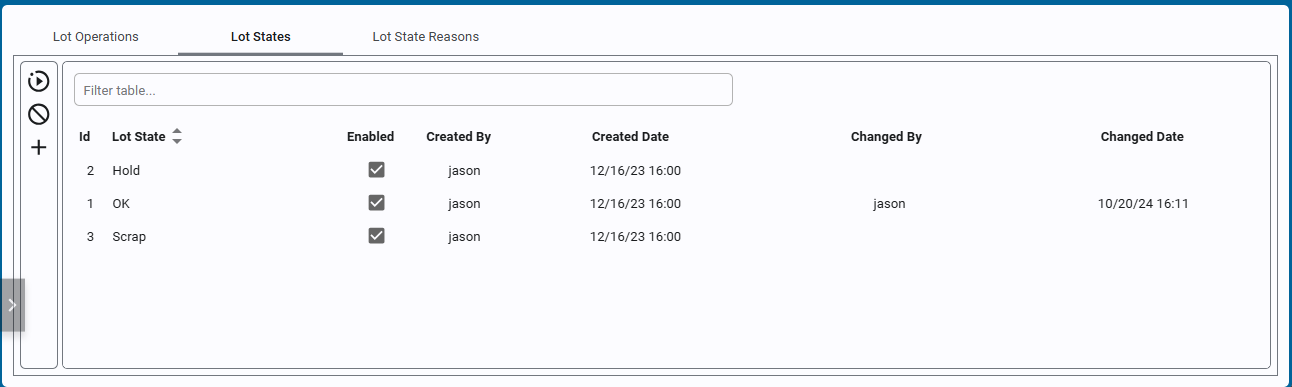
Lot States can be added and edited on this screen. If a Lot State has been used by a lot operation, it cannot be deleted and should be disabled instead.
Reference Materials: Lot State Reasons
Lot State Reasons
Click on the Lot State Reason tab to edit Lot State Reasons.
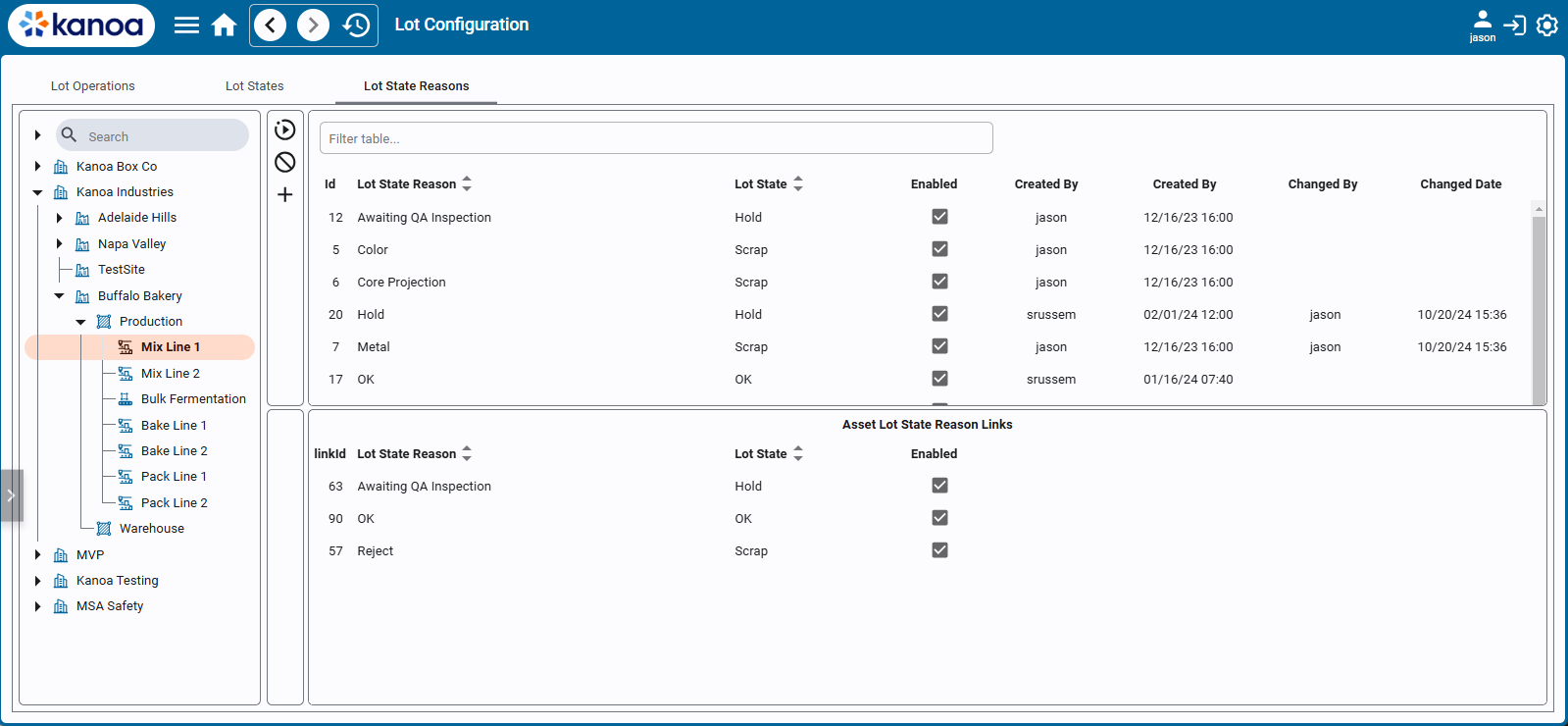
Each Lot State can have multiple reasons associated with it. For example, 'Bad Color' or 'Burrs' may be linked to the Lot State 'Scrap'. This provides a way of capturing from operators the reasons why a lot of material has been scrapped.
Lot State Reasons can then be associated with specific assets, to filter the possible list of lot state reasons for, says, lots exiting an oven versus an extruder.