Shifts and Calendars
A shift is a planned operating time window for an asset or group of assets, such as Day Shift or Evening Shift. Kanoa uses shifts to report on production by shift, and the schedule can use them to keep work inside shift time. This lesson shows you how to read the shift pattern and add a one-off shift.
Creating, editing and deleting shifts needs the Schedule Shifts security function. Without it you can still read the calendar.
Open the Shift Calendar
- Open Ops → Scheduling → Shifts from the navigation menu.
- Click the asset selector to choose the site, area or asset you want to see. For CoreForge, start with the Philadelphia site.
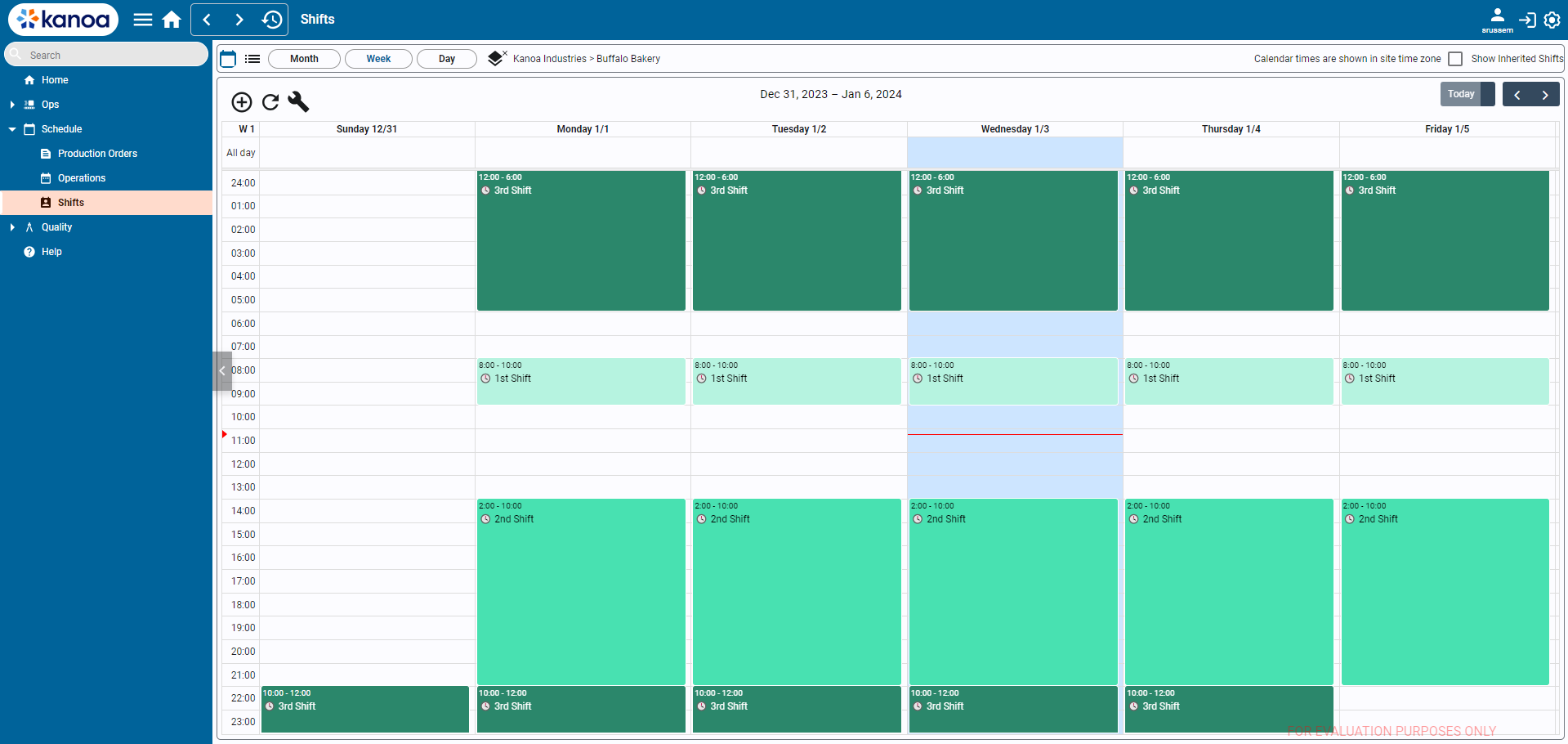
Three controls change what you see:
- Asset Selector: which assets the shifts are shown for.
- Display mode: a calendar or a list.
- Period: month, week or day.
When a site is selected, the calendar shows shift times in the site's time zone.
Read the Shift Pattern
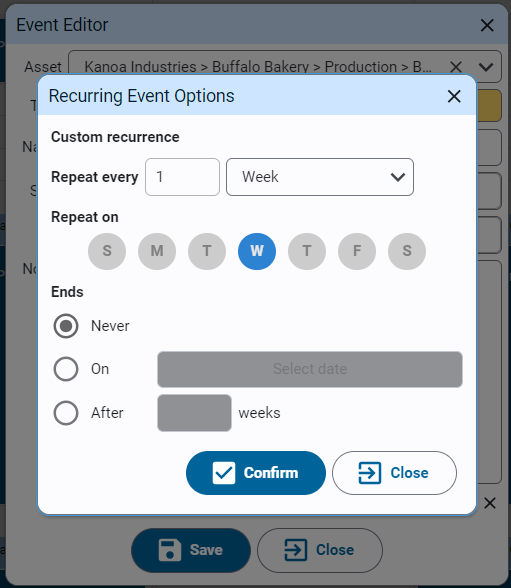
Shifts repeat. A shift such as Day Shift is entered once with a recurrence, for example Monday to Friday, and shows on every matching day. A rotation across several weeks is built the same way, with a pattern that repeats every number of weeks.
Shifts are inherited down the asset hierarchy. If you look at Machine 1 and it has no shift of its own, it shows the shifts of its area or site. Once a shift is created at any level, that level stops inheriting from above. In the CoreForge plant, a line with its own shift, such as Manual Pack 1, shows only that shift.
If a line shows different shifts from its site, check whether someone created a shift on the line itself.
Reference Materials: Shift Features - Time zones, inherited shifts and rotation patterns.
Features
Site Time Zone
KanoaOPS provides support for enterprises with sites in different timezones. When a site is selected, the calendar will show the shift times in the site's time zone.
Inherited Shifts
Shifts can be created at the site, area, asset level. When an asset doesn't have a shift associated with itself, it will look up the asset hierarchy
for a shift. This means that you can create the shifts at the site level and all assets underneath will respect that shift. If an asset or area requires a different shift,
simply create the shift at that level. Once a shift is created at any level, shifts from higher levels will no longer be inherited at that level.
Complex Shift Rotation Patterns
We use the dateutil rrule object which offers a complete and fast implementation of the recurrence rules documented in the iCalendar RFC.
This makes the scheduling of repeating shifts very simple and pretty much identical to how it is done in Google Calendar, iCalendar and Microsoft's calendar.
To create, say, a four shift rotation pattern, simply create the schedule pattern for each week and set it to repeat every x weeks.
Add a One-Off Shift
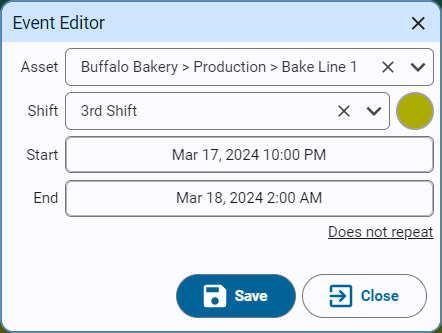
Use a shift that doesn't repeat for a special shift, such as overtime on a Saturday.
- In the calendar view, select the time you want the shift to cover.
- Click the Add button on the toolbar.
- Select the asset if it isn't already filled in.
- Select the shift name. To create a new name, type it in the dropdown and select create.
- Click the circle to choose a color for the shift.
- Set the start and end times.
- Leave Does Not Repeat as it is, then save.
To change a shift, select it and click the Edit button. To remove one, select it and click the Delete button, or press the Delete key.
Reference Materials: Adding Shifts - The full steps for the shift editor.
Adding Shifts
- In the calendar view, select the time you wish to schedule the shift for.
- Click
 button.
- Select the asset if it has not already been populated.
- Select the shift name. If the shift name does not exist, you can create it by typing the name of it in the dropdown and selecting 'create'.
- Click on the circle to choose a color for this shift.
- Set start and end times.
- For recurring events, click on the 'Does Not Repeat' link to edit recurrence options.
Note: Shifts do not need to repeat, but typically should for ongoing operations. User non-repeating shift entries for special one off shifts.
Check Your Understanding
- Which security function do you need to add or delete a shift?
- Machine 1 has no shift of its own. Where do the shifts on its calendar come from?
- How do you add a shift that only happens once?
Answers
- Schedule Shifts.
- They're inherited from higher in the asset hierarchy, such as its area or the site.
- Add a shift in the editor and leave it set to Does Not Repeat.