Track Against Plan
A schedule is only useful if you check it against what happens. Kanoa shows the schedule and the actual runs on the same time axis. This lesson shows you how to compare them and what to do about orders that are running late.
Compare Schedule and Actual
The Production Counts chart, on the Production page, shows one asset over a date range of up to 7 days. Operators see the same chart as the Asset Run Analysis dashboard on the Operator Station.
- Open Ops → Analysis → Production.
- Select an asset and a date range, then click Go. Selecting a site or an area shows its assets as cards. Click a card to move down.
- Look at the timeline under the counts.
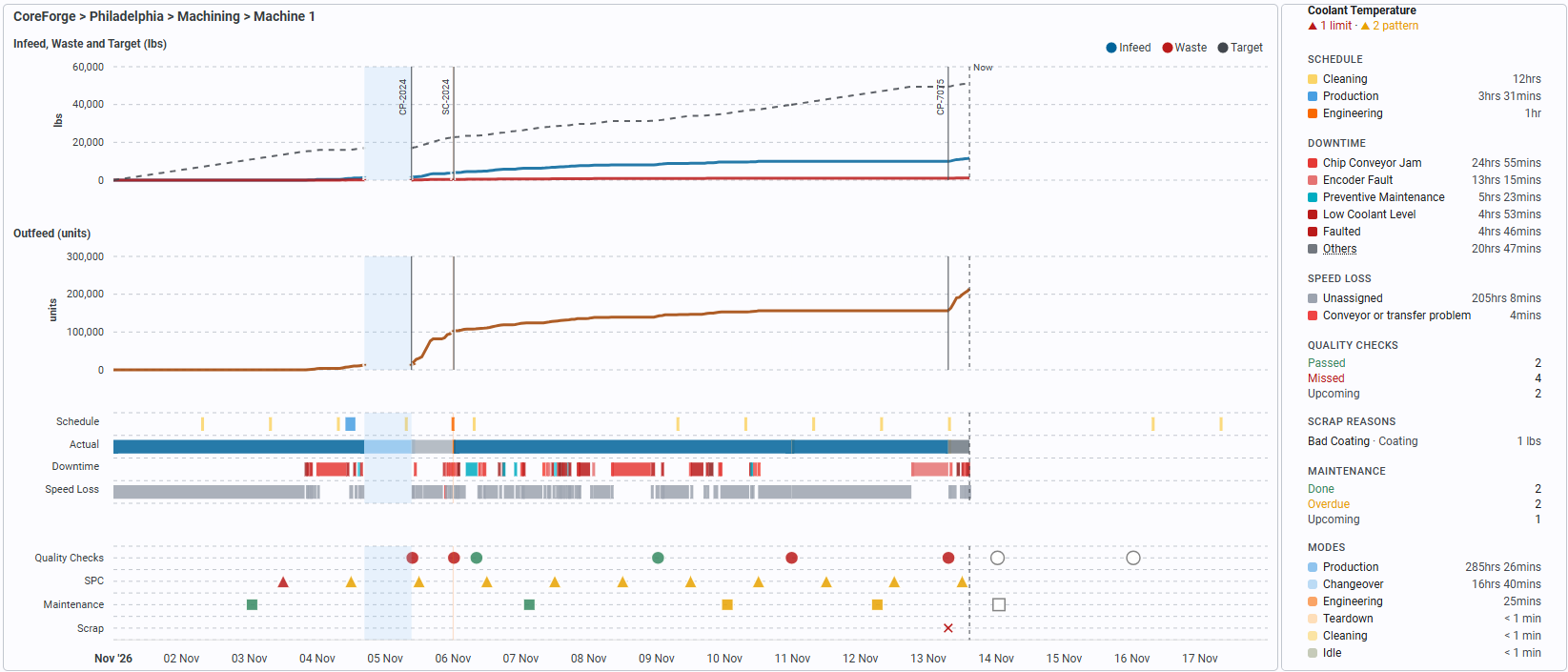
The timeline has a Schedule row, which is what you scheduled, and an Actual row, which is what the asset did. Both use the same colors, so you can compare them directly. Look for runs that started late, ended early or never started.
Hover over a bar in the timeline to see its item, work order and required quantity.
The panel on the right shows totals for the range. The Schedule section shows time scheduled in each mode. Each run in Production has its own section: hover over it to see its Target, Infeed, Outfeed and Waste, and its Target Rate and Actual Rate.
While the range includes now, the chart refreshes by itself. The schedule refreshes every 10 minutes.
Check Orders for Progress
On Ops → Scheduling → Production Orders, select Show Actual to see how much of each order has been produced. Compare it with the quantity ordered.
On the schedule, an order that is still unfinished after its due date shows as Overdue. Orders that are In Progress have a run started on them.
Reschedule a Late Order
- Open Ops → Scheduling → Operations and select the asset.
- Find the event for the late order. Select it and click the Edit button to change it, or click the Delete button to remove it (or press the Delete key).
- Put the order back on the calendar with the order selector, as in the last lesson, or on another asset that can make it.
- If the new time overlaps other work, choose how to handle it from the options Kanoa shows.
These steps need the Schedule Operations security function.
Reference Materials: Order Status Colors - What each color means, and when an order is Overdue.
Order Status Color Configuration
When we schedule production orders on the calendar, our application allows for color coding the events by order status, for better recognition at a glance.
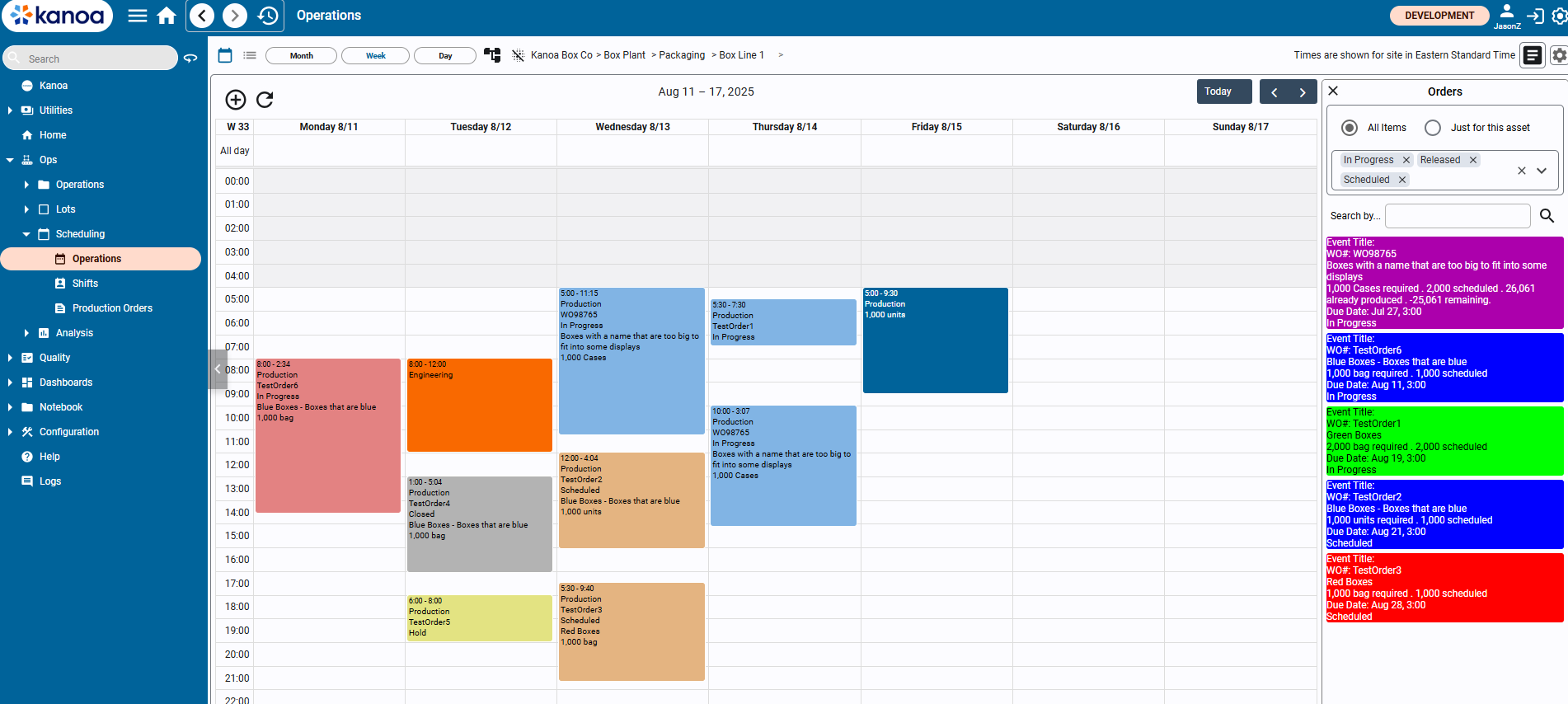
Here for example, we can see that orders that are “In Progress” are colored light blue, the orders that are ‘Scheduled’ are sand-colored, an order that is ‘Closed’ is grey, and so on. These colors will override how the orders would’ve been otherwise colored.
In order to configure this, we go to the application settings and look at the setting called ‘colorScheduleEventsByOrderStatus’.
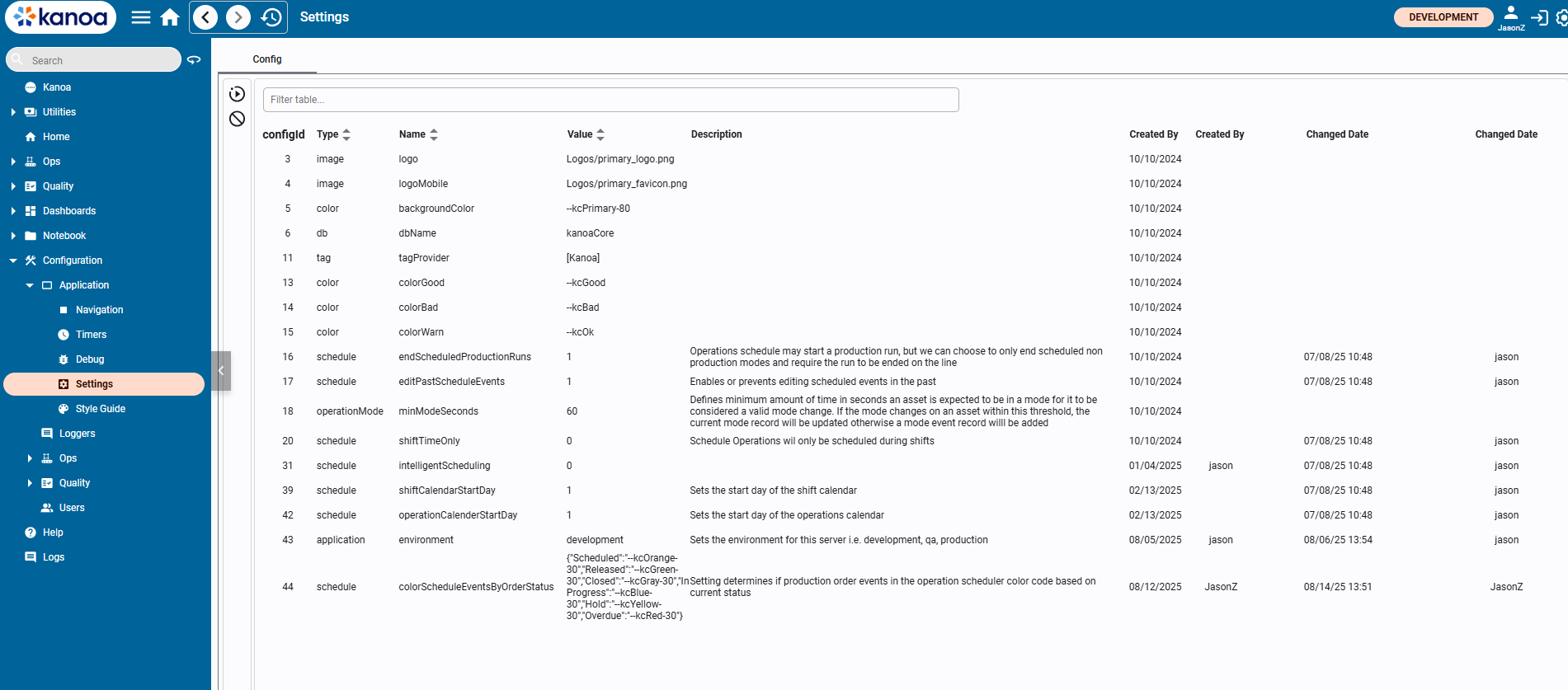
In the value, we have a dictionary string, that represents a mapping of order statuses to colors. We have Scheduled, Released, Closed, In Progress, and Hold as our order statuses. Overdue is a special order status that isn’t directly stored in the database, but is determined by certain factors. In order to update the value of the dictionary correctly, make sure that the order status name and value are correctly enclosed in double string quotes, like: “Scheduled”:”--kcOrange30”. Valid values for colors are hex colors like #eb4034 or our Kanoa color variables.
As mentioned, Overdue is a special order status that is determined based on the order. If an order’s status is In Progress, Released, or Scheduled, its produced quantity is still lower than the scheduled quantity, and the current date is past the order’s due date, then the order is considered Overdue.
Check Your Understanding
- Which two rows of the timeline do you compare to see if a run happened as planned?
- When does Kanoa show an order as Overdue?
- Which security function do you need to reschedule an event?
Answers
- Schedule and Actual.
- When it's In Progress, Released or Scheduled, its produced quantity is below the scheduled quantity, and its due date has passed.
- Schedule Operations.