Record Downtime
Every time your machine stops, Kanoa records how long it was down. What it can't know on its own is why. The reason you give is what your supervisor and engineers use to decide what to fix, so a stop with no reason, or the wrong one, is a stop nobody can fix.
Set the Reason When the Machine Stops
When the machine goes down, the State card on the info panel shows the stop and how long it has lasted. If Kanoa couldn't tell why, it shows a general state, such as Unplanned Downtime.
- Tap the State card. The Set State popup opens with the machine's states in a tree, grouped by category.
- Open the category that fits, such as Mechanical or Material, and select the reason.
- Click Set State.
The State card now shows the reason you picked.
Set the reason while the stop is happening, or as soon as the machine is running again. It's far easier to remember why the machine stopped ten minutes ago than at the end of the shift.
Catch Stops You Missed
If a stop ends without a reason, the Notifications card counts it as uncoded downtime for the shift, and its stripe turns orange. Tap the card, then tap the notification to open the stops that need a reason. Before you hand over, check the card has no uncoded downtime left.
Give Slow Running a Reason
The machine can lose output without stopping, by running below its standard rate. While it does, a Speed loss card appears on the info panel, showing how far below the rate it is.
- Tap the Speed loss card. The Set Speed Loss popup opens with the reasons in a tree, grouped by class.
- Select the real reason, such as reduced speed for a material problem.
- Confirm it.
Setting a speed-loss reason needs the Edit Operations security function. If the card has no chevron (›) for you, tell your supervisor why the machine is running slow.
Correct a Reason You Got Wrong
You can correct earlier stops in the Downtime Editor, from the Downtime tile on the Asset Operation screen (View and edit downtime states). It needs the Edit Operations security function.
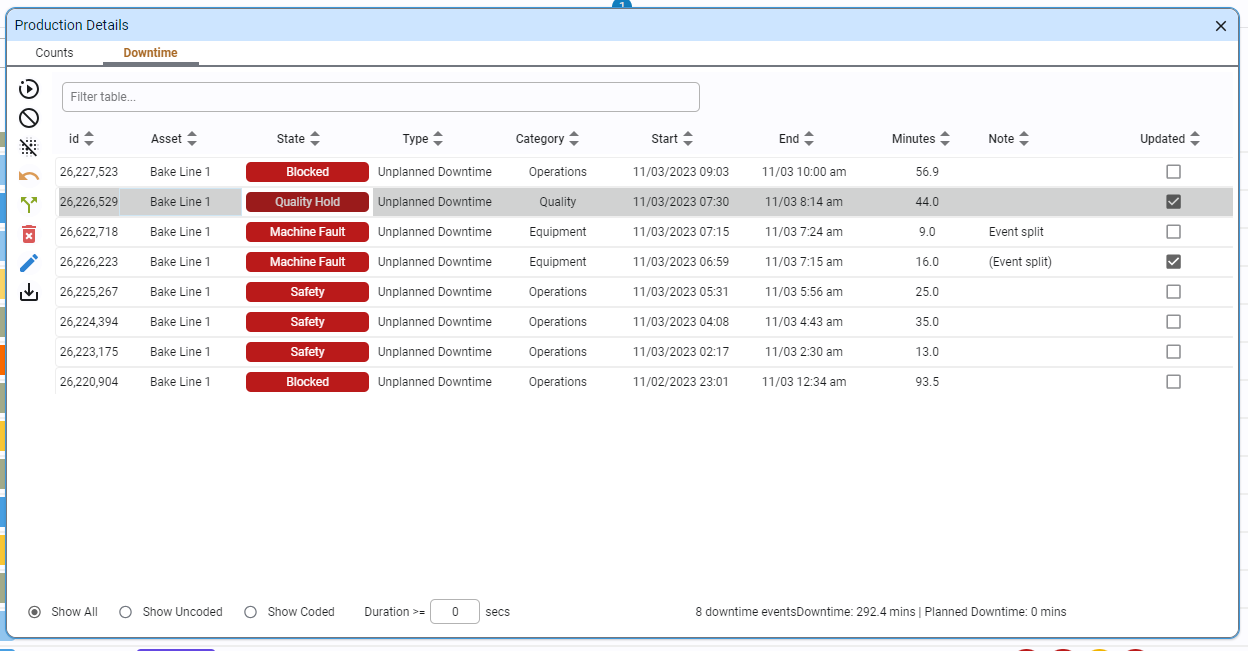
- Tap the Downtime tile.
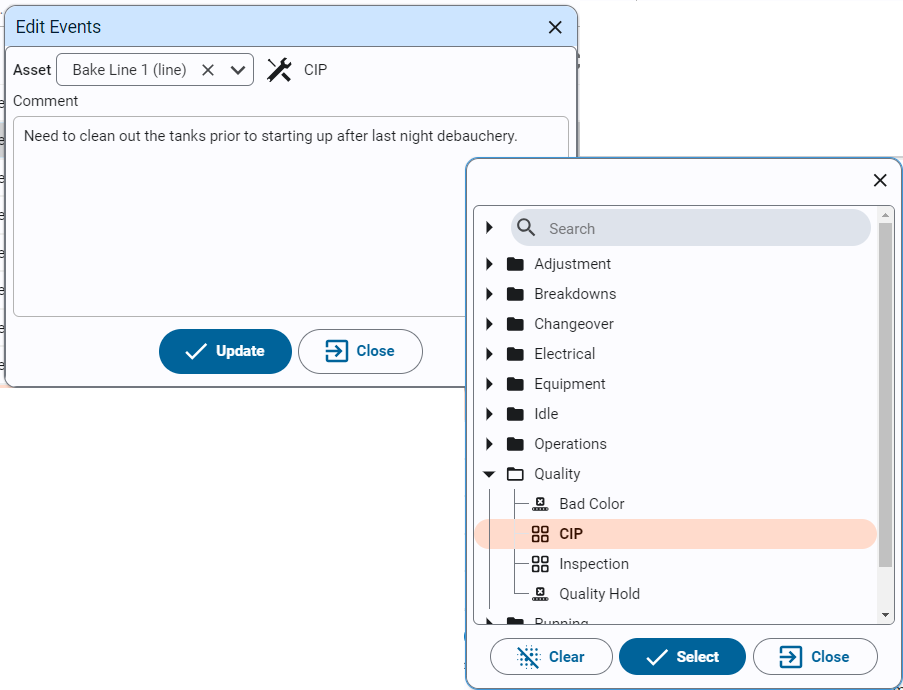
- Select the stop you want to correct, and click the edit button.
- Pick the right reason, and save. The corrected stop is marked with a check box.
From the same screen you can also split a stop that had two causes into two stops, each with its own reason, and revert a change you made by mistake.
Don't delete a stop to get rid of it. Deleting it adds its time to the state before it, which hides the downtime instead of explaining it, and a deleted stop can't be brought back.
Reference Materials: Downtime Event Editor - Edit, split, delete and revert states.
Downtime Event Editor
Anytime the state of an asset changes, a record is created in the mes.stateEvent table. State can be of type 'running', 'unplanned downtime,' or 'planned downtime'.
The Downtime Editor allows the following actions:
- Edit a state / downtime event
- Add a state
- Delete a state
- Split a state
- Revert a state
Editing Asset States / Downtime Events
- Select a downtime event and click the
 .
- Select the cell that was responsible for the downtime or leave it at the asset (line) level.
- Click on the to select the new state.
- Updated downtime events are marked with a checkbox.
Note
- Downtime events can be deleted in which case the previous state will include the period of time of the deleted event.
- Downtime events can also be split into multiple events. You can specify the duration for the split and re-code each event as necessary.
- Split events and updated events can be reverted. Deleted events cannot.
Check Your Understanding
- The machine stopped because a feeder jammed. Where do you give the reason?
- What tells you there are stops on this shift with no reason?
- You picked the wrong reason for a stop an hour ago. How do you fix it?
Answers
- Tap the State card and pick the reason in the Set State tree.
- The Notifications card counts uncoded downtime, and its stripe turns orange.
- Edit the stop in the Downtime Editor, from the Downtime tile, or ask your supervisor if you don't have Edit Operations.