Record Scrap
Scrap counts against your run's quality, so it has to be counted. Like downtime, it's only useful with a reason: 300 scrapped tells your supervisor less than 300 scrapped for coating defects.
Many machines count waste on their own, from the PLC. You count it by hand when the machine can't, for example parts you reject at inspection. Counting scrap needs the Edit Operations security function.
Open the Count Editor
- On the Asset Operation screen, select the Current Run tab under the info panel cards.
- Tap the Output box. The Count Editor opens for the current run.
Count Waste with a Reason
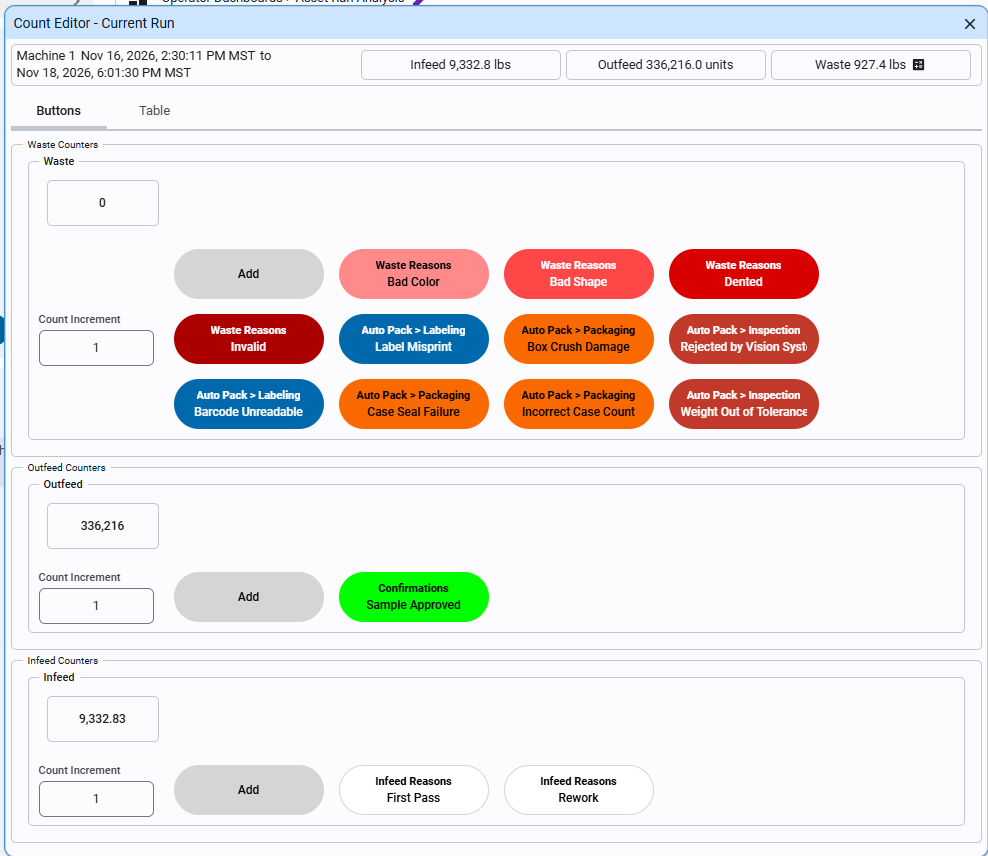
- In the Count Editor, stay on the Buttons tab and find Waste Counters. Each waste reason your plant has set up for this machine is a button, such as Bad Color or Box Crush Damage.
- Enter the quantity in Count Increment.
- Click the button for the reason. The count is added straight away.
The Waste total at the top of the Count Editor goes up, and the count appears on the Table tab with its quantity and reason.
Use the reason buttons, not Add. Add counts waste with no reason.
Count scrap with the right reason even when the machine already counts the waste. Waste counted without a reason shows on your supervisor's charts as uncoded scrap, so they can see how much there is, but not what to fix.
Correct a Count
If you counted the wrong quantity or reason, correct it in the Count Editor for the run. A count you correct for an earlier run is edited the same way: tap the Run Review tile, select the run, and open its counts.
Reference Materials: Editing Production Counts - Infeed, outfeed and waste.
Editing Production Counts
Counts are edited in the Count Editor, which needs the Edit Operations security function. It can be opened from:
- The info panel: tap the Output box on the Current Run or Current Shift tab.
- Run Review: select a production run and click the eye icon (or double-click the row), then the Counts tab. See Run Review.
- The Asset Run Analysis dashboard: click a run in the totals panel on the right of the chart. See Asset Run Analysis.
The top of the Count Editor shows the asset, the run or shift it covers, and its Infeed, Outfeed and Waste totals. A calculator icon next to a total means no counts of that type were recorded, so the total is calculated from the other two.
The Buttons tab has a section for each counter (Waste Counters, Outfeed Counters and Infeed Counters). Each counter shows its current count, a Count Increment, and buttons that add the increment:
- Add adds a count with no reason.
- Each reason button adds a count with that reason, such as Waste Reasons · Bad Color or Auto Pack > Packaging · Box Crush Damage. The buttons are the counter type's item states, grouped by category and coloured as set up in Item States.
The Table tab lists the counts recorded in the run or shift, with their quantities and reasons.
Adding a count to a calculated total stops it being calculated. It's up to you to keep the counts consistent: infeed = outfeed × package count + waste, which is infeed = outfeed + waste when the package count is 1.
Check Your Understanding
- Where do you open the Count Editor from?
- Why does the reason matter if the machine already counts its waste?
Answers
- The Output box on the Current Run tab.
- Waste without a reason shows as uncoded scrap: your supervisor can see how much was lost, but not why.