Applying a License
The kanoaMES module is fully functional without a license and works on the same two hour trial license as Ignition. When you're ready to license the module, you can request a 6 or 8 character key license depending on whether you're on using a container or physical server. If given a 8-character license key, an activation token will be required as well.
The Licensing page can be found at Config -> System -> Licensing on Ignition 8.1, and Platform -> System -> Licensing for Ignition 8.3.
- Look for "Activate new license" or "Activate a License" button, depending on which version of Ignition you're on.
- In the License Key field, enter the license key. If given a 8 character license, you will also need to have your activation token ready. Paste in the information as prompted.
The license should now be active and Kanoa MES will show as activated on the modules page.
The kanoaMES license contains license attributes that turns on and off various MES features such as ops, trace, quality, cmms, inventory.
You can have kanoaOPS licensed, but trace, quality etc. will only work in trial mode. An icon on the header provides an indication that unlicensed kanoa features are inactive due to trial expiration.

For licensed production systems, you'll likely want to hide unlicensed parts of the Kanoa Suite and this can be achieved by disabling those parts under Application\Settings.
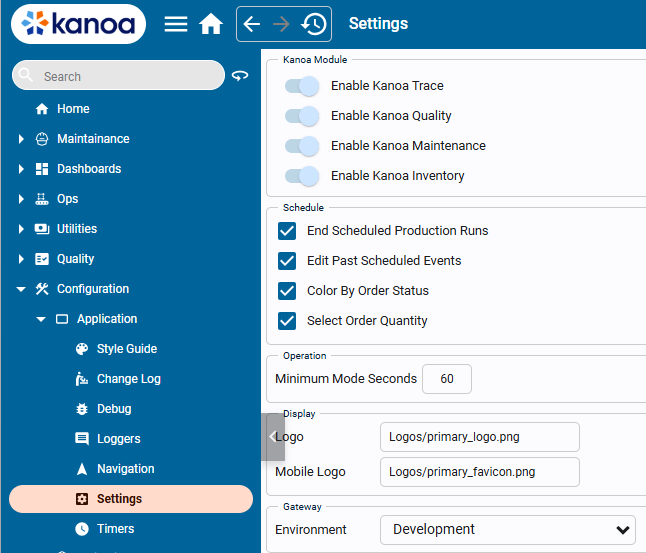
Disabling those license attributes, removes them from the navigation and the license checker.