Run and Validate
- In Quality → Schedule → Active Checks, add an
Offline Lab Inspectionfor assetQA Stationand open it. - On the Analyzer tab, click Get Analyzer Data, then Take Measurement. Particle Size and Particle Density fill in, and Standard Deviation and Coverage are calculated.
- On the Calibration tab, enter the analyzer calibration date.
- Submit. The check stays in Submitted because the sheet requires sign-off. Approve it.
The test fail action didn't fire, and couldn't: nothing on the sheet has a spec yet, so nothing can fail. You'll add one through a revision.
- In Configuration → Quality → Check Sheets, set
Offline Lab InspectiontoIn Revisionand open it. - Open
Particle Sizeand set its specification to Tolerance: LEL0, LSL25, LCL50, Target75, UCL100, USL125, UEL150. - Save, close, and release the sheet.
- Add another
Offline Lab InspectionforQA Station, and capture the analyzer data. - Overwrite Particle Size with
10. It's below the LSL of 25 but above the entry limit of 0, so Kanoa accepts it and marks it as failed. - Enter the calibration date, add a comment for the failure, and submit.
- Watch for the message that a follow-up check was issued. The helper is issued when the failed check is submitted, before anyone approves it.
- Approve the lab inspection. Then in Active Checks, open the
QA Station Inspection Failurecheck, add an image, and submit it. - Add one more
Offline Lab Inspection. The Calibration tab now shows the date you entered last time.
A persistent value may not carry over to a new check sheet version, so the first check after a revision can start blank. From then on, the value carries forward.
Reference Materials: Tolerance limits and how values are evaluated
Tolerances
One or more specifications (or tolerances) can be added to an attribute. A tolerance can be applied to all items by leaving the Asset, Item and Item Set fields blank. Otherwise, the Asset and Item selectors can be used to set tolerances by individual item, asset or item set. To add a new tolerance, click the
Add Tolerance button on the left of the Tolerance tab.When a check is to be taken, it will first check if a tolerance exists for the current item. If no tolerance is found, it will check if the current item belongs to an item set that has a tolerance. If no item set tolerance has been configured, it will use the tolerance defined for all items.
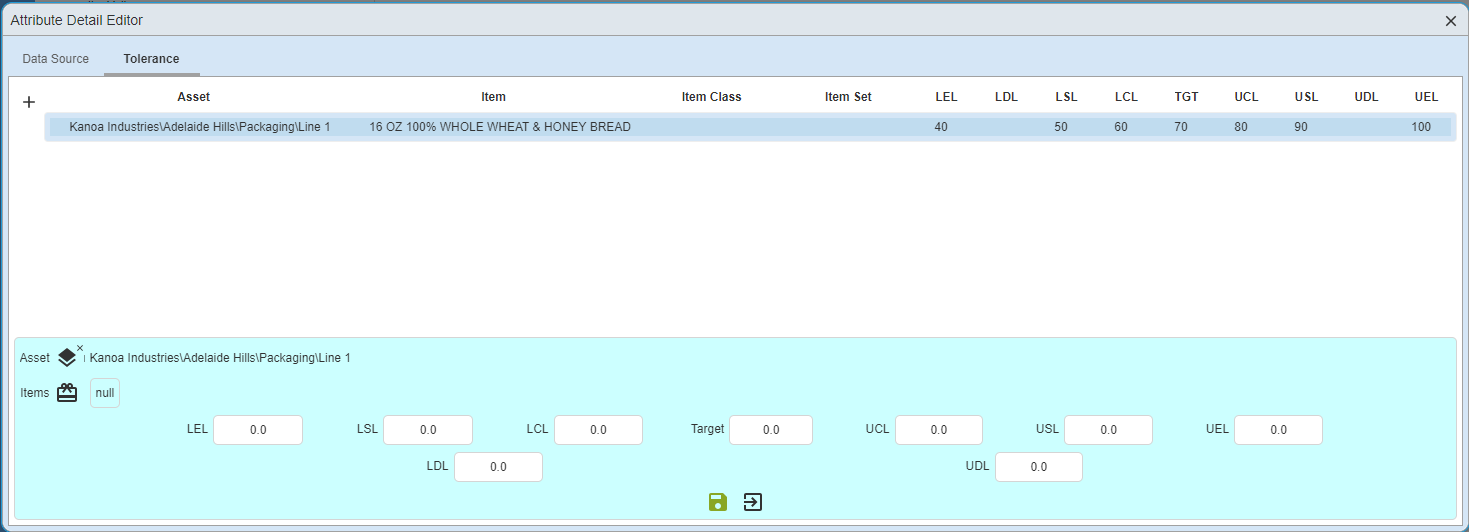
Tolerance Parameters
- LEL Lower Entry Limit: Defines the minimum value that can be entered.
- LSL Lower Spec Limit: Defines the lower Pass / Fail condition. Failing values will be highlighted red.
- LCL Lower Control Limit: Defines the lower limit condition. Values below the LCL will be considered as passing but will be highlighted orange.
- Target: Defines the expected ideal value
- UCL Upper Control Limit: Defines the upper limit condition. Values exceeding the UCL will be considered as passing but will be highlighted orange.
- USL - Upper Spec Limit: Defines the upper Pass / Fail condition. Failing values will be highlighted red.
- UEL - Upper Entry Limit: Defines the maximum value that can be entered.
Tolerance parameter values must make logical sense or will be highlighted in red as a warning. For instance, the Upper Entry Limit cannot be smaller than the Lower Entry Limit.