Revise and Correct
You find a mistake after you submit a check, such as a wrong answer or a mistyped value. An approved check can't be edited by accident. To correct it, it has to be rejected first. This lesson shows you how.
Rejecting and approving a check needs the Approve Checks security function, which plants usually give to the Quality Manager rather than to quality inspectors. See Approve and Reject in the Quality Manager track.
Get the Check Rejected
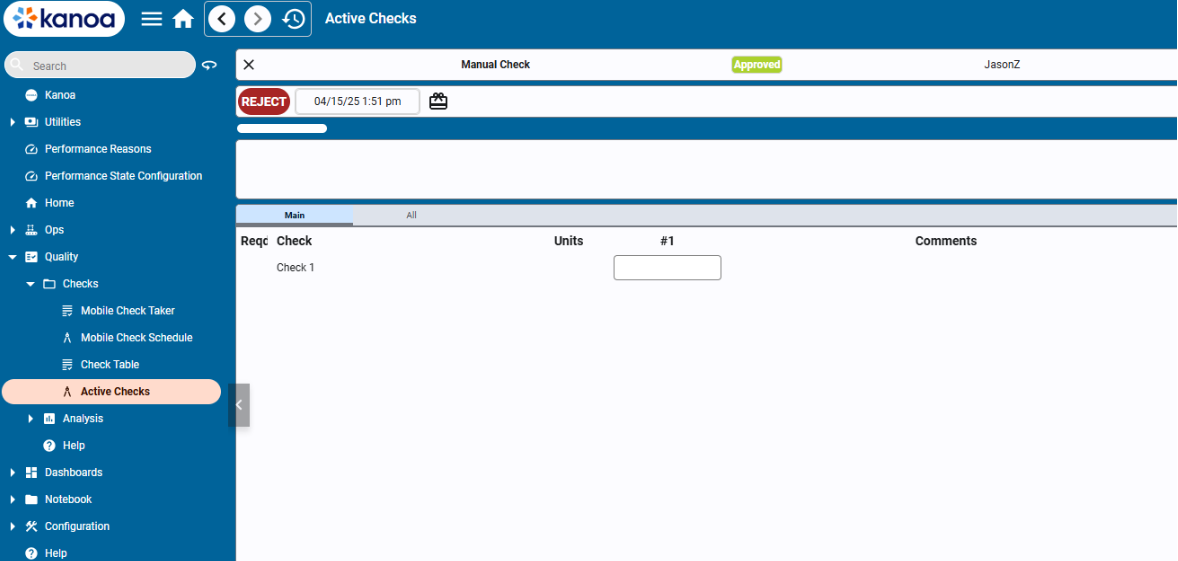
Ask your Quality Manager to reject the check, and say what's wrong with it. If your user has Approve Checks, you can reject it yourself:
- Open Quality → Schedule → Check Table.
- Find the check, and open it. It opens for viewing.
- Use the toggle at the upper right to switch from view mode to edit mode.
- Click Reject. The check can now be corrected.
Correct and Resubmit
- Open the rejected check from Check Table, in edit mode.
- Change the wrong answer. For example, change a failed area from
Over-ClutteredtoPassable. - Submit the check again.

Check the Result
- Go back to Check Table.
- Find the check. Its Check OK column counts the failed items, so a corrected check no longer counts the one you fixed.
- Read its Status.
If the check sheet doesn't need a sign-off, the resubmitted check goes back to Approved. If it does, it waits as Submitted until someone with Approve Checks approves it.
Taken On and Taken By show when and by whom the check was done.
While a check is rejected, it isn't Approved, so reports and SPC leave it out. Resubmit it as soon as you've corrected it.
If the Check Sheet Itself Is Wrong
You can only fix a value on the check you took. If the check sheet is wrong, such as a missing question or a wrong limit, ask whoever has the Configure Quality function to change it. A released check sheet is changed through a new revision. Checks you already took keep the version of the check sheet that was used.
Reference Materials: Approve Checks security function.
Approve Checks
This function allows for users with the ‘Approve Checks’ function to approve check sheets.
Check Your Understanding
- Why can't you simply edit an approved check?
- Which security function lets someone reject and approve a check, and who usually has it?
- After you resubmit a corrected check on a sheet that needs a sign-off, what status does it have?
Answers
- Approved checks are protected from accidental changes. The check is rejected first, then corrected.
- Approve Checks. Plants usually give it to the Quality Manager.
- Submitted. It waits for approval.