Orders
The Orders Configuration screen defines the lifecycle states that production orders (work orders) move through in Kanoa MES.
This configuration determines:
- Which states are available in the system
- Whether orders in a given state are considered active
- Whether they can be scheduled
- Whether they can be executed on assets
- How they are visually represented throughout the application
Overview
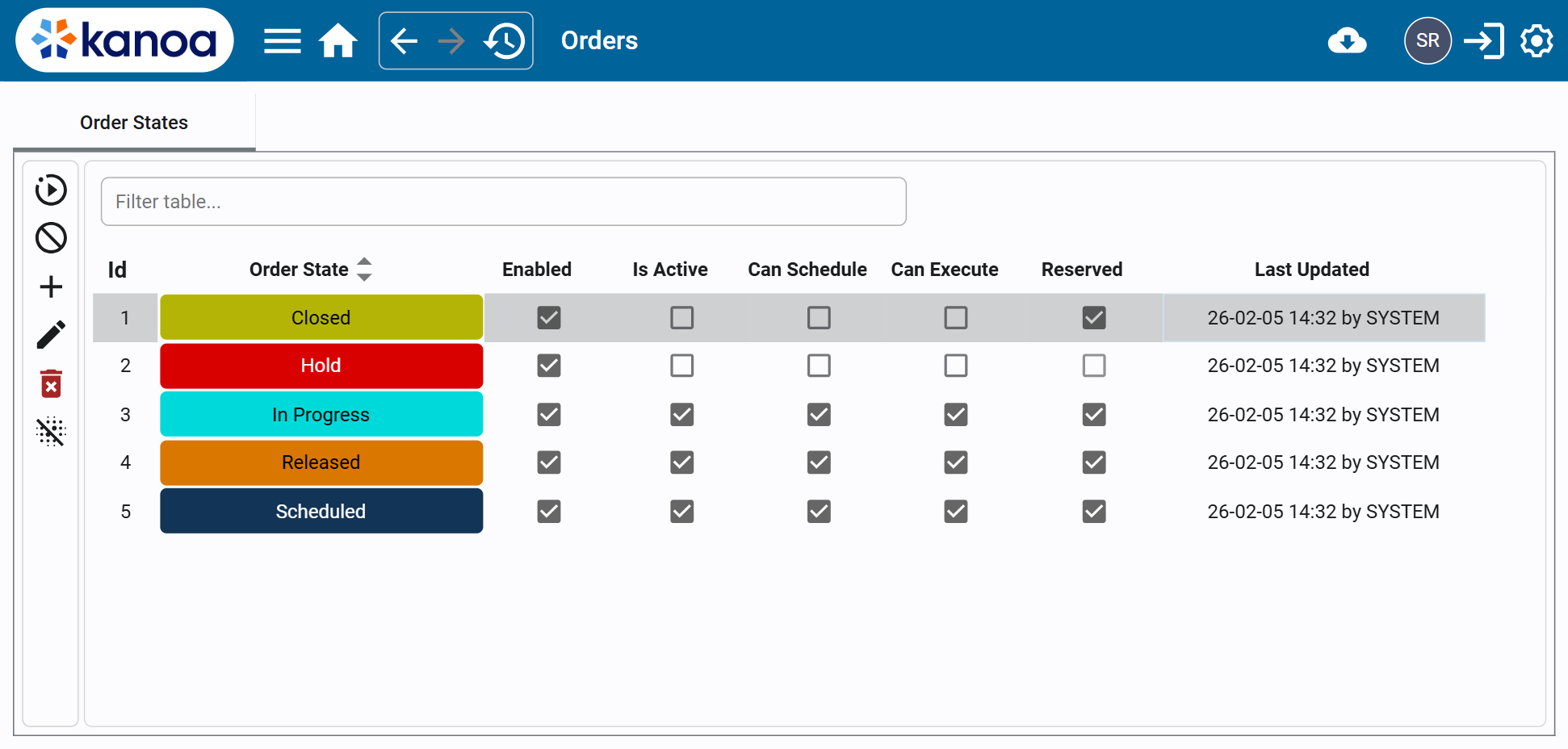
The Order States tab presents a table of all configured order states in the system. Each row represents a distinct lifecycle state an order may occupy.
Table Columns
| Column | Description |
|---|---|
| Id | Unique identifier for the order state. |
| Order State | Name of the state as it appears throughout the system. |
| Enabled | Determines whether the state is available for use in the application. |
| Is Active | Determines whether orders in this state are considered active. |
| Can Schedule | Determines whether orders in this state can appear in scheduling screens. |
| Can Execute | Determines whether orders in this state can be executed on an asset. |
| Reserved | Indicates that the state is required by Kanoa and cannot be removed. |
| Last Updated | Timestamp and user responsible for the most recent update. |
Order State Properties
Each order state has a set of behavioral flags that control how it interacts with scheduling, execution, and filtering logic across the system.
Enabled
If Enabled is checked:
- The state is available for selection in dropdowns and system workflows.
- Orders may transition into this state.
If Enabled is unchecked:
- The state will not appear anywhere outside of this configuration screen.
- It is effectively hidden from operational workflows.
This allows administrators to retire states without deleting historical data.
Is Active
The Is Active flag determines whether orders in this state are considered operationally active.
If unchecked:
- Orders in this state cannot be scheduled.
- Orders cannot be executed.
- The state will not appear when filtering for active orders in the Order Management screen.
This flag is primarily used to prevent closed or inactive orders from cluttering active operational views.
For example:
- A
Closedstate would typically not be active. - An
In Progressstate would typically be active.
Can Schedule
If Can Schedule is checked:
- Orders in this state are available in the Operations Schedule drag-and-drop interface.
- They may be placed onto assets for planned production.
If unchecked:
- Orders in this state cannot be scheduled, even if they are active.
Can Execute
If Can Execute is checked:
- Orders in this state are available in the Asset Run Control → Orders tab.
- Operators may start or execute the order on an asset.
If unchecked:
- The order cannot be started from the run control screen.
Reserved
The Reserved flag indicates that the order state is required by Kanoa MES.
Reserved states:
- Are used internally by default scheduling logic.
- Cannot be deleted.
- Cannot have the Reserved flag modified.
The value is displayed in the editor but is read-only.
Action Menu
The left-hand action bar provides administrative controls for managing order states.
| Action | Description |
|---|---|
| Get Data | Refreshes the table from the database. |
| Clear Table | Clears all currently displayed rows from the table view. |
| Add | Creates a new order state. |
| Edit | Edits the currently selected order state. |
| Delete | Deletes the currently selected order state (if not Reserved). |
| Clear Selection | Clears the currently selected row in the table. |
Order State Editor
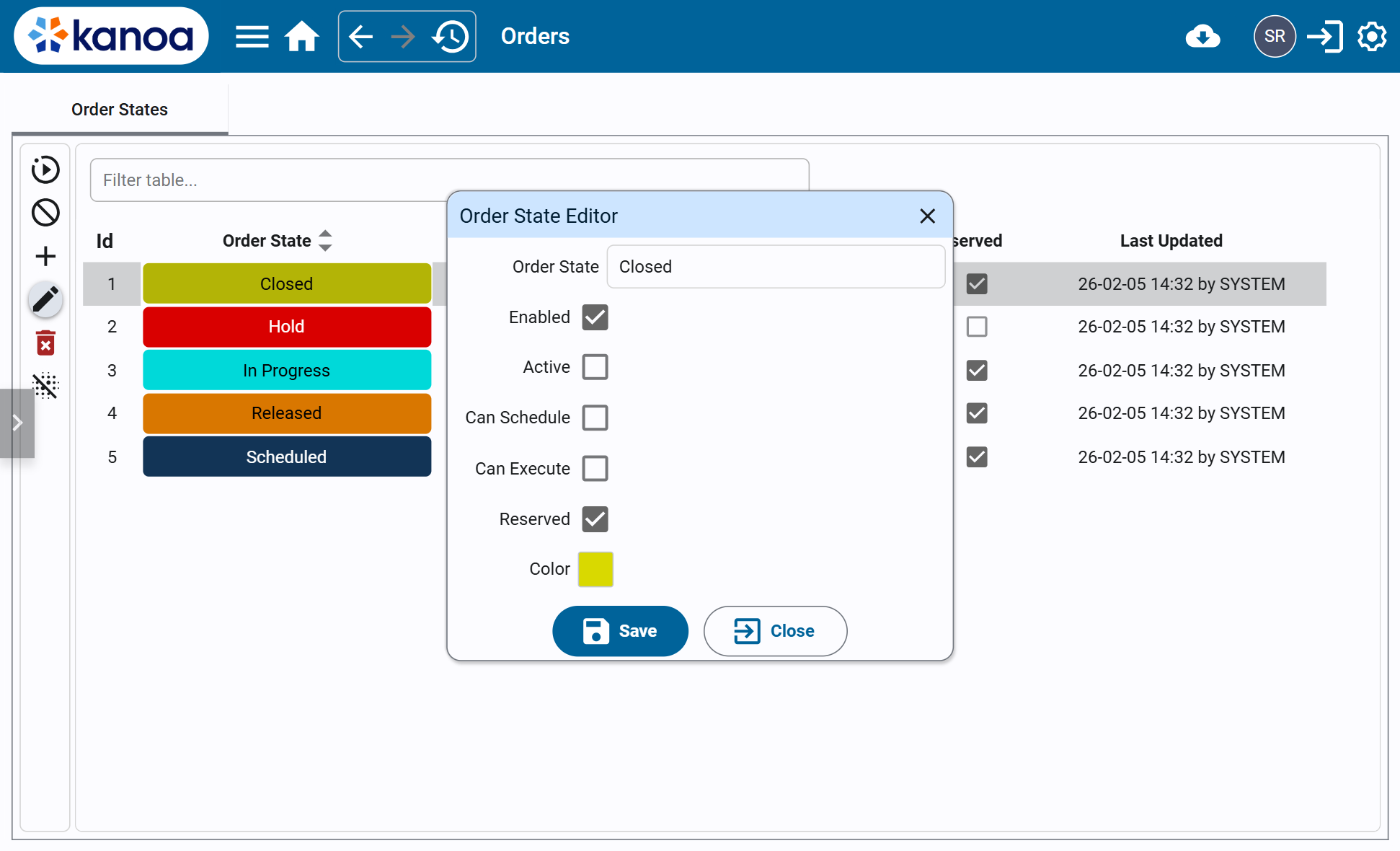
Selecting Add or Edit opens the Order State Editor dialog.
Editor Fields
| Field | Description |
|---|---|
| Order State | Name of the state. |
| Enabled | See definition above. |
| Active | See Is Active section above. |
| Can Schedule | See definition above. |
| Can Execute | See definition above. |
| Reserved | Read-only indicator. |
| Color | Color used to visually represent this state throughout the system. |
Operational Context
This configuration screen defines how order states behave.
To:
- Create or manage production orders → Refer to Order Management
- Schedule orders onto assets → Refer to Operations Schedule
- Execute orders on equipment → Refer to Asset Run Control
This screen is strictly administrative and should typically be configured during system setup or process refinement.
Best Practices
- Keep inactive states disabled rather than deleting them to preserve historical integrity.
- Use the Is Active flag strategically to prevent clutter in operational dashboards.
- Avoid modifying Reserved states unless directed by Kanoa support.
The Order States configuration provides foundational control over how production orders behave throughout Kanoa MES. Proper configuration ensures clarity in scheduling, execution, reporting, and operational visibility.