Configure Production Rates
You now have assets that describe where production happens and items that describe what the plant makes. Now we'll configure which assets can make which items and set the expected production rates that scheduling and OEE depend on.
Reference Materials: Production Rates - Linking assets with Items and setting expected rate info.
The Production Rates tab provides a method for linking which items (products) can be produced on which assets. The Item asset linker popup provides a fast way to link multiple assets with multiple items. Check the 'output' option before linking.
Once you have linked which items can be produced on which assets, you can then edit the production rate information that defines how we determine if an asset is under or over-performing in terms of OEE Performance.
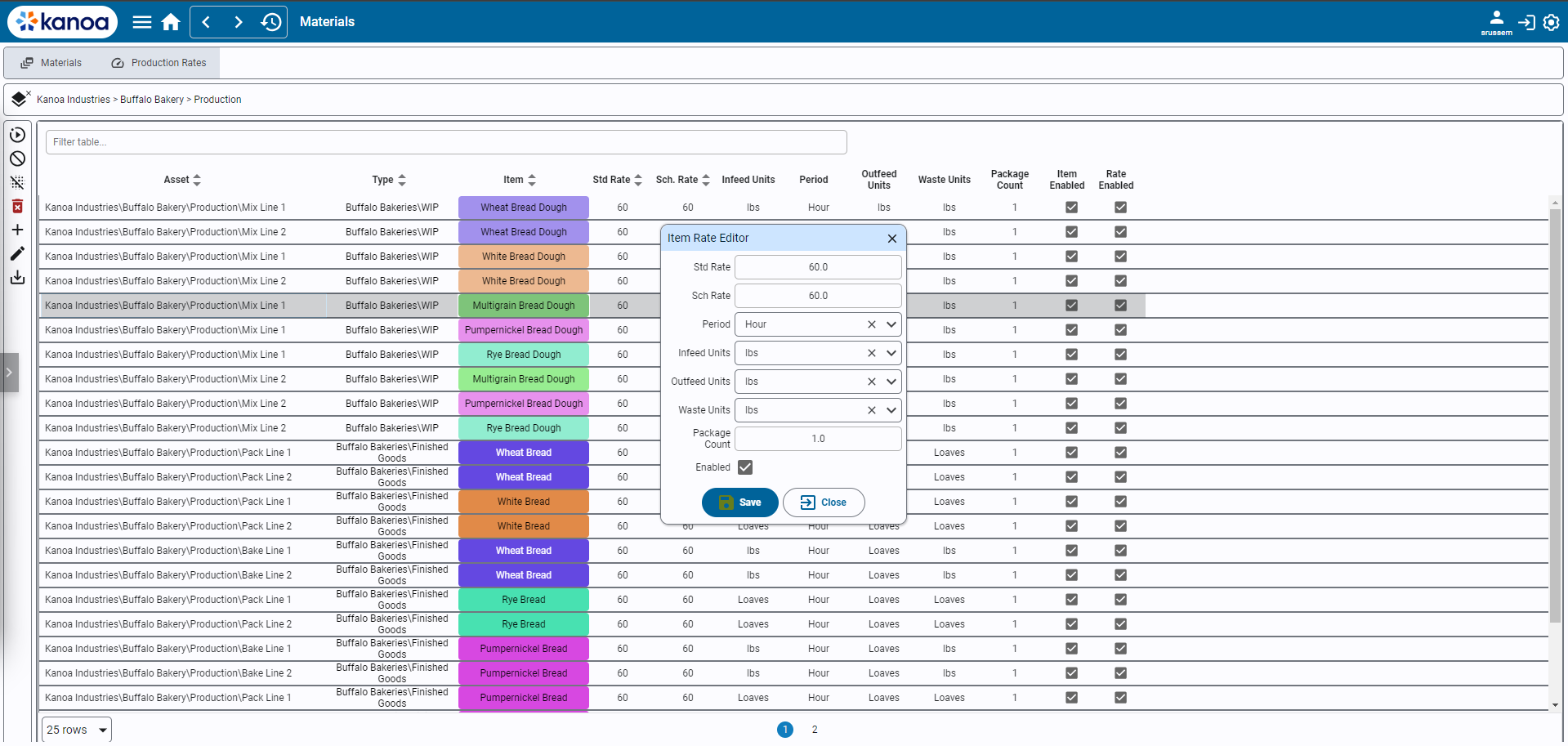
To edit one or more item product rates, click the  button.
If you have selected multiple items, you can affect just one field value, such as Std Rate, without affecting any of the other item fields.
This is useful for performing a bulk update to standard rates or units.
button.
If you have selected multiple items, you can affect just one field value, such as Std Rate, without affecting any of the other item fields.
This is useful for performing a bulk update to standard rates or units.
- Standard Rate: The theoretical or expected speed at which the asset should process material. It uses the infeed units.

In the above example, Bake Line 2 is expected to be able to process 60lbs per hour of the infeed material to make Rye Bread. The Standard Rate drives the OEE Performance calculation and should not be affected by any scrap generated which is why it is measured against lbs processed and not loaves produced.
Sometimes the standard rate set for an item running on an asset may be affected by other external factors such as crew size, inclement weather, moisture content of incoming material. To handle this, the standard rate can be modified and set at the time the asset is in production through the system.kanoa.event.assetOperationChange() system function.
- Scheduled Rate: The expected asset rate to process material based on historical OEE data.
In the example above, we would actually expect to process 40lbs per hour due to data supporting the average amount of downtime and scrap generated when running this product on this line. Schedule Rate is used whenever a production order is added to the schedule to automatically determine how long we estimate it will take to complete a production order.
- Period: The timeframe for the rate. Can be 'Minute' or 'Hour'. For batch processes where the process time is independent of quantity, such as a chemical reaction time, use 'TOTAL TIME'.
- Units: Units designation for infeed, outfeed, and waste.
- Package Count: The number of infeed units that equate to the outfeed units. Used to calculate OEE values when no infeed count exists.
-
From the Materials configuration screen, open the Production Rates tab.
-
Click the link button in the action bar to open the Item Asset Link Editor. Check the output option before linking.
-
Create three links:
- Select
Machine 1in the asset hierarchy and link it toSC-2024. - Select
Spray Line 1and link it toSC-2024-STD. - Select
Manual Pack 1and link it toSC-2024-STD-100.
Each link creates a blank rate entry.
- Select
-
Open each rate entry by selecting it in the table and click the Edit Asset Item Rate Info button.
-
Enter these settings:
The unit boxes probably doesn't exist yet. To create it, open the units menu, type the new name boxes, and click Create.
| Setting | Machine 1 | Spray Line 1 | Manual Pack 1 | Description |
|---|---|---|---|---|
| Item | SC-2024 | SC-2024-STD | SC-2024-STD-100 | |
| Standard Rate | 3.75 | 50 | 60 | The expected rate at which the asset should process material. It uses the infeed units. |
| Scheduled Rate | 3.25 | 45 | 50 | The rate at which the asset is likely to process material based on the assets OEE. It is used to calculate how long in reality it will take to produce a certain quantity. |
| Period | Minute | Minute | Minute | |
| Infeed Units | lbs | units | units | |
| Outfeed Units | units | units | boxes | |
| Waste Units | lbs | units | units | |
| Package Count | 0.1 | 1.0 | 100.0 | Number of infeed units that make one outfeed unit |
With the links in place, Kanoa knows that Machine 1 can produce SC-2024, Spray Line 1 can produce SC-2024-STD, and Manual Pack 1 can produce SC-2024-STD-100. With the rates configured, it can also calculate expected production quantity, schedule duration, performance target, the OEE performance component, and infeed/outfeed relationships.
Copy this script into the Ignition Designer Script Console (Tools → Script Console) and run it. It checks that each item is linked to the right asset as an output, and that every rate setting in the table above is correct. Each check prints PASS or FAIL with what to fix. It doesn't change anything.
Show the check script
# Kanoa Ops Training - check "Configure Production Rates" (Base Configuration, lesson 3)
#
# Run in the Ignition Designer Script Console (Tools > Script Console), in the
# project that inherits KANOA_SCRIPTS. It only reads; it changes nothing.
# Every check prints PASS or FAIL with what to fix, then a summary.

EXPECTED = [
	# asset path, item, standard rate, scheduled rate, period, infeed, outfeed, waste, package count
	('CoreForge\\Philadelphia\\Machining\\Machine 1',     'SC-2024',         3.75, 3.25, 'Minute', 'lbs',   'units', 'lbs',   0.1),
	('CoreForge\\Philadelphia\\Coating\\Spray Line 1',    'SC-2024-STD',     50,   45,   'Minute', 'units', 'units', 'units', 1),
	('CoreForge\\Philadelphia\\Finishing\\Manual Pack 1', 'SC-2024-STD-100', 60,   50,   'Minute', 'units', 'boxes', 'units', 100),
]

results = []

def check(ok, what, fix=None):
	results.append(bool(ok))
	if ok:
		print 'PASS  %s' % what
	else:
		print 'FAIL  %s' % what
		if fix:
			print '      -> %s' % fix

def field(row, *names):
	for n in names:
		if n in row and row[n] is not None:
			return row[n]
	return None

def truthy(v):
	return str(v).lower() in ('true', '1', 'yes')

def text(v):
	return '' if v is None else unicode(v).strip()

def number(v):
	try:
		return float(v)
	except (TypeError, ValueError):
		return None

def fmt(v):
	n = number(v)
	if n is None:
		return 'blank'
	return ('%g' % n)

def rowsFor(params):
	return system.kanoa.utilities.convertDatasetToJSON(system.kanoa.item.getAssetItems(params))

print '=' * 70
print 'Kanoa Ops Training - Configure Production Rates check'
print '=' * 70

for assetPath, itemName, std, sched, period, infeed, outfeed, waste, pkg in EXPECTED:
	asset = assetPath.split('\\')[-1]
	print '\n-- %s -> %s' % (asset, itemName)

	links = [r for r in rowsFor({'assetPath': assetPath}) if text(field(r, 'itemName')) == itemName]
	if not links:
		# linked to a different asset by mistake?
		others = sorted(set(text(field(r, 'assetPath')) for r in rowsFor({'itemName': itemName}) if text(field(r, 'itemName')) == itemName))
		if others:
			fix = "%s is linked to %s instead. Link it to %s on the Production Rates tab." % (itemName, ', '.join(others), asset)
		else:
			fix = "On Configuration > Ops > Materials > Production Rates, select %s, open the Item Asset Link Editor, check output, and link %s." % (asset, itemName)
		check(False, '%s is linked to %s' % (itemName, asset), fix)
		continue
	check(True, '%s is linked to %s' % (itemName, asset))

	outputs = [r for r in links if text(field(r, 'itemSourceName')).lower() == 'output']
	check(len(outputs) > 0,
		'The link is an output',
		"It's linked as '%s'. Delete the link and link it again with the output option checked." % text(field(links[0], 'itemSourceName')))
	row = (outputs or links)[0]

	enabled = field(row, 'assetRateEnabled', 'enabled')
	if enabled is not None:
		check(truthy(enabled), 'The rate is enabled', 'Edit the rate and enable it.')

	def checkNumber(label, columns, expected, unit):
		actual = number(field(row, *columns))
		ok = actual is not None and abs(actual - expected) < 1e-6
		check(ok, '%s is %s%s' % (label, fmt(expected), unit),
			"It's %s. Select the rate, click Edit Asset Item Rate Info, and set %s to %s." % (fmt(actual), label, fmt(expected)))

	def checkText(label, columns, expected):
		actual = text(field(row, *columns))
		check(actual.lower() == expected.lower(), '%s is %s' % (label, expected),
			"It's '%s'. Edit the rate and set %s to %s%s." % (actual or 'blank', label, expected,
				" (type 'boxes' in the units menu and click Create if it doesn't exist)" if expected == 'boxes' else ''))

	rateUnit = ' %s/min' % infeed
	checkNumber('Standard Rate', ('standardRate',), std, rateUnit)
	checkNumber('Scheduled Rate', ('scheduleRate', 'scheduledRate'), sched, rateUnit)
	checkText('Period', ('itemPeriodName', 'periodName'), period)
	checkText('Infeed Units', ('infeedUnits',), infeed)
	checkText('Outfeed Units', ('outfeedUnits',), outfeed)
	checkText('Waste Units', ('wasteUnits',), waste)
	checkNumber('Package Count', ('packageCount',), pkg, '')

	s, c = number(field(row, 'standardRate')), number(field(row, 'scheduleRate', 'scheduledRate'))
	if s is not None and c is not None and c > s:
		print 'NOTE  The scheduled rate is higher than the standard rate. Usually it is lower, to allow for expected losses.'

passed = sum(1 for r in results if r)
print '\n' + '=' * 70
if passed == len(results):
	print 'All %d checks passed. Configure Production Rates is complete.' % len(results)
else:
	print '%d of %d checks passed. Fix the FAIL items above and run this again.' % (passed, len(results))
print '=' * 70
If you want to check your work, or skip ahead, you can import the item rates instead of building them by hand.
Downloadcoreforge-asset-model-rates-export-2.jsonThis file is an asset model export that includes the item-asset links and rates. Import it on the asset configuration screen (Configuration → Ops → Assets). See Creating Assets.