Configure States
A state represents equipment feedback. It answers questions such as: Is the equipment running? If not, why not? Is the asset faulted, idle, down, or producing? States are the foundation for downtime tracking and availability analysis.
Reference Material: States - Understand what states are, how they're configured and how to use them.
While Modes represent what an asset is supposed to be doing, states show what the asset says it was actually doing.
States are crucial for accurately understanding the availability component of OEE (Overall Equipment Effectiveness). They provide essential insights into:
- Actual running times
- Instances and reasons for unplanned downtime
- Categorization of downtime for analysis and improvement
States help in capturing and reporting the true operational status of assets, playing a vital role in efficiency analysis and operational optimization.
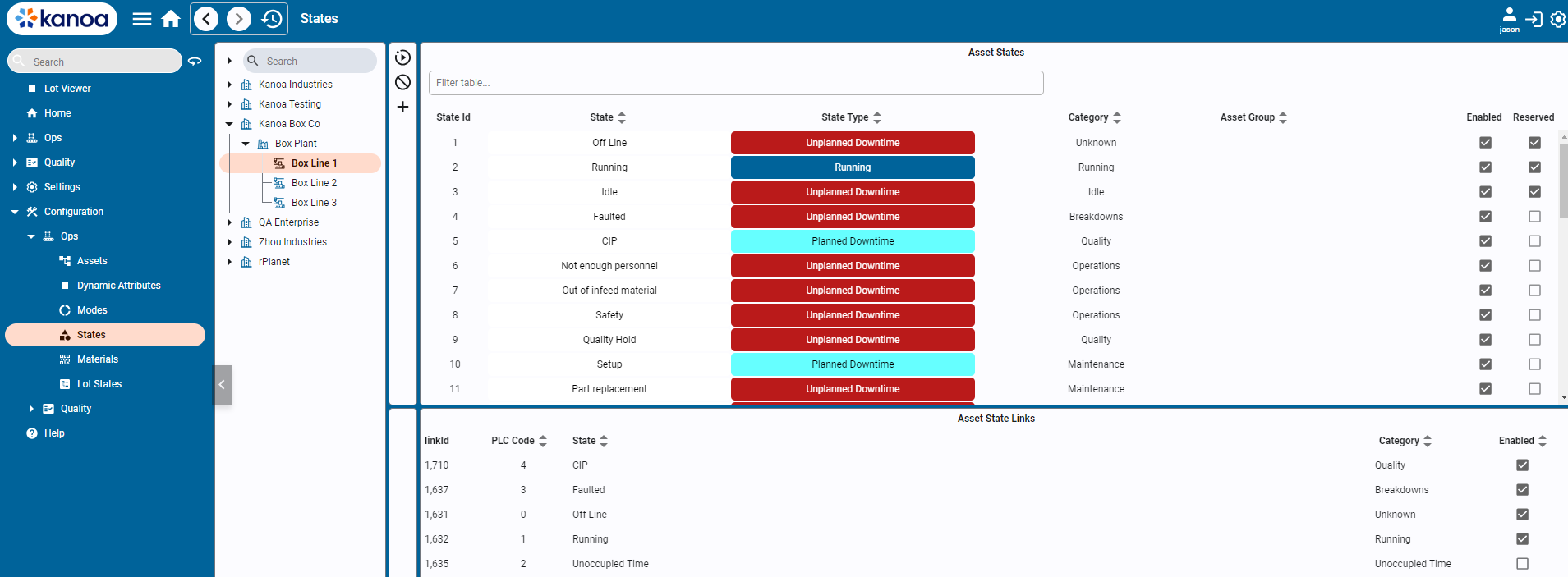
States
There are reserved states predefined by the system such as 'Running', 'Off-line', 'Idle', 'Faulted'
| State | Description |
|---|---|
| Offline | Typically used with a state code value of 0 to indicate that the asset is powered off. It doesn't have to be 0, but modbus connections tend to return 0 in a powered off state. |
| Running | Indicates that the asset is operating as expected. |
| Idle | Indicate asset is not currently running and no faults exist |
| Faulted | Indicates a fault or error, suggesting a breakdown or malfunction |
New states can be created and will generally align with the machine states or fault codes expected from the target asset.
State Types
State Types are used to categorize the state. State types are pre-defined by the system and cannot be modified. Every state maps to one fixed state type, and the state type determines how the state affects OEE:
| State Type | OEE Meaning |
|---|---|
| Running | Productive or running time |
| Planned Downtime | Downtime that may not count against availability |
| Unplanned Downtime | Availability loss |
State Categories
State categories organize states into a hierarchy and are used solely for analysis. You can define any category via the drop down by typing in the name of a new category and selecting 'create'. Examples of categories may be 'quality', 'electrical', 'mechanical' where you would want to analyze your downtime to see how much was related to say quality issues.
 Mechanical
 └── Nozzle
 └── Pump
 Safety
 Electrical
Asset Group
This field is simply to classify certain states as say being specific to a drill press, reactor or filler. It is optional and can be left blank.
Configuring States
Adding & Editing States
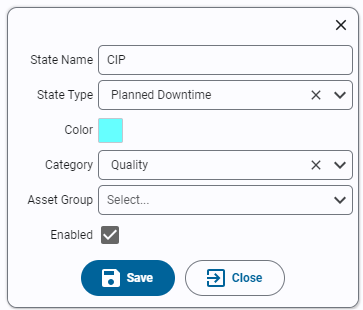
- State Name: Name of the state. State name must be unique
- State Type: Select the state type, Planned Downtime, Unplanned Downtime, or Running
- Category: Select a category for this state. Optional, can be left blank.
- Asset Group: Specifies an asset group to which the state applies. Optional, can be left blank.
- Enabled: Indicates if the state is active and available for use in the system.
Linking State to Assets
States can be linked to assets. Each state is assigned a unique state code. If the state of an asset comes from a plc tag, this code should match that integer value.
- Select asset or assets from the asset tree.
- A list of states assigned to the selected assets will appear in the bottom pane showing the state link id and state code.
- To link a state to an asset, select one or more states and click the 'Link' button. The state will appear in the bottom pane.
- Assign a numeric state code for the asset state.
When an asset is OEE-enabled, Kanoa automatically links the default states Running, Faulted, Idle, and Offline.
Unlinking States from Assets
States can be unlinked from assets using the unlink option available on the screen. If event history exists for a state, the system will not allow you to remove the link. It will instead be disabled.
State Events
A state event records that an asset entered a state at a specific time. It includes the asset, the state/state link, a timestamp, and optional machine ID attribution. Together, state events create the historical downtime and runtime timeline used by reports.
-
Navigate to Configuration → Ops → Assets.
-
Select the States tab.
-
Select Add State Category (folder icon).
-
Add the following new state categories:
Mechanical├── Nozzle└── PumpProcess Failure
- Select the State Editor tab.
- Select the
Mechanical\Nozzlestate category and addSpray Nozzle Clogas Unplanned Downtime, andCleaningas Planned Downtime. - Select the
Mechanical\Pumpstate category and addPump Pressure Faultas Unplanned Downtime. - Select the
Process Failurestate category and addTemperature Out of Rangeas Unplanned Downtime. - Select the Asset Links tab.
- Select
CoreForge\Philadelphia\Coating\Spray Line 1and, holding the CTRL key, also select these new states. Click the Link button.
Copy this script into the Ignition Designer Script Console (Tools → Script Console) and run it. It checks the four state categories, that each new state is in the right category with the right state type, and that all four are linked to Spray Line 1. Each check prints PASS or FAIL with what to fix. It doesn't change anything.
Show the check script
# Kanoa Ops Training - check "Configure States" (Base Configuration, lesson 6)
#
# Run in the Ignition Designer Script Console (Tools > Script Console), in the
# project that inherits KANOA_SCRIPTS. It only reads; it changes nothing.
# Every check prints PASS or FAIL with what to fix, then a summary.

CATEGORIES = ['Mechanical', 'Mechanical\\Nozzle', 'Mechanical\\Pump', 'Process Failure']
STATES = [
	# state, category, state type
	('Spray Nozzle Clog',        'Mechanical\\Nozzle', 'Unplanned Downtime'),
	('Cleaning',                 'Mechanical\\Nozzle', 'Planned Downtime'),
	('Pump Pressure Fault',      'Mechanical\\Pump',   'Unplanned Downtime'),
	('Temperature Out of Range', 'Process Failure',    'Unplanned Downtime'),
]
SPRAY_LINE = 'CoreForge\\Philadelphia\\Coating\\Spray Line 1'

results = []

def check(ok, what, fix=None):
	results.append(bool(ok))
	if ok:
		print 'PASS  %s' % what
	else:
		print 'FAIL  %s' % what
		if fix:
			print '      -> %s' % fix

def field(row, *names):
	for n in names:
		if n in row and row[n] is not None:
			return row[n]
	return None

def truthy(v):
	return str(v).lower() in ('true', '1', 'yes')

def text(v):
	return '' if v is None else unicode(v).strip()

def norm(path):
	# accept either separator in category paths
	return text(path).replace('/', '\\').strip('\\')

def rows(fn, params):
	return system.kanoa.utilities.convertDatasetToJSON(fn(params))

print '=' * 70
print 'Kanoa Ops Training - Configure States check'
print '=' * 70

# 1. State categories
print '\n-- State categories'
categories = set(norm(field(r, 'stateCategoryPath')) for r in rows(system.kanoa.asset.getStateCategory, {}))
lowerCats = dict((c.lower(), c) for c in categories)
for path in CATEGORIES:
	if path in categories:
		check(True, 'State category %s exists' % path)
	elif path.lower() in lowerCats:
		check(False, 'State category %s exists' % path,
			"Found '%s'. Rename it to match exactly (names are case-sensitive)." % lowerCats[path.lower()])
	else:
		parent = '\\'.join(path.split('\\')[:-1])
		check(False, 'State category %s exists' % path,
			'On the States tab, click Add State Category and add %s%s.' % (path.split('\\')[-1], (' under ' + parent) if parent else ''))

# 2. States
print '\n-- States'
states = rows(system.kanoa.asset.getStates, {})
byName = {}
for r in states:
	byName.setdefault(text(field(r, 'stateName')), []).append(r)
for name, category, stateType in STATES:
	found = byName.get(name, [])
	if found:
		check(True, 'State %s exists' % name)
	else:
		near = [n for n in byName if ' '.join(n.lower().split()) == name.lower()]
		if not near:
			check(False, 'State %s exists' % name,
				'On the State Editor tab, select %s and add %s as %s.' % (category, name, stateType))
			continue
		check(False, 'State %s exists' % name,
			"Found '%s'. Rename it to '%s' (names are case-sensitive)." % (near[0], name))
		# keep checking the misnamed state so every other problem shows in one run
		found = byName[near[0]]
		byName[name] = found
	inCategory = [r for r in found if norm(field(r, 'stateCategoryPath')) == category]
	if not inCategory:
		where = ', '.join(sorted(set(norm(field(r, 'stateCategoryPath')) or 'no category' for r in found)))
		check(False, '%s is in category %s' % (name, category),
			"It's in %s. Move it to %s, or delete it and add it again under %s." % (where, category, category))
		row = found[0]
	else:
		check(True, '%s is in category %s' % (name, category))
		row = inCategory[0]
	actualType = text(field(row, 'stateTypeName'))
	check(actualType.lower() == stateType.lower(), '%s is %s' % (name, stateType),
		"It's '%s'. Edit the state and set its type to %s." % (actualType or 'blank', stateType))
	enabled = field(row, 'enabled', 'stateEnabled')
	if enabled is not None and not truthy(enabled):
		check(False, '%s is enabled' % name, 'Edit the state and enable it.')

# 3. Links to Spray Line 1
print '\n-- States linked to Spray Line 1'
links = rows(system.kanoa.asset.getAssetStates, {'assetPath': SPRAY_LINE})
links = [r for r in links if text(field(r, 'assetPath')) in ('', SPRAY_LINE)]

def squash(v):
	# compare names ignoring case, extra spaces and any category prefix
	return ' '.join(text(v).split('\\')[-1].lower().split())

for name, category, stateType in STATES:
	ids = set(str(field(r, 'stateId')) for r in byName.get(name, []) if field(r, 'stateId') is not None)
	matches = [r for r in links
		if (ids and str(field(r, 'stateId')) in ids)
		or text(field(r, 'stateName')) == name
		or squash(field(r, 'stateName', 'statePath')) == squash(name)]
	enabledLinks = [r for r in matches if field(r, 'linkEnabled') is None or truthy(field(r, 'linkEnabled'))]
	if enabledLinks:
		check(True, '%s is linked to Spray Line 1' % name)
	elif matches:
		check(False, '%s is linked to Spray Line 1' % name,
			'The link exists but is disabled. On the Asset Links tab, select Spray Line 1 and enable the %s link.' % name)
	else:
		check(False, '%s is linked to Spray Line 1' % name,
			'On the Asset Links tab, select Spray Line 1, CTRL-click %s, and click Link.' % name)
		# show what Spray Line 1 does have, to make a mismatch easy to spot
		have = sorted(set('%s (id %s)' % (text(field(r, 'stateName')), field(r, 'stateId')) for r in links))
		print '      Spray Line 1 has these states linked: %s' % ', '.join(have)
		print '      %s has state id(s): %s' % (name, ', '.join(sorted(ids)) or 'none found')

passed = sum(1 for r in results if r)
print '\n' + '=' * 70
if passed == len(results):
	print 'All %d checks passed. Configure States is complete.' % len(results)
else:
	print '%d of %d checks passed. Fix the FAIL items above and run this again.' % (passed, len(results))
print '=' * 70
If you want to check your work, or skip ahead, you can import the updated asset hierarchy instead of building it by hand.
Downloadcoreforge-asset-model-states-export-4.jsonImport it on the asset configuration screen (Configuration → Ops → Assets). See Creating Assets.