Configure Items
Next we'll create the items for the CoreForge plant. The terms item and material are used interchangeably. An item is any type of material or product the system needs to track: raw materials, work-in-process (WIP) materials, finished goods, consumables, intermediate products, or products being produced on a line.
Reference Materials: Items - Learn about Items and Item Classes.
| In This Section | |
|---|---|
| Item Classes | Configure material categories |
| Item Attributes | Add metadata such as recipe info to materials |
| Item Configuration | Create materials |
| Item Classes | Configure material categories |
| Production Rates | Set target production and schedule rates for items running on assets |
| Item States | Link counts with scrap reasons or first pass/rework metadata |
Watch Creating Items Tutorial
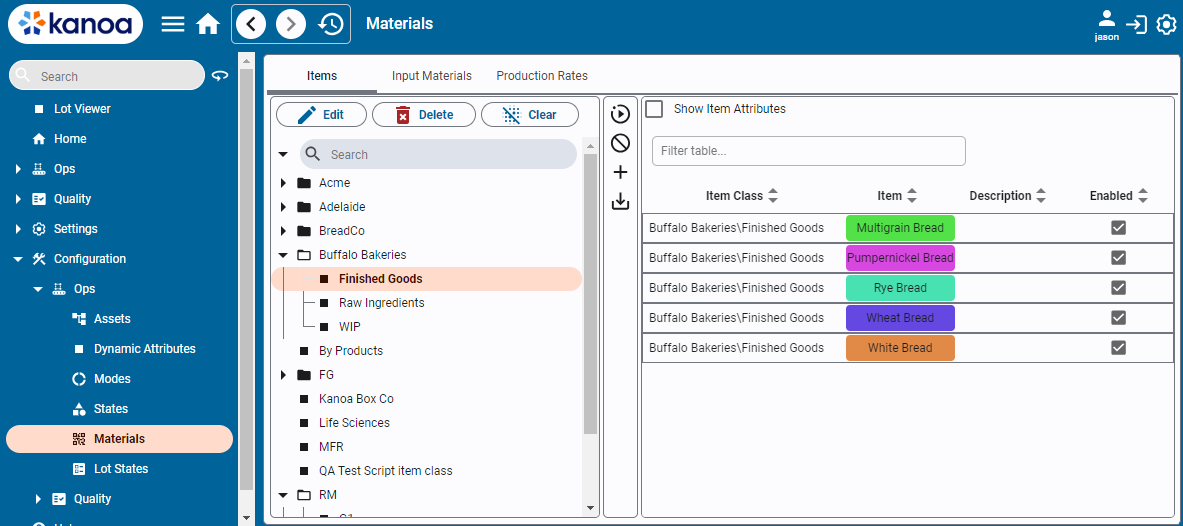
The Materials Management page allows you to manage the materials used in the production of your products. Primarily, it is used to define the materials or products that can be produced by your assets and the expected rate at which they should be produced. It can also be used to manage the raw materials that are consumed in the production of sub-assemblies and finished goods.
- Items can be created through this screen, via script functions, web services, or ERP/PLM middleware tables.
- Items can be categorized into classes and sub-classes.
- Custom Attributes can be added to items to store any type of information about an item.
💡 **Note: **The term 'materials' and 'items' are synonymous in KanoaOPS.
Item Classes
Item Classes are a way of categorizing items. Consider it a folder structure. An important thing to note is that categorizing items can be important particularly with Kanoa Quality as it provides a way to set specifications for an entire item class rather than each individual item.
To edit Item Classes, click the  button.
Item Attributes
Metadata about an item can be stored against an item in the custom attribute tabs. This provides a method for storing any type of data against that item. You can create any attribute by typing its name and selecting 'Create'. Once an attribute has been created, it will be available for other items.
The 'Show Item Attributes' checkbox will add attribute columns to the table.
Configuring Items
Items can be added by clicking on the  button or edited by selecting an item and pressing the button.
Delete an item by clicking on the
button or edited by selecting an item and pressing the button.
Delete an item by clicking on the  button.
💡 Note: Items that have been used in historical production runs cannot be deleted but will be disabled.
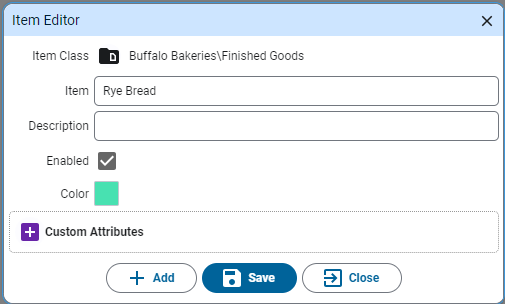
- Item Class: Select the Item Class this item belongs to.
- Item Name: Enter the item name. Item names must be unique.
- Description: Add an optional description about this item.
- Enabled: Indicates if the item is enabled. Disabled items cannot be selected.
- Color: Select a color for this item. Color coding can be useful when scheduling like products together because it can reduce the changeover time between production runs. If no color is selected, the item class color will be shown.
-
Navigate to Configuration → Ops → Materials.
-
Create the following item class structure:
CoreForge\RMCoreForge\WIP\CoatingsCoreForge\WIP\MachinedCoreForge\WIP\CoatedCoreForge\FG -
Save the changes.
-
Create the following items:
| Item Class | Item | Description |
|---|---|---|
| CoreForge\WIP\Machined | SC-2024 | A machined WIP shaft core |
| CoreForge\WIP\Coated | SC-2024-STD | A coated WIP shaft core with standard coating |
| CoreForge\FG | SC-2024-STD-100 | A finished-good package of coated shaft cores |
Copy this script into the Ignition Designer Script Console (Tools → Script Console) and run it. It checks the item class structure and that each item exists in the right class and is enabled. Each check prints PASS or FAIL with what to fix. It doesn't change anything.
Show the check script
# Kanoa Ops Training - check "Configure Items" (Base Configuration, lesson 2)
#
# Run in the Ignition Designer Script Console (Tools > Script Console), in the
# project that inherits KANOA_SCRIPTS. It only reads; it changes nothing.
# Every check prints PASS or FAIL with what to fix, then a summary.

EXPECTED_CLASSES = [
	'CoreForge',
	'CoreForge\\RM',
	'CoreForge\\WIP',
	'CoreForge\\WIP\\Coatings',
	'CoreForge\\WIP\\Machined',
	'CoreForge\\WIP\\Coated',
	'CoreForge\\FG',
]
EXPECTED_ITEMS = [
	# item class, item, description from the lesson
	('CoreForge\\WIP\\Machined', 'SC-2024',         'A machined WIP shaft core'),
	('CoreForge\\WIP\\Coated',   'SC-2024-STD',     'A coated WIP shaft core with standard coating'),
	('CoreForge\\FG',            'SC-2024-STD-100', 'A finished-good package of coated shaft cores'),
]

results = []

def check(ok, what, fix=None):
	results.append(bool(ok))
	if ok:
		print 'PASS  %s' % what
	else:
		print 'FAIL  %s' % what
		if fix:
			print '      -> %s' % fix

def note(what):
	# worth fixing, but not counted as a failure
	print 'NOTE  %s' % what

def field(row, *names):
	for n in names:
		if n in row and row[n] is not None:
			return row[n]
	return None

def truthy(v):
	return str(v).lower() in ('true', '1', 'yes')

def text(v):
	return '' if v is None else unicode(v).strip()

def parent(path):
	return '\\'.join(path.split('\\')[:-1])

print '=' * 70
print 'Kanoa Ops Training - Configure Items check'
print '=' * 70

classRows = system.kanoa.utilities.convertDatasetToJSON(system.kanoa.item.getItemClasses({}))
classes = {}
classesByLowerName = {}
for r in classRows:
	p = text(field(r, 'itemClassPath', 'path'))
	classes[p] = r
	classesByLowerName.setdefault(text(field(r, 'itemClassName')).lower(), []).append(p)

itemRows = system.kanoa.utilities.convertDatasetToJSON(system.kanoa.item.getItems({}))
items = {}
itemsByLowerName = {}
for r in itemRows:
	p = text(field(r, 'itemPath', 'path'))
	items[p] = r
	itemsByLowerName.setdefault(text(field(r, 'itemName')).lower(), []).append(p)

# 1. Item classes
print '\n-- Item classes'
for path in EXPECTED_CLASSES:
	name = path.split('\\')[-1]
	row = classes.get(path)
	if row is None:
		elsewhere = classesByLowerName.get(name.lower(), [])
		if elsewhere:
			fix = "Found '%s' at %s. Move it under %s, or rename it to match exactly (names are case-sensitive)." % (name, ', '.join(elsewhere), parent(path) or 'the top level')
		else:
			fix = "Create the item class '%s' under %s in Configuration > Ops > Materials." % (name, parent(path) or 'the top level')
		check(False, 'Item class %s exists' % path, fix)
		continue
	check(True, 'Item class %s exists' % path)
	enabled = field(row, 'enabled')
	if enabled is not None and not truthy(enabled):
		check(False, 'Item class %s is enabled' % path, 'Open the item class and enable it.')

# 2. Items
print '\n-- Items'
for classPath, name, description in EXPECTED_ITEMS:
	path = classPath + '\\' + name
	row = items.get(path)
	if row is None:
		elsewhere = itemsByLowerName.get(name.lower(), [])
		if elsewhere:
			fix = "Found '%s' at %s. Move it to the %s item class, or rename it to match exactly (names are case-sensitive)." % (name, ', '.join(elsewhere), classPath)
		else:
			fix = "Create the item '%s' in the %s item class." % (name, classPath)
		check(False, 'Item %s exists in %s' % (name, classPath), fix)
		continue
	check(True, 'Item %s exists in %s' % (name, classPath))
	enabled = field(row, 'enabled')
	if enabled is not None:
		check(truthy(enabled), 'Item %s is enabled' % name, 'Open %s and enable it.' % name)
	actual = text(field(row, 'itemDescription', 'description'))
	if not actual:
		note("%s has no description. The lesson uses '%s'." % (name, description))
	elif actual.lower() != description.lower():
		note("%s description is '%s'. The lesson uses '%s'." % (name, actual, description))

# 3. Anything else under CoreForge (information only)
expectedItems = set(c + '\\' + n for c, n, d in EXPECTED_ITEMS)
extraClasses = sorted(p for p in classes if p.startswith('CoreForge\\') and p not in EXPECTED_CLASSES)
extraItems = sorted(p for p in items if p.startswith('CoreForge\\') and p not in expectedItems)
if extraClasses or extraItems:
	print '\n-- Other item classes and items under CoreForge (fine if you added them in later lessons)'
	for p in extraClasses + extraItems:
		print '      %s' % p

passed = sum(1 for r in results if r)
print '\n' + '=' * 70
if passed == len(results):
	print 'All %d checks passed. Configure Items is complete.' % len(results)
else:
	print '%d of %d checks passed. Fix the FAIL items above and run this again.' % (passed, len(results))
print '=' * 70
If you want to check your work, or skip ahead, you can import the items instead of building them by hand.
Downloadcoreforge-item-model-export-1.jsonImport it on the Materials configuration screen (Configuration → Ops → Materials).
The export only includes item classes that contain items, so after importing, create the empty CoreForge\RM and CoreForge\WIP\Coatings classes by hand.