Configure Assets
Let's start by creating the asset model for the CoreForge plant.
Reference Materials: Assets - Learn how Kanoa models production equipment.
| In This Section | |
|---|---|
| Asset Model and ISA-95 | Understanding the asset model |
| Creating Assets | Create your asset model |
| Configuring Asset Tag Data Sources | Connect to your asset data source |
| Custom Attributes | Configure custom attributes for your assets |
| Asset States | Define and link states to your assets |
| Counters | Link counts with scrap reasons or first pass/rework metadata |
Watch Asset Configuration Tutorial
An asset is any entity that needs tracking or summarizing within the operational environment. Assets represent different physical or logical elements within a manufacturing setup and may refer to a specific machine, a manufacturing line, or an entire factory. Assets are organized in a hierarchical structure.
Asset Model and ISA-95
ISA-95 defines a rigid hierarchy for your plant equipment consisting of Enterprise > Site > Area > Line > Cell or Cell Group. You can follow ISA-95 as you build your asset hierarchy, or model your assets as they make sense for your organization. Models can be multi-enterprise, organized by region, division or department or however you want to. At a minimum, sites must exist somewhere in the hierarchy to associate time zone information to assets. After that it's up to you.
Creating Assets
Assets are configured by navigating to Configuration > Ops > Assets.
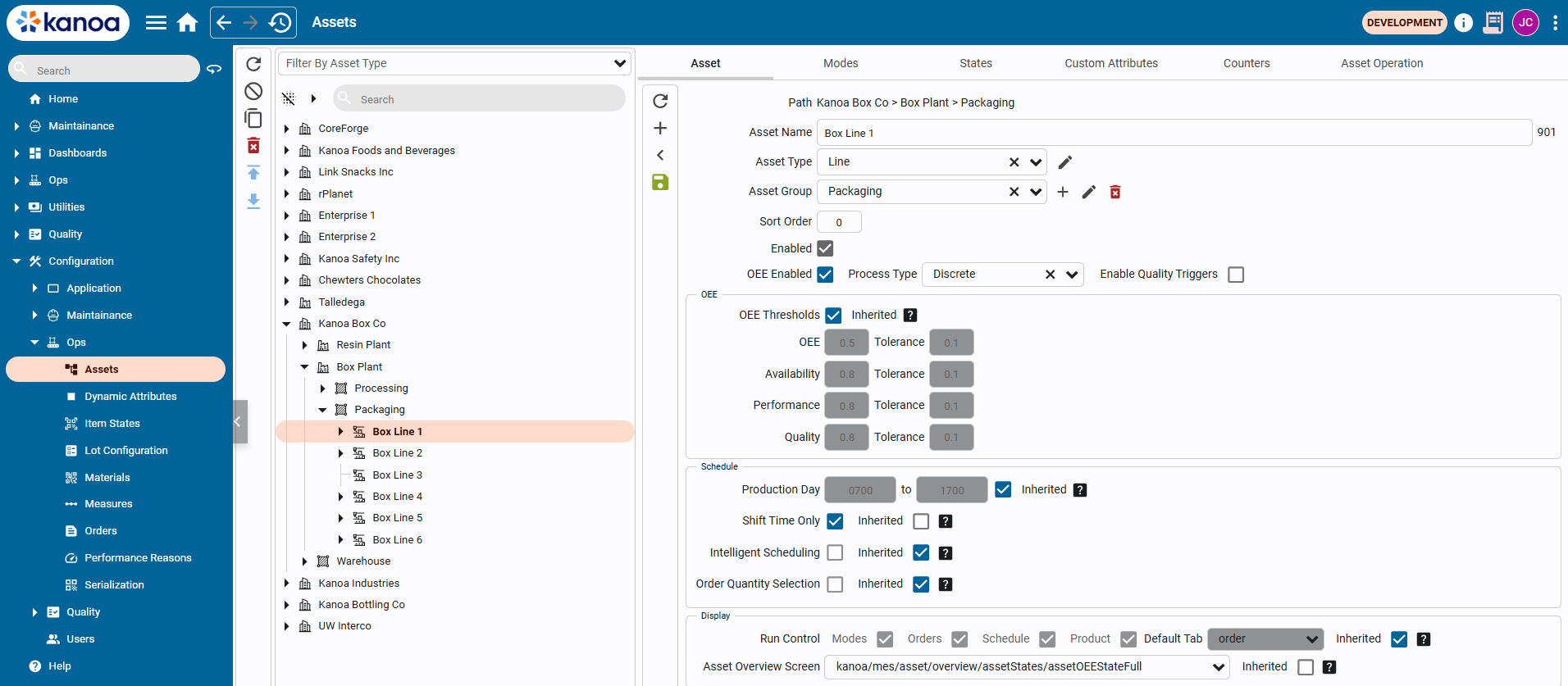
Once an asset has been created, it can be duplicated or exported. All configuration information such as mode links, state links, item links are duplicated / exported along with the asset. Exported assets can then be transferred between gateways such as from dev to prod.
| Field | Description |
|---|---|
| Asset Name | The name of the asset. Asset names must be unique within the parent. |
| Asset Type | Used for defining the type of an asset, akin to the ISA-95 hierarchy (e.g. enterprise, site, region). To configure asset types, use the edit button next to the right of the asset group dropdown. |
| Asset Group | An asset can be associated with a group such as 'shredders'. Grouping allows for analysis of assets that may not be in the same hierarchical area but need to be reported similarly. For instance, assets like 'box formers' across different lines can be grouped under a single asset group for consolidated reporting. To add an asset to a group, simply select the group from the dropdown. If the group doesn't exist, start typing the name of the group into the dropdown and select 'create'. |
| Sort Order | Determines the asset's position relative to others. |
| Enabled | Enable or disable this asset |
| OEE Enabled | One of the primary uses of an asset in Kanoa Ops is enabling it for OEE tracking. An OEE_Enabled Asset refers to any physical piece of equipment such as a production line, vessel reactor or process cell where operational data such as counts and equipment can be obtained and needs to be monitored. If an asset is OEE_Enabled, targets can be set for performance, availability, quality, and overall threshold that are used in visual indicators while an asset is in production. An instance of our assetOEE tag UDT is also created in the [Kanoa] tag provider that provides a mechanism for connecting the physical machine to our MES. See the [Configuring Tags] section below. |
| Process Type | When asset is 'OEE Enabled', asset process type can be configured as 'discrete, continuous or batch. Assets of type batch are configured differently for OEE performance calculation |
| Enable Quality Triggers | When asset is 'OEE Enabled', enabling this setting will cause changes to this asset mode or shift to check if a quality check should be scheduled. |
-
Navigate to Configuration → Ops → Assets.
-
Create the following hierarchy:
CoreForge└── Philadelphia├── Machining│ └── Machine 1├── Coating│ └── Spray Line 1└── Finishing└── Manual Pack 1 -
Set the asset types:
CoreForgeis the Enterprise.Philadelphiais the Site. Set its time zone to Eastern Standard Time.Machining,Coating, andFinishingare Areas.Machine 1,Spray Line 1, andManual Pack 1are Lines.
-
For each of the three line assets, enable OEE Enabled, set the Process Type to discrete, and save the asset.
If you accidentally create an asset in the wrong place, no problem, simply drag that asset to where it rightfully belongs. You can do this at anytime even when that asset is running. Data is stored against the assets primary key (assetId) and that never changes, so you move and rename assets at any time without fear of breaking your MES.
Asset Groups allow you to group similar assets anywhere within an organization together. While Asset Groups are not needed, Kanoa has built-in reporting that can take advantage of them, and they become more valuable when you scale the implementation. For this training we will setup Asset Groups.
-
You'll use one asset group for each main type of OEE-enabled asset in the system:
- Machines
- Coating Lines
- Manual Packaging Lines
-
Assign an asset group to each line asset, creating the group the first time you use it:
- Open the asset configuration and select the asset.
- In the Asset Group dropdown, select the group. If it doesn't exist yet, type the group name and select Create.
- Save the asset.
Configure the following:
| Asset | Asset group |
|---|---|
| Machine 1 | Machines |
| Spray Line 1 | Coating Lines |
| Manual Pack 1 | Manual Packaging Lines |
Copy this script into the Ignition Designer Script Console (Tools → Script Console) and run it. It checks the hierarchy, asset types, the site's time zone, each line's OEE and process type settings, and the asset groups. Each check prints PASS or FAIL with what to fix. It doesn't change anything.
Show the check script
# Kanoa Ops Training - check "Configure Assets" (Base Configuration, lesson 1)
#
# Run in the Ignition Designer Script Console (Tools > Script Console), in the
# project that inherits KANOA_SCRIPTS. It only reads; it changes nothing.
# Every check prints PASS or FAIL with what to fix, then a summary.

EXPECTED = [
	# path, asset type, asset group (lines only)
	('CoreForge',                                     'enterprise', None),
	('CoreForge\\Philadelphia',                       'site',       None),
	('CoreForge\\Philadelphia\\Machining',            'area',       None),
	('CoreForge\\Philadelphia\\Coating',              'area',       None),
	('CoreForge\\Philadelphia\\Finishing',            'area',       None),
	('CoreForge\\Philadelphia\\Machining\\Machine 1',  'line',       'Machines'),
	('CoreForge\\Philadelphia\\Coating\\Spray Line 1', 'line',       'Coating Lines'),
	('CoreForge\\Philadelphia\\Finishing\\Manual Pack 1', 'line',    'Manual Packaging Lines'),
]
SITE_TIME_ZONES = ['Eastern Standard Time', 'America/New_York', 'US/Eastern', 'EST5EDT']

results = []

def check(ok, what, fix=None):
	results.append(bool(ok))
	if ok:
		print 'PASS  %s' % what
	else:
		print 'FAIL  %s' % what
		if fix:
			print '      -> %s' % fix

def field(row, *names):
	# getAssets() and the asset export don't always use the same column names
	for n in names:
		if n in row and row[n] is not None:
			return row[n]
	return None

def truthy(v):
	return str(v).lower() in ('true', '1', 'yes')

def text(v):
	return '' if v is None else unicode(v).strip()

print '=' * 70
print 'Kanoa Ops Training - Configure Assets check'
print '=' * 70

rows = system.kanoa.utilities.convertDatasetToJSON(system.kanoa.asset.getAssets({}))
byPath = {}
byLowerName = {}
for r in rows:
	p = text(field(r, 'assetPath', 'path'))
	byPath[p] = r
	byLowerName.setdefault(text(field(r, 'assetName')).lower(), []).append(p)

# 1. Hierarchy and asset types
print '\n-- Asset hierarchy and types'
for path, assetType, group in EXPECTED:
	name = path.split('\\')[-1]
	row = byPath.get(path)
	if row is None:
		elsewhere = byLowerName.get(name.lower(), [])
		if elsewhere:
			fix = "Found '%s' at %s. Drag it to the right parent, or rename it to match exactly (names are case-sensitive)." % (name, ', '.join(elsewhere))
		else:
			fix = "Create '%s' under %s in Configuration > Ops > Assets." % (name, '\\'.join(path.split('\\')[:-1]) or 'the top level')
		check(False, '%s exists' % path, fix)
		continue
	check(True, '%s exists' % path)
	actualType = text(field(row, 'assetTypeName')).lower()
	check(actualType == assetType,
		'%s type is %s' % (path, assetType.title()),
		"It's a '%s'. Open the asset and set its type to %s." % (actualType or 'blank', assetType.title()))

# 2. Site time zone
print '\n-- Site time zone'
site = byPath.get('CoreForge\\Philadelphia')
if site is not None:
	tz = text(field(site, 'timeZone'))
	check(tz in SITE_TIME_ZONES,
		'Philadelphia time zone is Eastern',
		"It's '%s'. Open Philadelphia and set its time zone to Eastern Standard Time." % (tz or 'blank'))

# 3. Line settings and asset groups
print '\n-- Line assets'
for path, assetType, group in EXPECTED:
	if assetType != 'line' or path not in byPath:
		continue
	row = byPath[path]
	name = path.split('\\')[-1]
	check(truthy(field(row, 'oeeEnabled', 'oeeEnable')),
		'%s is OEE Enabled' % name,
		'Open %s, select OEE Enabled and save.' % name)
	process = text(field(row, 'processTypeName')).lower()
	check(process == 'discrete',
		'%s process type is discrete' % name,
		"It's '%s'. Set Process Type to discrete and save." % (process or 'blank'))
	actualGroup = text(field(row, 'assetGroupName'))
	check(actualGroup == group,
		'%s is in asset group %s' % (name, group),
		"It's in '%s'. Choose '%s' in the Asset Group dropdown (type it and select Create if it doesn't exist) and save." % (actualGroup or 'no group', group))
	# OEE-enabled assets get a tag instance in the Kanoa provider
	tagPath = text(field(row, 'tagPath'))
	if tagPath and truthy(field(row, 'oeeEnabled', 'oeeEnable')):
		check(system.tag.exists(tagPath),
			'%s has its OEE tags (%s)' % (name, tagPath),
			'Save the asset again so Kanoa creates its tag instance, and check the Kanoa tag provider is running.')

# 4. Anything unexpected under CoreForge (information only)
expectedPaths = set(p for p, t, g in EXPECTED)
extra = sorted(p for p in byPath if p.startswith('CoreForge\\') and p not in expectedPaths)
if extra:
	print '\n-- Other assets under CoreForge (fine if you added them in later lessons)'
	for p in extra:
		print '      %s' % p

passed = sum(1 for r in results if r)
print '\n' + '=' * 70
if passed == len(results):
	print 'All %d checks passed. Configure Assets is complete.' % len(results)
else:
	print '%d of %d checks passed. Fix the FAIL items above and run this again.' % (passed, len(results))
print '=' * 70
If you want to check your work, or skip ahead, you can import the asset hierarchy instead of building it by hand.
Downloadcoreforge-asset-model.jsonImport it on the asset configuration screen (Configuration → Ops → Assets) using the import/export button.