Run Review
The Run Review screen provides both analytics and the ability for the production run data such as counts and downtime to be edited based on a user's roles. Users may view an asset's production runs within a specified time range, with filtering by mode enabled. Run Review data is only viewable when an OEE-enabled asset is selected, which usually would be a line asset.
Users may:
- Add, edit, and delete mode events
- View and edit production run counts
- View, add, edit, and delete downtime events
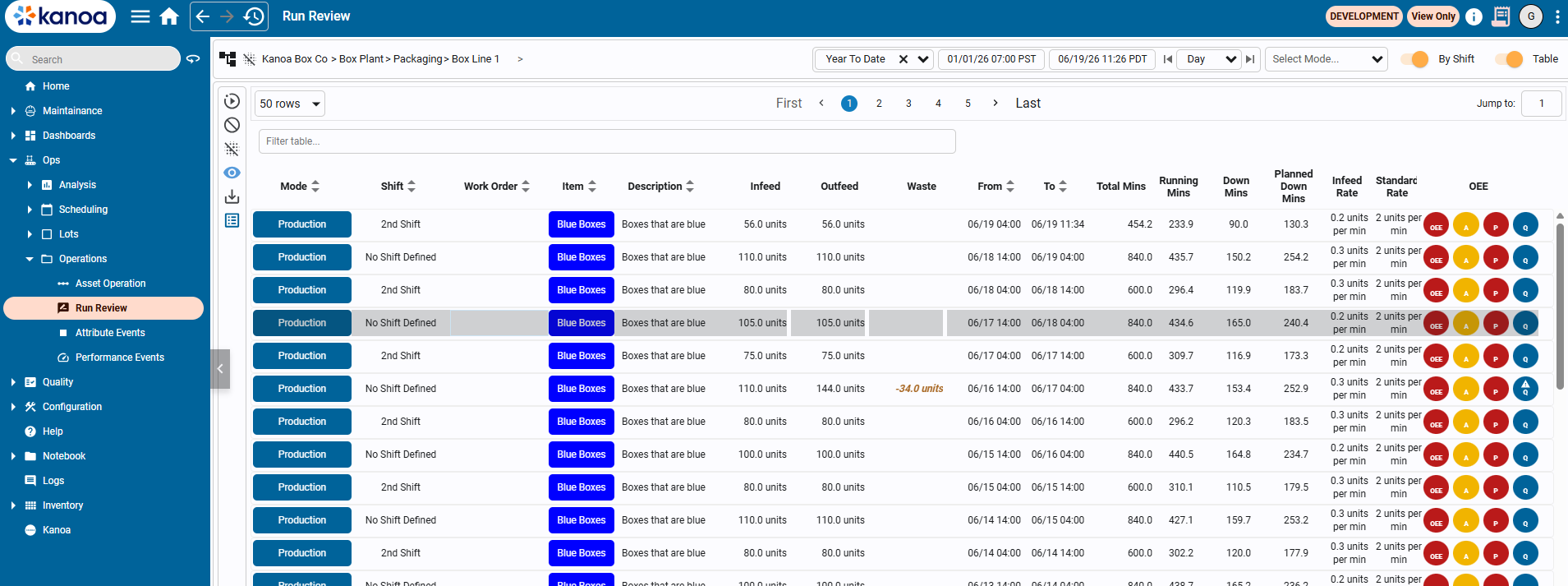
More details on a specific production run can be viewed by selecting a row and clicking the eye icon, or by double clicking the row. More in-depth information on a production run includes counts and downtime data.
Mode Events
A mode event represents a duration of time where a line level asset was in a specific mode. When a line is in production, mode events may be further separated by work order, item, and infeed rate.
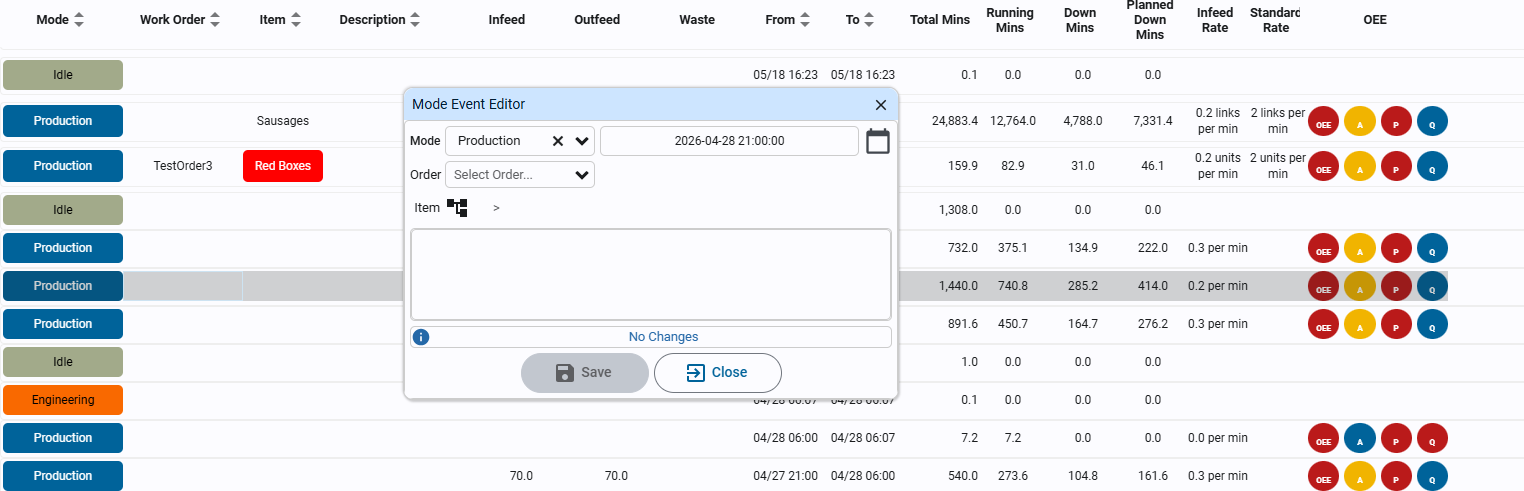
Mode events can be added, edited, and deleted. Allowed editing for a mode event includes its mode, start time, work order, item, and description.
Counts
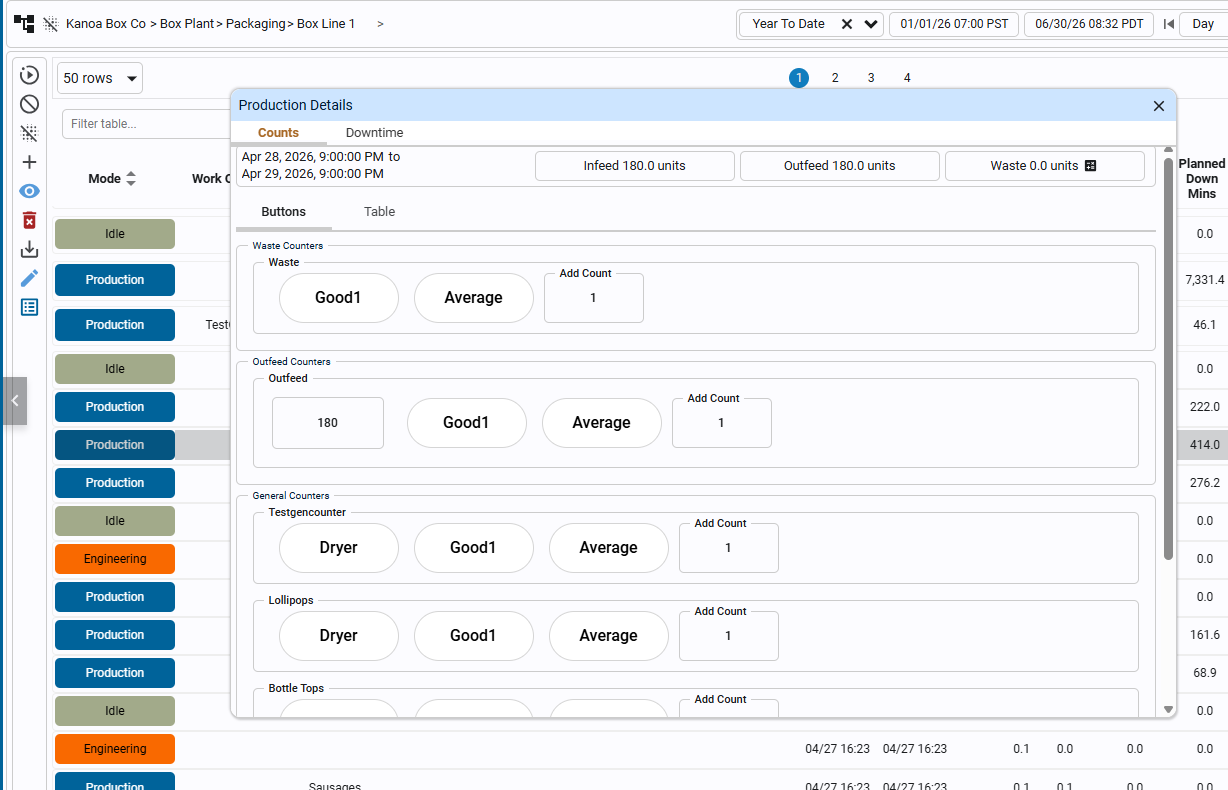
Counts refer specifically to infeed, outfeed, and waste counts of a mode event. Users may retroactively update any of these counts. In order to do this, select a production mode event in the table, and press the eye icon.
In the Counts > Buttons tab, we can see buttons and numeric fields for each type of counter. Each counter type has different buttons to denote the item state of a count. To add a count for a specific item state, press the corresponding button. In the add count field, you may specify the exact value of counts to add. Counts may also be edited in each of the numeric fields.
The Counts tab also has a table view, where adding, editing, and deleting may be done with a more conventional UI.
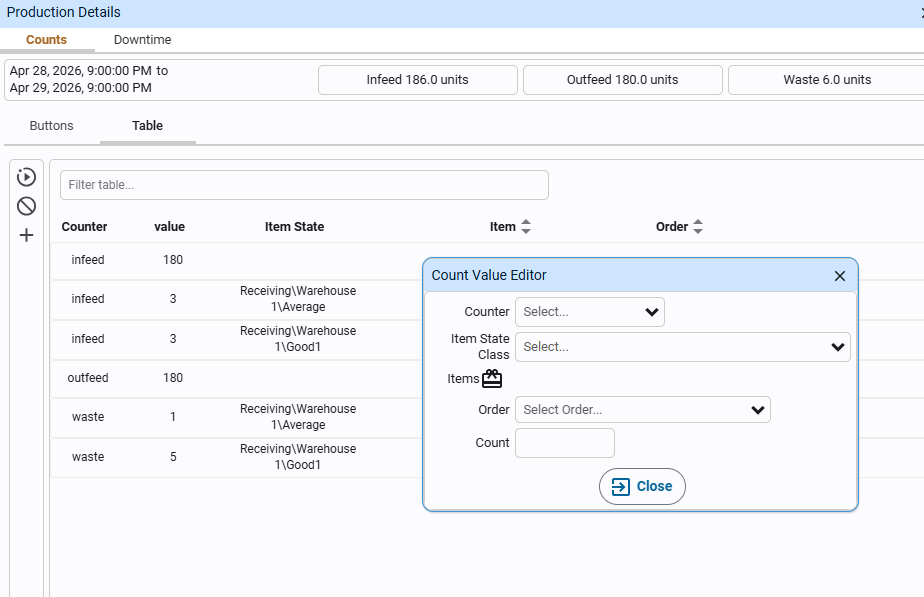
Downtime Events
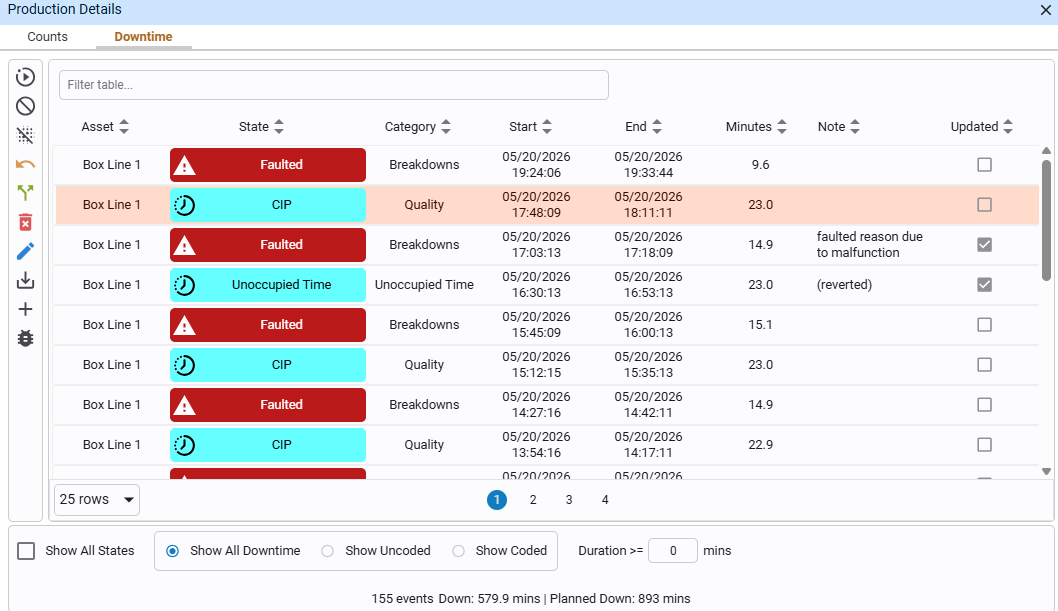
In the same popup, a mode event's downtime events may also be viewed in the Downtime tab. Downtime events can be filtered in the footer to show only strict downtime, or to also be able to explicitly see when the line was running. Downtime events may be filtered by All/Uncoded/Coded, and a minimum duration filter may also be applied.
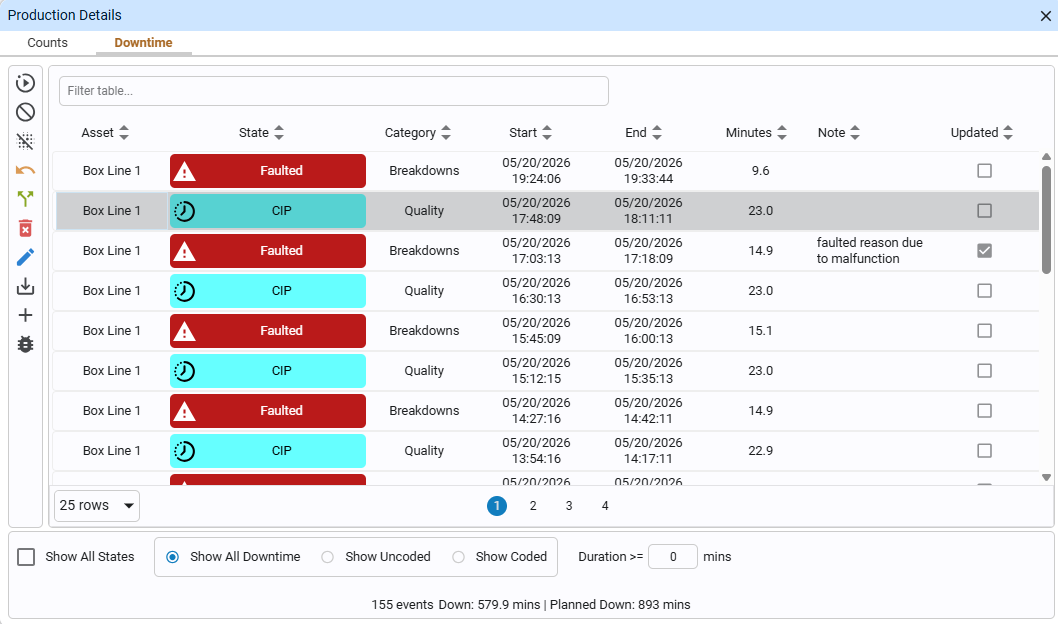
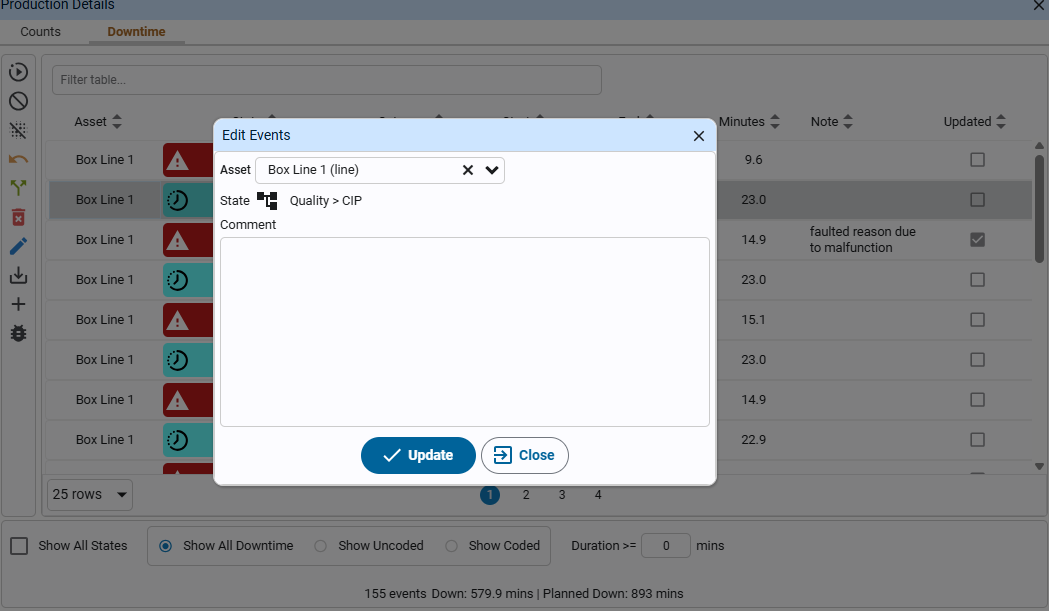
Downtime events may be added, edited, and deleted. A downtime event's asset and state may be edited, and comments may be written for the downtime event as well.
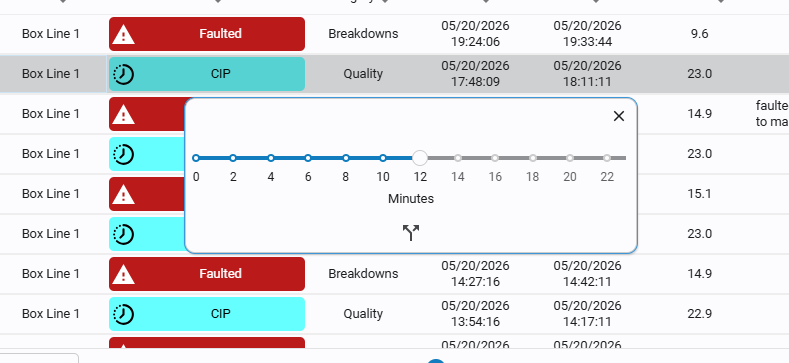
The Downtime editor also allows for more specific editing such as splitting, which allows the user to split a singular downtime event into two. The specific time of split may be specified by the minute within the duration.
Planned downtime events are allowed to be reverted, with the yellow reverse arrow button. Reverting a planned downtime event changes its state to Unoccupied Time, and leaves a note that it was reverted.